You can view your personal user files in your account Files area. User files include profile pictures, uploaded assignment submissions, and other files uploaded to your personal Canvas file storage area.
Notes:
- No other users can view files in your user files.
- By default, each user has 50 MB of storage space in Canvas. Administrators can change the quota for user files for the entire institution. Learn more about file quotas.
- You can also view course files and group files.
View the video transcript
00:07: How do I view my user files?
00:10: In global navigation click the account link then click the files link.
00:16: All your user folders display in the left panel View files in the right panel
00:20: by clicking the name of a folder.
00:23: You can view your user quota and what percentage of that quota has been used.
00:27: Files that have been submitted as assignments and graded discussions do not apply to the
00:31: user quota.
00:34: The my files folder creates folders based on default events in canvas Once
00:39: you upload a file related to one of these areas the folder and accompanying
00:43: file will be created for you. My files also includes any
00:47: additional folders you create to organize your files as well as any
00:51: files not uploaded to a specific folder.
00:54: Any files in the my files folder that are not related to assignment submissions count
00:58: toward your user quota.
01:01: The conversation attachments folder stores files that you attach to conversations
01:05: messages.
01:07: The data exports folder contains zip files created when you download assignment
01:11: submissions from all your courses.
01:14: If your institution enables you to upload a profile picture the profile
01:18: pictures folder stores photos that you upload as a profile picture.
01:23: The submissions folder contains copies of your assignment submissions assignment
01:27: or organized by course folder and displayed alphabetically.
01:31: However, assignments submitted through an external tool or not copied
01:35: to the submissions folder.
01:37: The unfiled folder stores files that you attach to discussion topics or
01:41: discussion replies if attachments are allowed by your instructor.
01:46: If your instructors allow you to view the files Link in course Navigation course
01:50: folders display below your user files.
01:53: Any course groups also display below the course folders.
01:57: You can easily move and organize files from your group files and user
02:01: files. Unless you have permission to manage course files course
02:05: files can only be viewed and downloaded. You can also view
02:09: course files and group files directly from the course or group.
02:14: This guide covered how to view user files
Open User Files
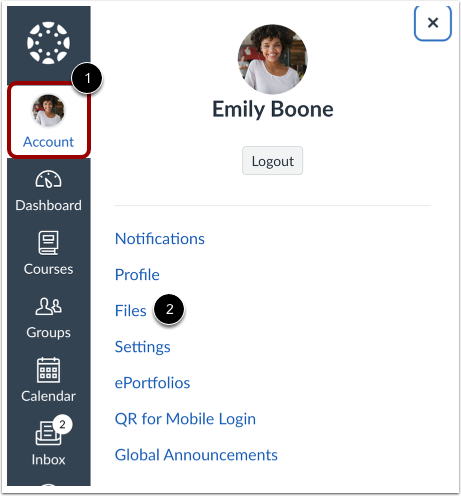
In Global Navigation, click the Account link [1], then click the Files link [2].
View User Files
In the All My Files page, all folders for your own files and course files display. To view your personal files, click the My Files folder [1]. To switch to the old view, click the Switch to Old Files Page button [2].
View My Files
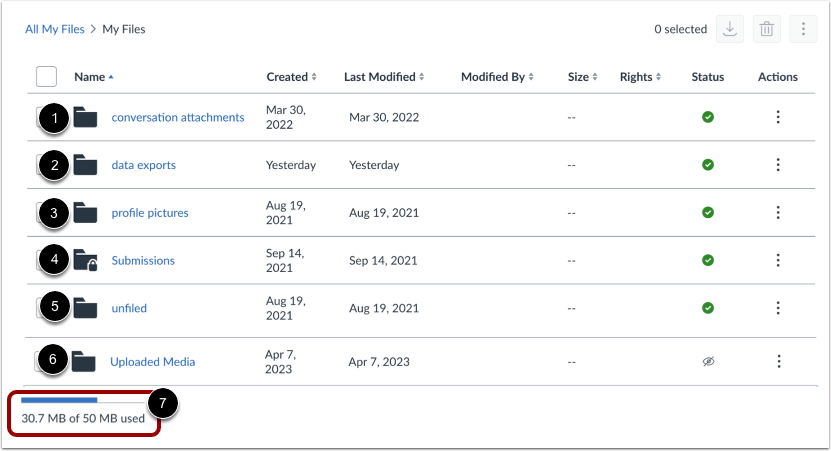
The My Files folder creates folders based on default events in Canvas. Once you upload a file related to one of these areas, the folder and accompanying file is created for you.
- The Conversation attachments folder [1]: Stores files that you attach to Conversations messages.
- The Data Exports folder [2]: Contains ZIP files created when you download assignment submissions from all your courses.
- Profile pictures folder [3]: If your institution enables you to upload a profile picture, this folder stores photos that you upload as a profile picture.
- The Submissions folder [4]: Contains copies of your assignment submissions; assignment are organized by course folder and displayed alphabetically. However, assignments submitted through an external tool are not copied to the Submissions folder.
- The Unfiled folder [5]: Stores files that you attach to discussion topics or discussion replies (if attachments are allowed by your instructor).
- The Uploaded Media folder [6]: Stores media recordings and files you insert, create, or upload.
You can view your user quota and what percentage of that quota has been used [7].
My Files also includes any additional folders you create to organize your files, as well as any files not uploaded to a specific folder. Any files in the My Files folder that are not related to assignment submissions count toward your user quota.
Notes:
View Assignment Submission Folders
If you are an instructor and have a student role in any courses, the Submissionsfolder contains copies of your assignment submissions; assignment are organized by course folder and displayed alphabetically. However, assignments submitted through an external tool are not copied to the Submissions folder.
Note: For online assignment submissions, if you submit a file that you've previously uploaded, you can delete the previously uploaded file after it has been submitted and free up extra storage in your user files.
View Course and Group Files
Your course folders display below your user files [1]. If your Canvas admin added you to a group, group folders also display below the course folders [2].
You can easily move and organize files from your group, course, and user files. You can also view course files and group files directly from the course or group.