Some features and course content in Canvas require pop-ups to be allowed in your web browser. In order to view the course content, links, or external tools, you need to allow pop-ups for Canvas.
View the video transcript
00:07: How do I allow pop-ups for canvas in my browser?
00:10: To allow pop-ups for canvas in Chrome.
00:13: Click the pop-up icon.
00:16: Select the always allow pop-ups and redirects from option.
00:20: To save your preference, click the done button.
00:24: Microsoft Edge displays a message in the browser's address bar when a pop-up
00:28: window is blocked. To allow pop-ups in Microsoft Edge.
00:31: Click the pop-up icon.
00:35: Select the always allow pop-ups and redirects from option.
00:39: To save your preference, click the done button.
00:43: Firefox displays an alert message, when a pop-up window is blocked.
00:48: To allow pop-ups for canvas, click the preferences by button.
00:52: Then select the allow pop-ups for option.
00:56: Safari displays the pop-up icon in the address bar when a pop-up is blocked.
01:01: To allow pop-ups for canvas in Safari, click the Safari menu.
01:07: Then click the settings option.
01:10: In the settings window, click the websites tab.
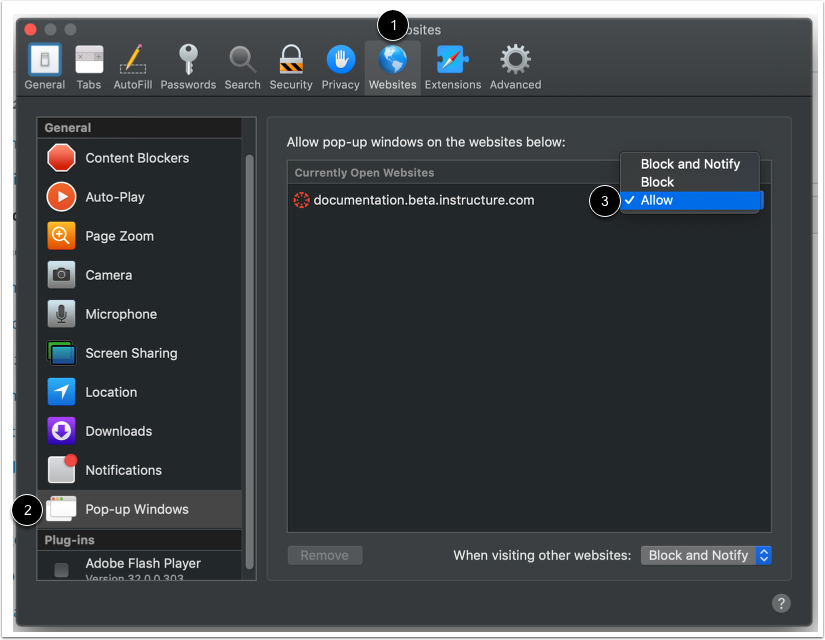
01:14: In the sidebar, click the pop-up Windows link.
01:18: Locate your institutions canvas URL in the block and notify
01:22: drop-down menu, select the allow option.
01:26: This guide covered how to allow pop-ups for canvas in a browser.
View Blocked Pop-ups in Chrome
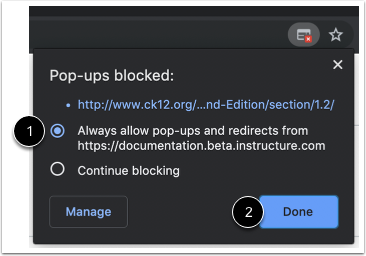
Chrome displays a pop-up icon when a pop-up window is blocked.
Allow Pop-ups in Chrome
To allow pop-ups for Canvas in Chrome, click the pop-up icon. Select the Always allow pop-ups and redirects from option [1]. To save your preference, click the Done button[2].
View Blocked Pop-ups in Microsoft Edge
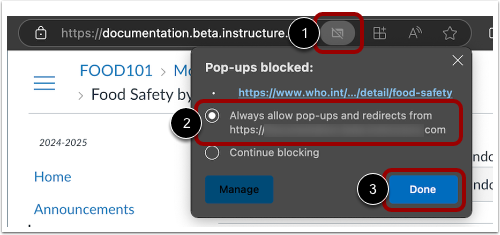
Microsoft Edge displays a message in the browser's address bar when a pop-up window is blocked.
Allow Pop-ups in Microsoft Edge
To allow pop-ups in Microsoft Edge, click the pop-up icon [1]. Select the Always allow pop-ups and redirects from option. To save your preference, click the Done button[3]. Learn more about allowing pop-ups in Microsoft Edge.
View Blocked Pop-ups in Firefox
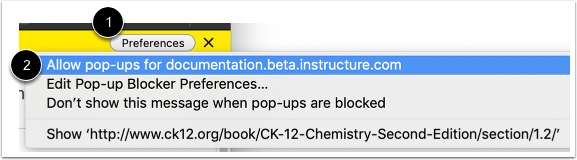
Firefox displays an alert message when a pop-up window is blocked.
Allow Pop-ups in Firefox
To allow pop-ups for Canvas, click the Preferences button [1], then select the Allow pop-upsfor option [2].
View Blocked Pop-ups in Safari
Safari displays the pop-up icon in the address bar when a pop-up is blocked.
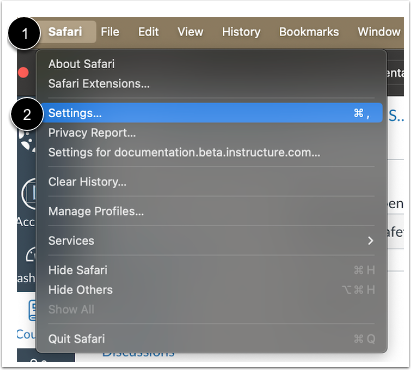
Open Safari Settings
To allow pop-ups for Canvas in Safari, click the Safari menu [1], then click the Settings option [2].
Allow Pop-ups in Safari
In the Settings window, click the Websites tab [1]. In the sidebar, click the Pop-up Windows link [2]. Locate your institution's Canvas URL. In the Block and Notify drop-down menu, select the Allow option [3].