00:05: How do I customize my Dashboard as a student?
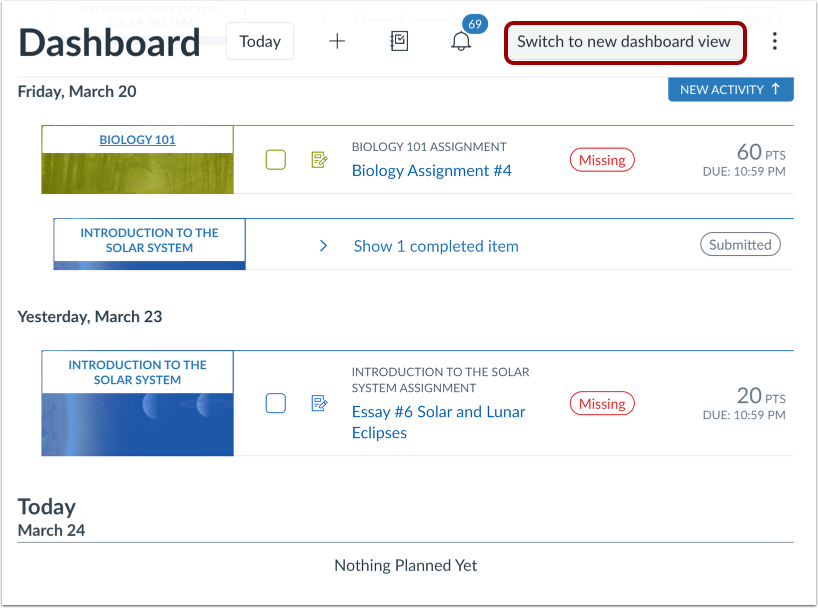
00:08: In Global Navigation, click the Dashboard link.
00:12: Click the Switch to new dashboard view button.
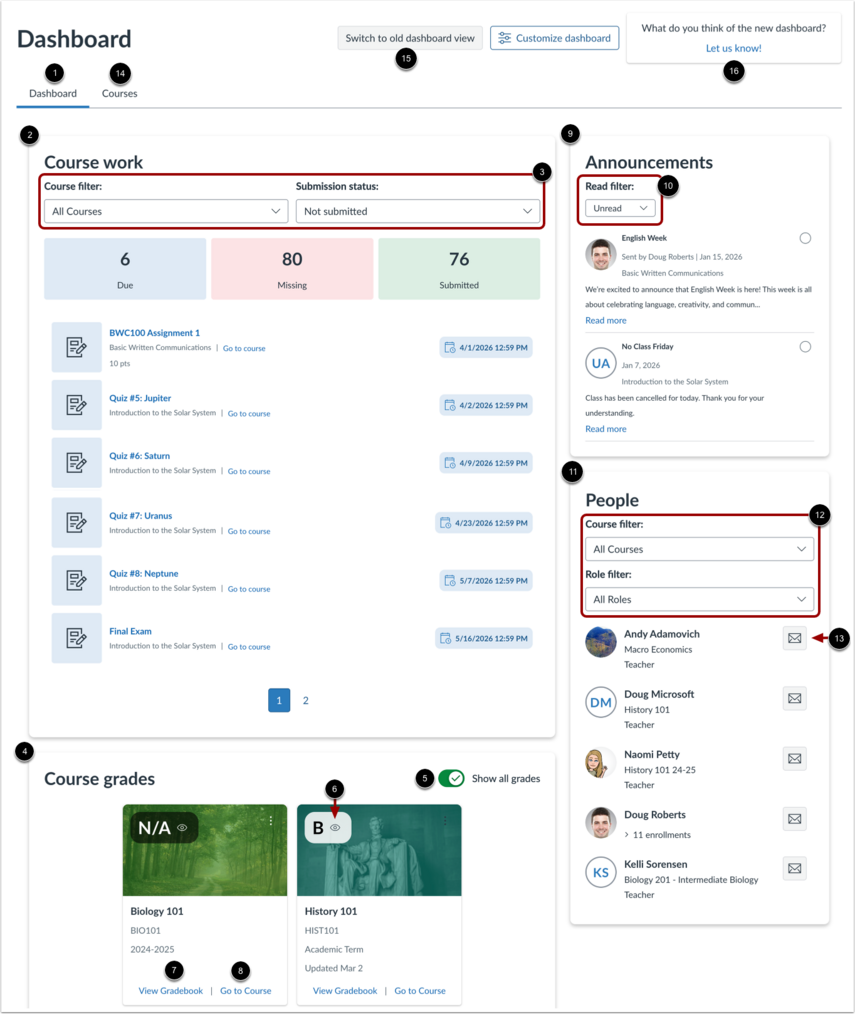
00:16: By default, the Dashboard tab displays with the following widgets.
00:20: Course work displays the number of assignments that are Due, Missing, or Submitted.
00:26: You can filter the results by course or submission status.
00:30: Course grades shows only course cards for easy navigation.
00:34: You can hide or show all grades or individual course grades.
00:39: View the course Grades page.
00:41: Or go to the course.
00:44: Announcements displays new announcements.
00:48: You can filter announcements by Read, Unread, or All status.
00:52: People allows you to filter users by course or role and send Inbox messages.
00:59: To view your courses, click theCoursestab.
01:03: To switch back to the classic dashboard view,
01:05: click the Switch to old dashboard view button.
01:09: To provide feedback on the new dashboard view,
01:11: click the Let us know! link.
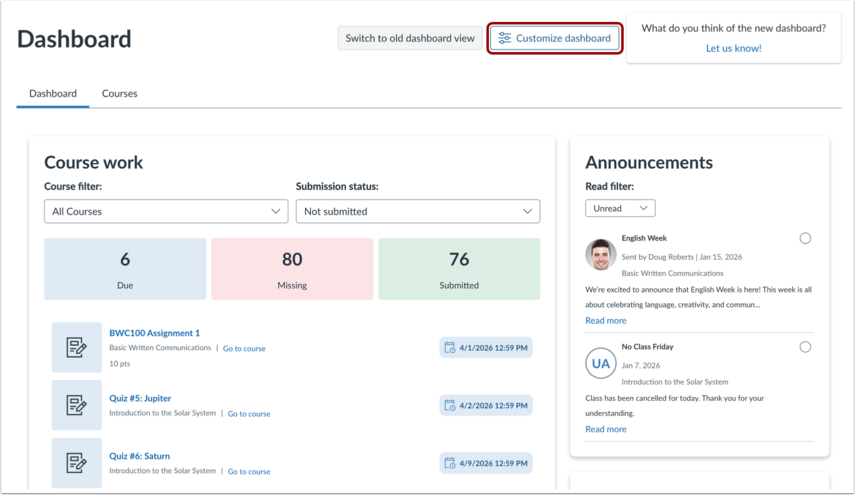
01:14: You can personalize your dashboard by clicking
01:16: the Customize dashboard button.
01:19: To add a widget in your preferred section,
01:21: click the Add widget button.
01:24: Locate the widget you want to include and click the Add button.
01:28: To move a widget, hover over the Drag icon and drag it to the desired location.
01:34: You can also click the icon, then select a moving option.
01:39: To delete a widget,
01:40: click the Delete icon.
01:43: To apply the new view, click theSave changesbutton.
01:47: This guide covered how to customize Dashboard as a student.