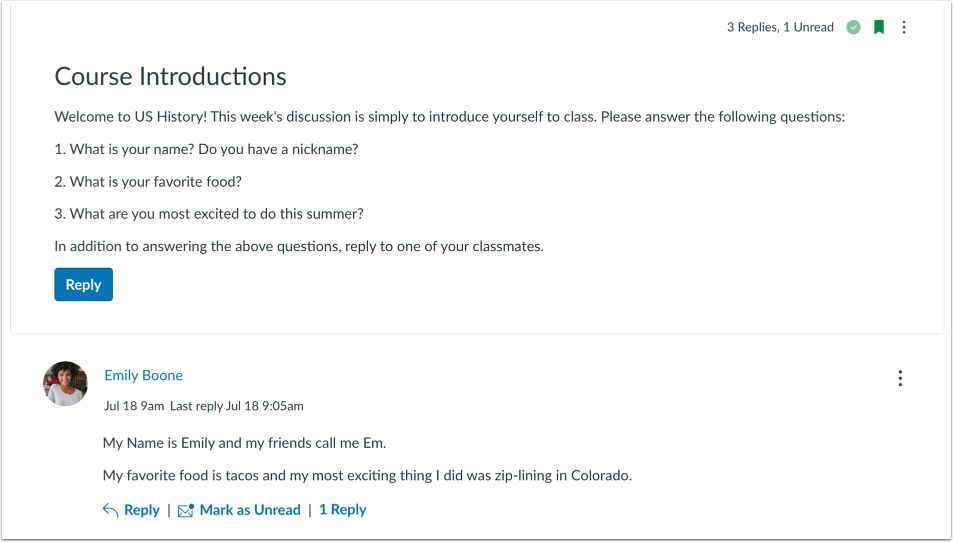
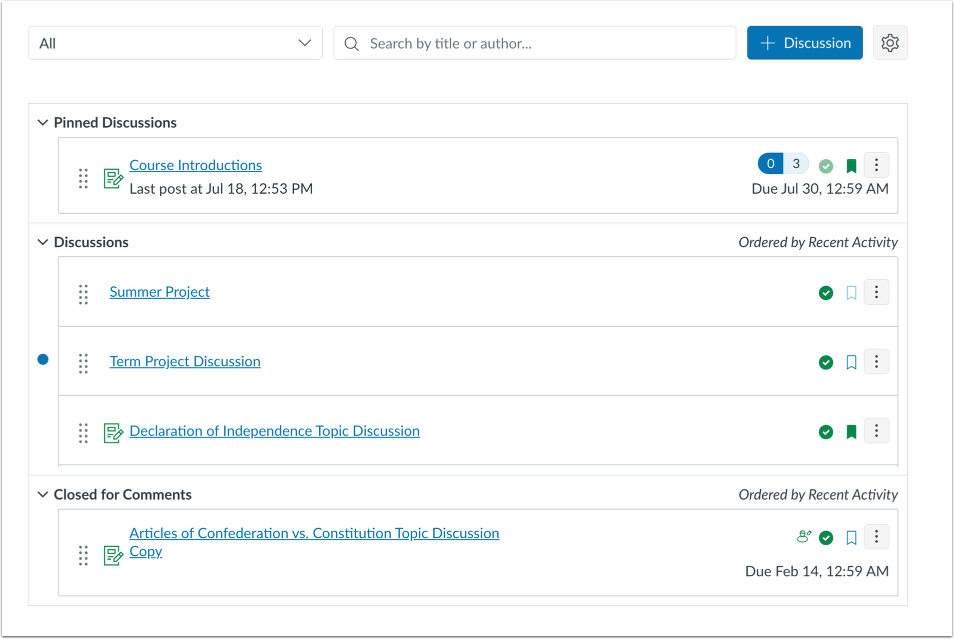
Canvas Discussions provide a built in system for class conversations. Instructors and students can create and participate in as many discussion topics as needed. Discussions support interactive communication for individuals, full classes, and groups.
Discussions can be set up as graded assignments that connect to the Canvas Gradebook. They can also be used for ungraded conversations, topical forums, or current event discussions.
Discussion topics can be structured as focused or threaded discussions. Focused discussions allow only two levels of replies. These work best for short conversations.
Threaded discussions support unlimited reply nesting, making them suitable for longer and more detailed exchanges.Note: Threaded discussions can grow large over time, especially in active courses. Consider using focused discussions when you want quicker and more contained interaction.
View the video transcript
00:09: Focused discussions are relatively short-lived interactions that tend to disappear
00:13: as the course progresses such as a weekly forum for questions related to that
00:17: week's activities. Use a focused discussion for single posts
00:21: and related comments. One discussion leader typically posts a
00:25: message and multiple Learners comment on it. Participants may leave a
00:30: side comment to reply, but cannot develop the conversation Beyond two
00:34: layers of nesting. Focused discussions might also be used to answer
00:38: a single question share resources amongst peers collect
00:43: results from a simple research, activity share solutions to a
00:47: single problem. Correct misconceptions, clarify course,
00:51: policies get feedback on a work in progress, share
00:55: insights about a single reading.
00:58: Fred had discussions include infinite layers of response, nesting allowing
01:02: commenters to continue responding on a single nested thread.
01:06: Threaded discussions, lend themselves to the refining of complex ideas, responses
01:11: and different lines of inquiry can be quickly navigated due to its hierarchical
01:15: structure. Threaded discussions, may be long-standing spaces for
01:19: thoughts that persist throughout an entire course.
01:22: Use a threaded discussion for multiple posts and related comments, one
01:26: or more discussion leaders post a message and multiple Learners comment on it with
01:30: the freedom to create any number of related discussion topics and common.
01:35: Threaded discussions might also be used to host, an answer multiple related
01:39: or unrelated questions. Organized results from a complex research
01:43: activity share and iterate upon ideas shared by each student in
01:47: the course debate, the pros and cons of a single issue or multiple
01:51: issues, ask multiple questions of a single discussion leader.
01:55: Refine ideas between multiple discussion leaders and multiple Learners,
01:59: facilitate group discussions around.
02:02: Multiple topics, facilitate discussions around a discussion Fishbowl
02:07: conversations, explore at length, the feasibility of different solutions
02:11: to a complex problem.
02:14: As an instructor within discussions, you can create edit
02:18: and delete discussion topics. You can also reply to edit
02:22: and delete individual student discussion posts create threaded
02:26: or focused discussions within your course. Create discussions with varied
02:31: due dates for different sections within your course.
02:33: Create a group discussion is an assignment.
02:35: Create a graded discussion for everyone individual students
02:40: course sections, or course groups When a discussion
02:44: is marked as a graded assignment, the canvas speedgrader isolates each
02:48: student's comments from the thread and combines them into one easily readable view
02:52: for grading. Subscribe to a discussion and be notified of replies
02:56: enable podcast feeds within your discussions.
02:59: Embed or attach files images and YouTube videos.
03:03: Add course, content directly from your course delay, discussion
03:07: posts until a defined date, pin discussion threads, that you want your
03:11: students to see at the top of the discussions page.
03:15: As a student within discussions, you can create edit
03:19: and delete discussion topics reply to individual student replies.
03:23: Unless your instructor has disallowed threaded replies, subscribe
03:28: to a discussion and be notified of replies.
03:31: Subscribe to podcast feeds within discussions embed or attach
03:35: files images and YouTube videos.
03:39: As an observer within discussions, you can view your students course
03:43: discussions, subscribe to a discussion and be notified of replies.
Focused Discussions
Focused discussions are relatively short-lived interactions that tend to disappear as the course progresses, such as a weekly forum for questions related to that week's activities.
Use a focused discussion for single posts and related comments. One discussion leader typically posts a message and multiple learners comment on it. Participants may leave a side comment to a reply, but cannot develop the conversation beyond two layers of nesting.
Focused discussions might also be used to:
- Answer a single question.
- Share resources amongst peers.
- Collect results from a simple research activity.
- Share solutions to a single problem.
- Correct misconceptions.
- Clarify course policies.
- Get feedback on a work in progress.
- Share insights about a single reading.
Threaded discussions
Threaded discussions include infinite layers of response nesting, allowing commenters to continue responding on a single nested thread. Threaded discussions lend themselves to the refining of complex ideas. Responses and different lines of inquiry can be quickly navigated due to its hierarchical structure. Threaded discussions may be long-standing spaces for thoughts that persist throughout an entire course.
Use a threaded discussion for multiple posts and related comments. One or more discussion leaders post a message and multiple learners comment on it with the freedom to create any number of related discussion topics and comments.
Threaded Discussions might also be used to:
- Post and answer multiple related or unrelated questions.
- Organize results from a complex research activity.
- Share and iterate upon ideas shared by each student in the course.
- Debate the pros and cons of a single issue or multiple issues.
- Ask multiple questions of a single discussion leader.
- Refine ideas between multiple discussion leaders and multiple learners.
- Facilitate group discussions around multiple topics.
- Facilitate discussions around a discussion (fishbowl conversations).
- Explore at length the feasibility of different solutions to a complex problem.
How do I use Discussions as an Instructor?
Within Discussions you can:
- Create, edit, and delete discussion topics. You can also reply to, edit, and delete individual student discussion posts.
- Create threaded or focused discussions within your course. (Private discussions can be initiated within student groups, which are not viewable by others outside that group.)
- Create discussions with varied due dates for different sections within your course.
- Create a group discussion as an assignment.
- Create a graded discussion for everyone, individual students, course sections, or course groups. When a discussion is marked as a graded assignment, the Canvas SpeedGrader™ isolates each student’s comments from the thread and combines them into one easily readable view for grading.
- Subscribe to a discussion and be notified of replies.
- Enable podcast feeds within your discussions.
- Embed or attach files, images, and YouTube videos.
- Add course content directly from your course.
- Delay discussion posts until a defined date.
- Pin discussion threads that you want your students to see at the top of the Discussions page.
Notes:
- You can learn more about using Discussions as an instructor.
- You can embed an image directly into the post (visible inline) by simply dragging the file into the reply text box, or by clicking the Image icon in the Rich Content Editor toolbar.
- You can also use keyboard shortcuts to navigate individual discussion threads. To view a window with a list of keyboard navigation shortcuts, press Alt+F8 (on a PC keyboard) or Option+F8 (on a Mac keyboard) simultaneously on your keyboard.
What settings can I control in Discussions?
If you are an instructor, you can control certain settings within Discussions:
How do I use Discussions as a Student?
Within Discussions, you can:
- Create, edit, and delete discussion topics.
- Reply to individual student replies, unless your instructor has disallowed threaded replies.
- Subscribe to a discussion and be notified of replies.
- Subscribe to podcast feeds within discussions.
- Embed or attach files, images, and YouTube videos.
Notes:
- Your instructor may have some of the above options disabled in your course.
- You can embed an image directly into the post (visible inline) by simply dragging the file into the reply text box, or by clicking the Image icon in the Rich Content Editor toolbar.
- You can learn more about using Discussions as a student.
How do I use Discussions as an Observer?
Within Discussions, you can:
- View your student's course discussions.
- Filter your student's course discussions.
- Subscribe to a discussion and be notified of replies.
Notes: