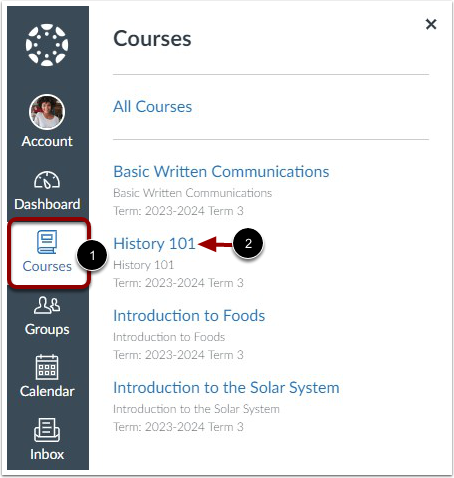
00:08: In global navigation click the courses link then click the name
00:12: of the course.
00:14: The course home page involves course navigation the content area and
00:18: the sidebar.
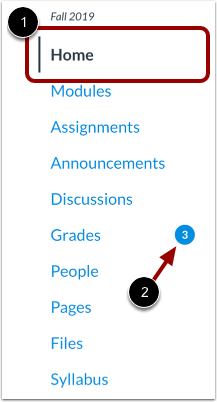
00:20: The course homepage is viewed from the course navigation Homelink.
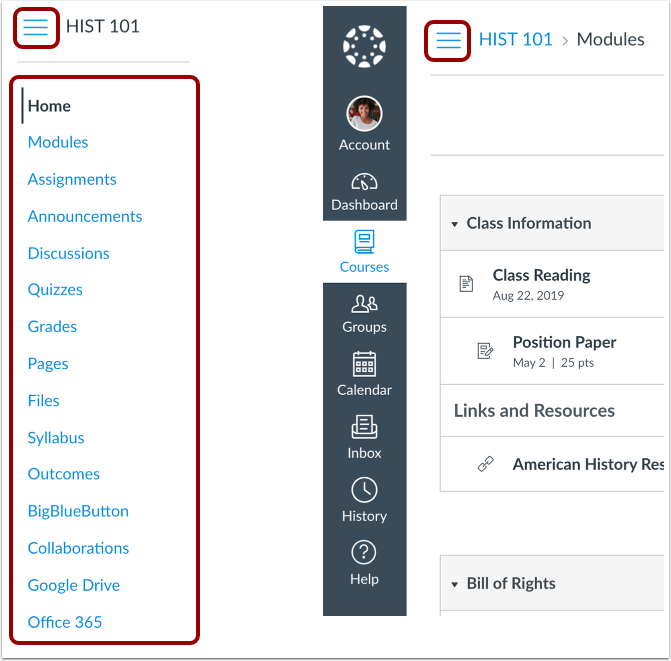
00:25: Course navigation includes links that help you and your students get to specific locations
00:29: in the course instructors can customize what links are
00:33: shown in a course. So if you don't see links that may display and other courses your
00:37: instructor has hidden those links from your view.
00:40: The active link of the page you are viewing is highlighted with different color text
00:44: and a line indicator. This highlight helps you quickly identify the
00:48: feature area. You are currently viewing in canvas.
00:53: You may also see course indicators that show updates to your course grades when your instructor
00:57: grades your assignments.
01:00: To expand or collapse, of course navigation, then you click the menu icon when
01:05: you choose to expand or collapse the global navigation menu.
01:08: Your preference is applied to all of your courses.
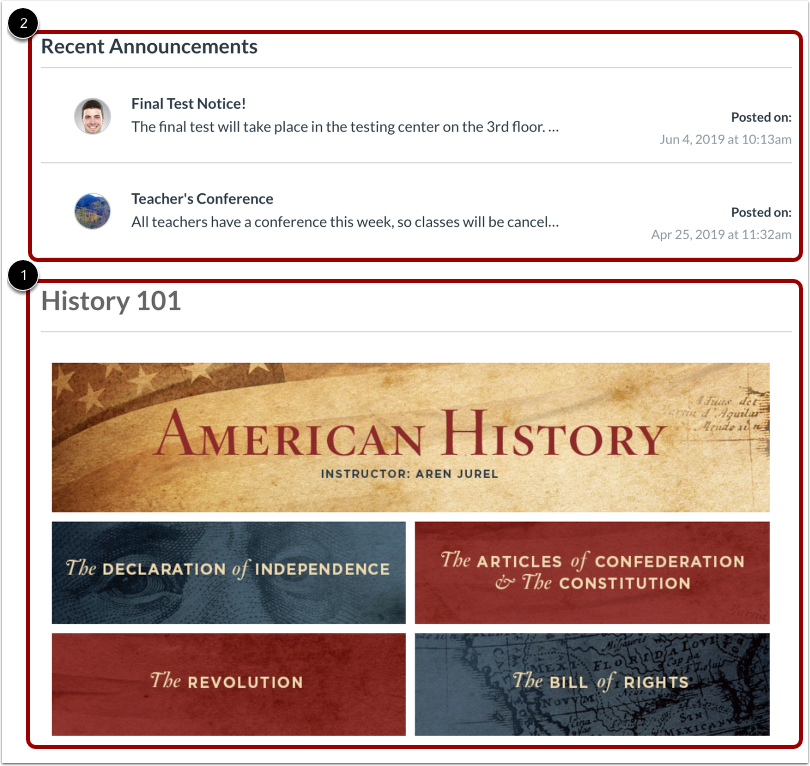
01:12: Home page content and all Candace content is displayed in the content
01:16: area. The content can be a page the syllabus
01:20: discussions announcements quizzes or imported
01:24: content the content could also show the course activity stream,
01:28: which is a list of all recent activity in the course.
01:33: Your homepage may also display recent announcements at the top of the page.
01:37: The homepage content also defines what sections display in the sidebar
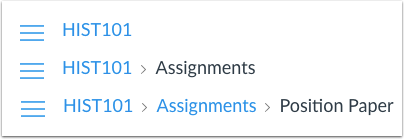
01:43: Bread crumbs appear above the course content area As
01:47: you view course content the breadcrumbs leave a trail to show where you were inside
01:51: the course, you can follow these links backward to visit prior course
01:55: content.
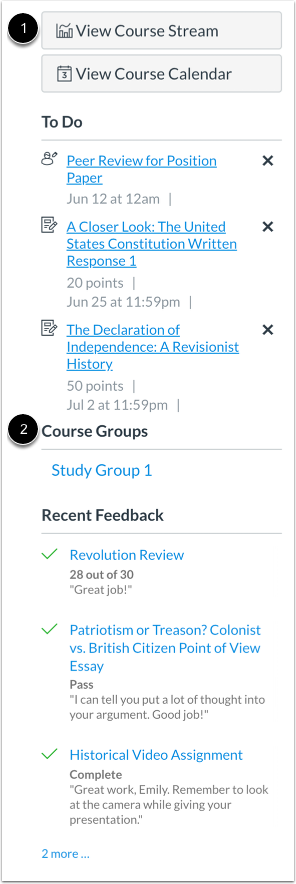
01:57: The sidebar functions the same as the dashboard sidebar, but only shows content
02:01: for the specific course and includes additional options.
02:05: If your course homepage displays a page other than the course activity stream,
02:09: you can view the course activity stream by clicking the sidebar view course
02:13: stream button when the homepage is set as a course activity Street.
02:17: This button will not appear.
02:20: If you have been added to a group in your course, the course group section
02:24: includes links to your course groups.
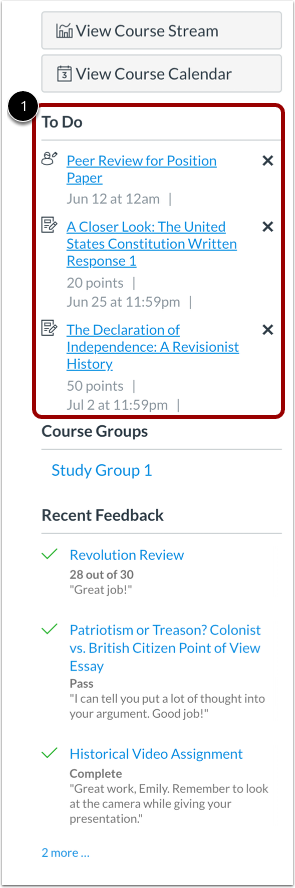
02:27: The sidebar always shows it to do section which shows all recent announcements
02:31: and up to seven assignments that are due in the upcoming weeks including ungraded
02:35: quizzes and assignments that do not require a submission each item
02:39: in the to-do list displays the assignment name the number of points and the
02:43: due date for the assignment. Once the due date has passed items
02:47: remain in this section for 4 weeks.
02:51: The sidebar can also include a variety of other sections depending
02:55: on the layout your instructor sets for the course homepage additional
02:59: sidebar options include the assignment list calendar and assignment groups
03:03: and recent feedback.
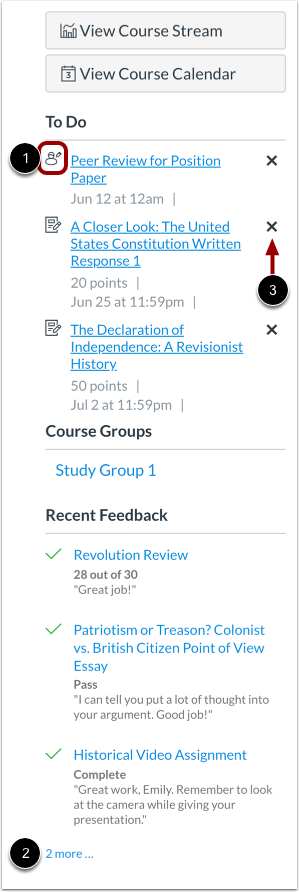
03:06: Each section item displays an icon to differentiate between assignments and
03:10: peer-review assignments. It's a section contains more items
03:14: that are listed a link will appear under the list that you can use to view additional
03:18: items.
03:20: The to do section shows up to seven items with due dates in the upcoming weeks
03:24: to view more items.
03:26: You must manually remove items from the list to remove a
03:30: to-do item. Click the remove icon.