00:07: How do I start a collaboration in a group as a student?
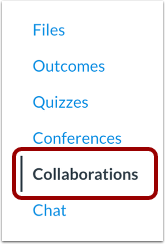
00:11: In group navigation click the collaborations link
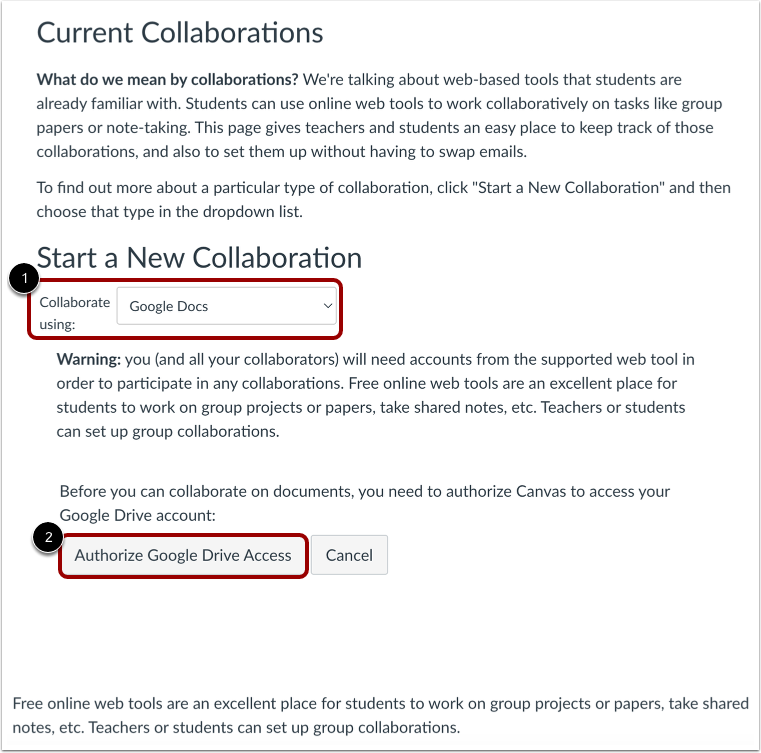
00:15: By default, the collaborate using drop-down menu is set to Google Docs.
00:20: If you have not previously authorized a web tool access in canvas, you
00:24: may be prompted to authorize access. Click the authorize
00:28: Google Drive access button.
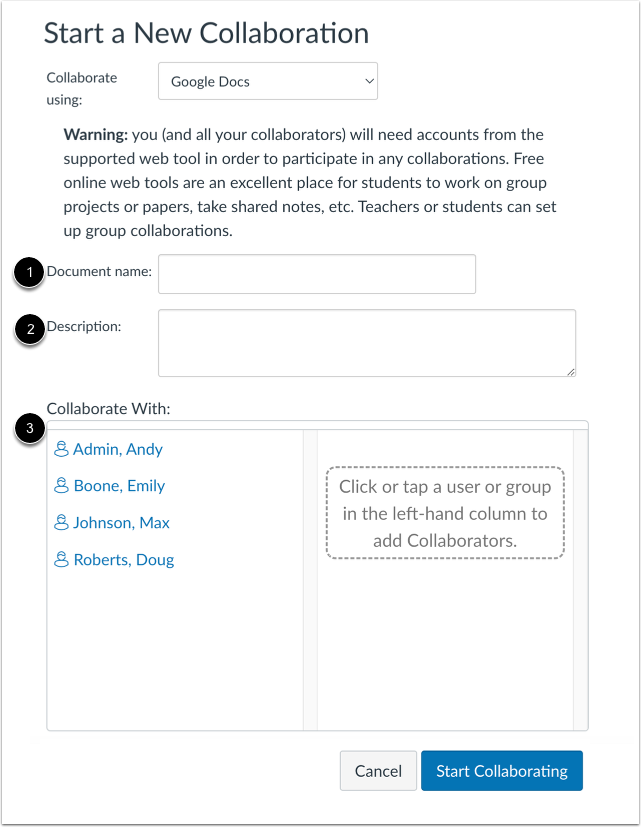
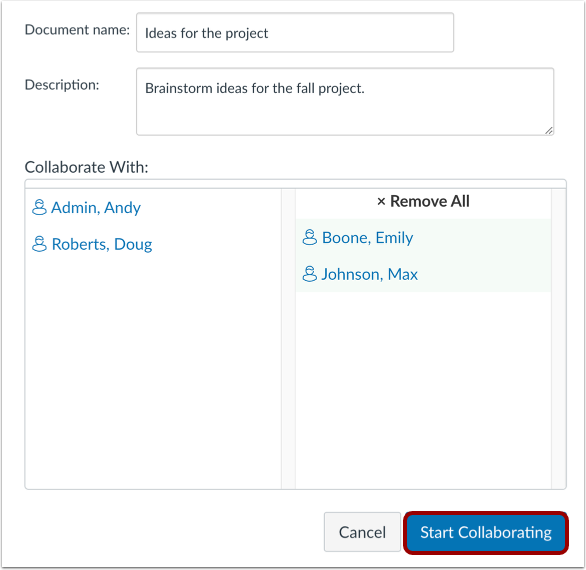
00:31: To create a collaboration document using Google Docs enter a document
00:35: named in the document name field create a description and click the
00:39: names of the people you want to collaborate with?
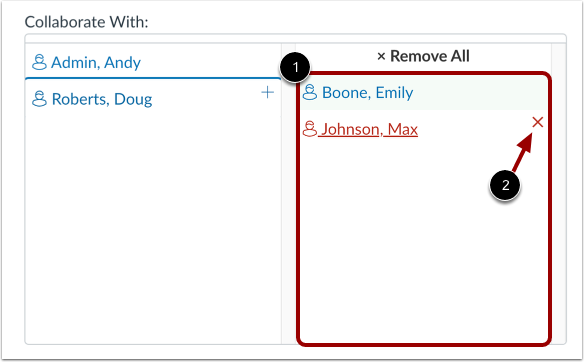
00:42: Verify the users you want to collaborate with? To remove any
00:46: user hover your cursor over the username and click the remove icon.
00:52: Click the start collaborating button.
00:55: This guide covered how to start a collaboration in a group as a student.
Open Collaborations
In Group Navigation, click the Collaborations link.
Authorize Access
By default, the Collaborate using drop-down menu is set to Google Docs [1].
If you have not previously authorized a web tool access in Canvas, you may be prompted to authorize access. Click the Authorize Google Drive Access button [2].
Create Collaboration
To create a collaboration document using Google Docs, enter a document name in the Document name field [1], create a description [2], and click the names of the people you want to collaborate with [3].
Verify Collaborators
Verify the users you want to collaborate with [1].
To remove any user, hover your cursor over the user name and click the Remove icon [2].
Start Collaborating
Click the Start Collaborating button.