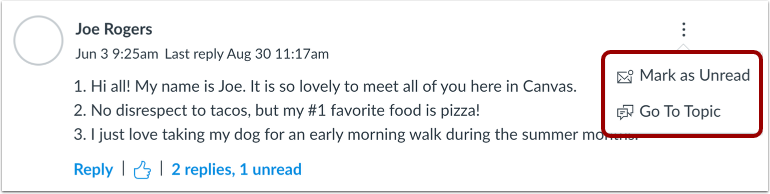
If your instructor allows, you can edit and delete your own discussion posts. If the edit or delete option does not display, your instructor has restricted this setting in your course.
Note: This setting does not affect discussions in course groups.
View the video transcript
00:07: How do I edit or delete discussion replies as a student?
00:11: In course navigation click the discussions link
00:15: Click a discussion title
00:18: Locate the reply you want to edit and click the options icon.
00:21: Then select the edit option.
00:24: Edit the discussion reply in the rich content editor.
00:28: To post your edits. Click the save button.
00:31: To delete your reply to a discussion topic click the reply options icon
00:35: then select the delete option.
00:38: Click the okay button.
00:41: If you deleted discussion reply with other course user replies attached canvas
00:45: shows a deleted by notification. The notification includes your name
00:49: this entry cannot be removed.
00:53: If students are allowed to edit their discussion posts, you can view the edit history
00:57: of their post. To view the history click the view
01:01: history link
01:03: In the edit history window, you can view any version with the date and time
01:07: stamp of the students post. To expand all of the versions click
01:11: the expand all button. To return to the discussion
01:15: click the close button.
01:18: If your instructor has restricted the option to edit or delete your discussion replies
01:22: the options do not display in the options menu.
01:26: This guide covered how to edit or delete discussion replies as a student.
Open Discussions
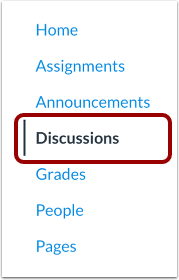
In Course Navigation, click the Discussions link.
Open Discussion
Click a discussion title.
Edit Discussion Reply
Locate the reply you want to edit and click the Options icon [1]. Then select the Edit option [2].
To copy a permalink to a specific reply, select the Copy Link option [3].
Save Edits
Edit the discussion reply in the Rich Content Editor [1]. To post your edits, click the Save button [2].
Delete Reply
To delete your reply to a discussion topic, click the reply Options icon [1], then select the Delete option [2].
To copy a permalink to a specific reply, select the Copy Link option [3].
Confirm Delete
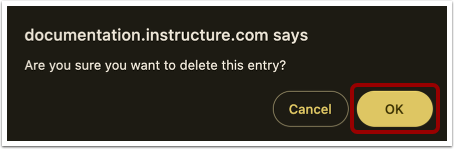
Click the OK button.
Verify Delete
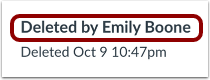
If you delete a discussion reply with other course user replies attached, Canvas shows a Deleted by notification. The notification includes your name. This entry cannot be removed.
Note: Course instructors can see that you deleted your replies in the discussion.
View Reply History
If students are allowed to edit their discussion posts, you can view the edit history of their post.
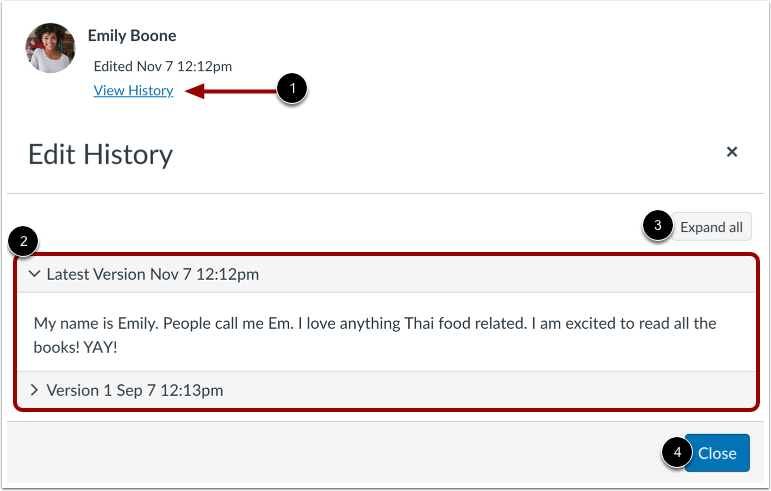
To view the history, click the View History link [1].
In the Edit History window, you can view any version with the date and time stamp of the student's post [2]. To expand all of the versions, click the Expand all button [3].
To return to the discussion, click the Close button [4].
View Restricted Options
If your instructor has restricted the option to edit or delete your discussion replies, the options do not display in the Options menu.