You can easily edit a page to collaborate on group projects or assignments.
Note: Your instructor may also allow you to edit course pages.
00:07: How do I change a page name in a group?
00:10: In global navigation click the group's link
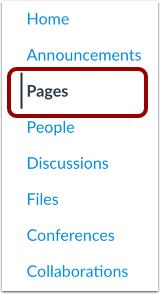
00:14: In group navigation click the pages link
00:18: Pages is designed to open to the front page for a group if there is a front page
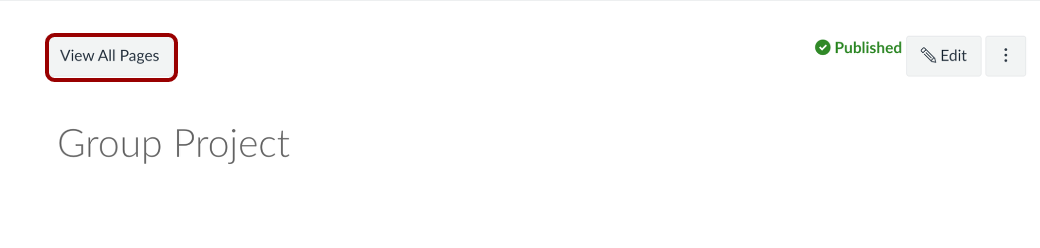
00:22: selected. Click the view all pages button to select a page
00:26: from the pages index.
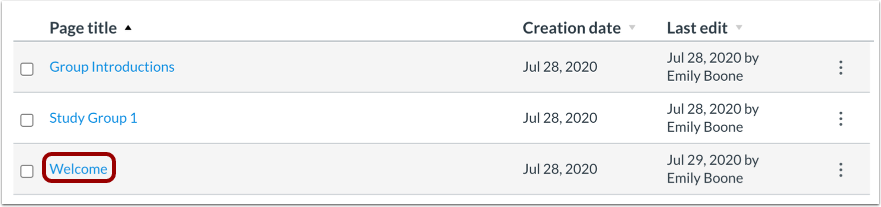
00:29: Click the name of the page you wish to edit.
00:32: Click the edit button.
00:35: Delete the previous title and rename the page title.
00:39: To save changes click the save button.
00:42: View the changes you made to the page.
00:45: This guide covered how to edit a page in a group.
Open Pages
In Group Navigation, click the Pages link.
View Pages
Pages is designed to open to the front page for a group, if there is a front page selected. Click the View All Pages button to select a page from the Pages Index.
Open Page
Click the title of the page you wish to change.
Edit Page
Click the Edit button to make changes to the page.
Edit Content
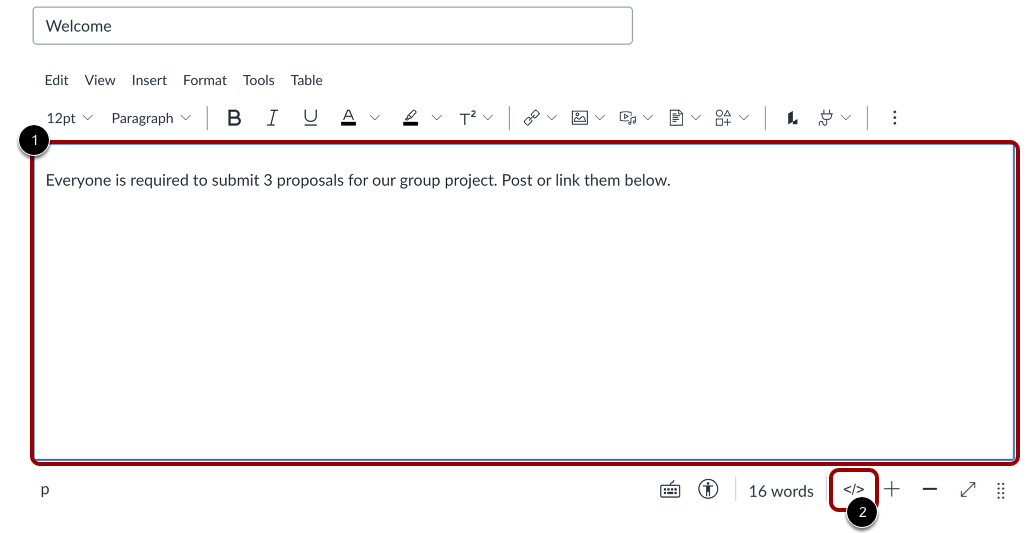
Edit the content and add links and media using the Rich Content Editor [1] or switch to the HTML Editor [2].
Save Changes
Click the Save button.
View Changes
View the changes you made to the page.