The Chat tool can be used for real-time conversation with course users. Any user in the course can participate in a chat conversation. All content in a course chat can be viewed by anyone in the course. Currently there is no load limit for a course chat, but larger numbers of course users may affect performance.
A user must be actively viewing the chat tool to appear in the chat list. You can open Chat in a new browser window while viewing other areas in Canvas.
Note:
- If you cannot view the Chat tool, Chat has not been enabled for your institution.
- You cannot delete chat messages.
- Safari 13.1 contains an update that may cause issues with chat alerts. You can avoid errors with files and images by disabling cross-site tracking prevention in Safari when using Canvas.
View the video transcript
00:05: How do I use Chat as a student?
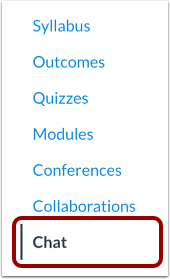
00:08: In Course Navigation, click the Chat link.
00:11: When you open the Chat page, you immediately join the chat. Chat discussion appears in the content window.
00:18: To receive alerts for new chat messages, click the New message alerts button. If this option is turned on, you will receive alerts if Chat is open in Canvas but your browser window is minimized or you are viewing another browser tab. Alerts will not send if you leave Chat to view another area in Canvas.
00:36: To receive alerts for new chat messages, click the New message alerts button. If this option is turned on, you will receive alerts if Chat is open in Canvas but your browser window is minimized or you are viewing another browser tab.
00:50: Alerts will not send if you leave Chat to view another area in Canvas.
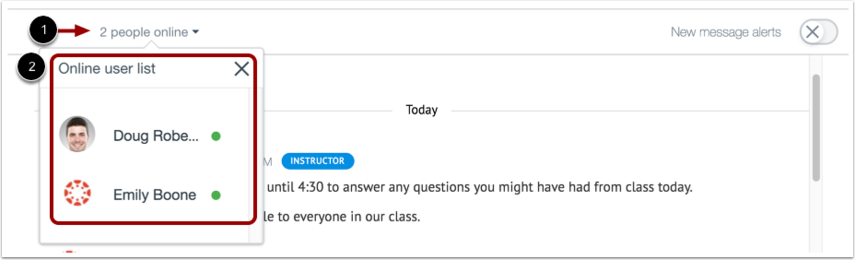
00:55: The chat displays the number of users currently in the chat. To view a list of these users, hover your cursor over the number.
01:03: When a user sends multiple chat messages without another user sending a message, all messages will appear under the first message's time stamp. To view additional time stamps, hover your cursor over the message.
01:16: To send a chat message, enter your message in the chat window.
01:21: Click the Send button to send your message.
01:24: To add an emoji to your message, click the Emoji icon.
01:29: This guide covered how to use Chat as a student
Open Chat
In Course Navigation, click the Chat link.
View Chat
When you open the Chat page, you immediately join the chat. Chat discussion appears in the content window [1].
To receive alerts for new chat messages, click the New message alerts button [2]. If this option is turned on, you will receive alerts if Chat is open in Canvas but your browser window is minimized or you are viewing another browser tab. Alerts will not send if you leave Chat to view another area in Canvas.
Each course includes its full message history in the chat. You can access your chat history at any time by loading more results and scrolling through earlier course chats.
View Online Users
The chat displays the number of users currently in the chat [1]. To view a list of these users [2], hover your cursor over the number.
View Time Stamp
When a user sends multiple chat messages without another user sending a message, all messages will appear under the first message's time stamp. To view additional time stamps, hover your cursor over the message.
Send Message
To send a chat message, enter your message in the chat window [1]. To add an emoji to your message, click the Emoji icon [2]. Then click the Send button [3].