Showcase your best work by adding assignment submissions directly to your portfolio projects. Linking these submissions allows you to preserve your portfolio evidence across terms.
Open Portfolio
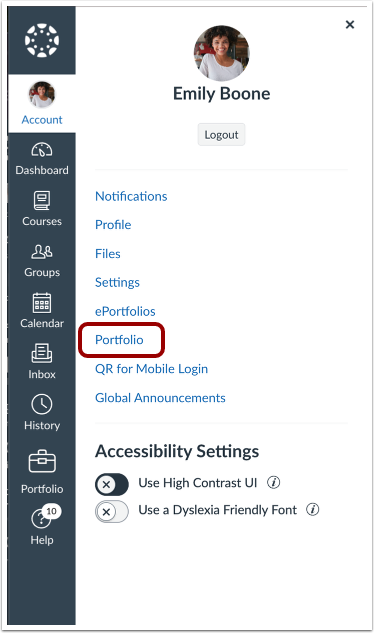
In User Navigation, click the Portfolio link.
Select Portfolio
Select the portfolio you want to open.
Open Project
To open a project, click the project card.
Add Assignment Submissions
In the Attachments section, click the Add assignment submissions link.
Select Assignments
To search for a specific assignment, enter it in the Search bar [1]. To filter assignments by course, select one or multiple courses in the Courses drop-down menu [2]. To add a course assignment to your submission, click the checkbox [3]. To add your selected assignments, click the Select button [4].
Notes:
- Unsupported assignment submission types include Student annotations and External Tools (LTI).
- Files exceeding 50MB cannot be displayed in the preview. You can access these files with a direct link.
- If you need a large file to be viewable directly in the browser, you can host it externally and add it as a Website URL.
- Generating secure download links for your files can take a few moments. Large portfolios may require additional time before all files are available for download.
Delete Assignment
To delete an assignment submission, click the Delete icon.
Submit Assignment
Click the Submit button once you're done.