00:05: How do I view my grades in a current course?
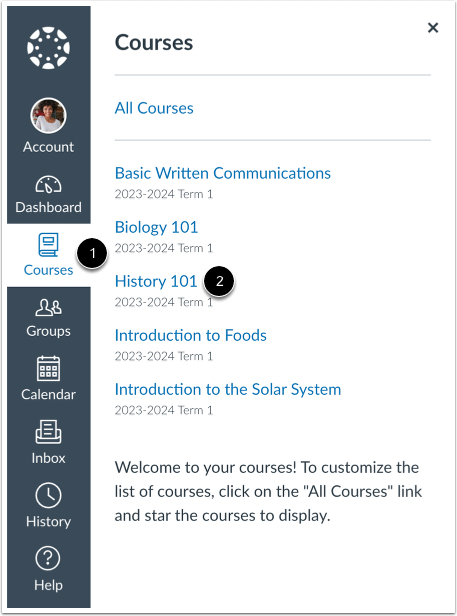
00:08: In Global Navigation, click the Courses link, then click the name of
00:12: the course.
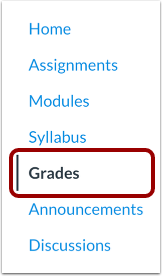
00:14: In Course Navigation, click the Grades link.
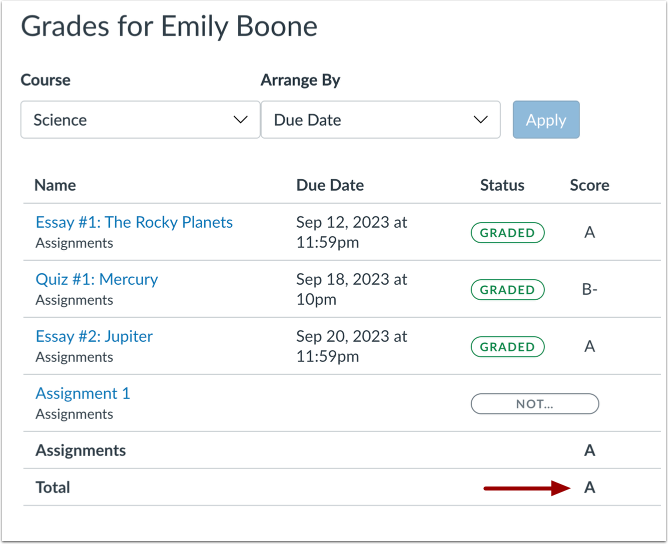
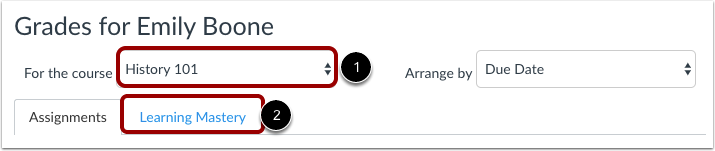
00:18: From the grades page you can select the Course for which you want to view grades.
00:21: By default, grades are sorted chronologically by assignment
00:25: due date. In the Arrange by menu,
00:28: you can also sort by module, assignment name,
00:31: or assignment group. To see the specified grades, click the
00:35: Apply button. Assignments that are not part of a module will be shown at the
00:39: end of the assignments list in alphabetical order.
00:42: However, if modules or assignment groups aren't used in
00:46: your course, they won't be included as sorting options.
00:50: You can view the name of the assignment, the assignment due date, the assignment
00:54: submission date the assignment status, the score you earned,
00:58: and the total point value of the assignment.
01:00: You may also be able to view whether the assignment includes scoring details,
01:05: comments, or rubrics.
01:08: You may see various grade icons in the score column indicating the type of assignment
01:12: you submitted. These assignments have not been graded by your instructor.
01:16: Once the assignment is graded, the icon will be replaced by your
01:20: score.
01:21: To print your grades, click the Print Grades button.
01:25: By default the grades page displays the current grading period. If an assignment does not include a due date, it will display as a part of the last grading, period.
01:35: To view grades for another course. Click the course, drop down menu, to see the specified grading, period, and course, click the apply button.
01:45: If grading periods are enabled in your course, you can view your grades according to grading, period.
01:51: If your course includes weighted assignment groups, assignment groups may vary in the sidebar depending on which grading period you are viewing.
01:59: An assignment group displays if the group has at least one assignment due in the selected grading period. When grading periods are weighted and you select the All Grading Periods option, the sidebar displays the weights of each grading period.
02:13: Your instructor may enforce an automatic late policy in your course. Any
02:17: assignments that are submitted after the due date are marked as late.
02:20: The late policy automatically deducts a percentage of the grade from
02:24: the total score. Late assignments display the Late icon in the Status
02:29: column of the gradebook. To view submission details for a late assignment, click
02:33: the submission name.
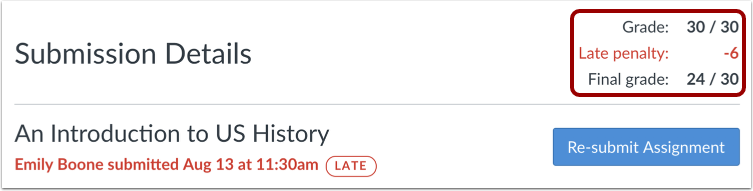
02:35: The Submission Details page displays your grade, the amount deducted
02:39: for the late penalty, and the final grade.
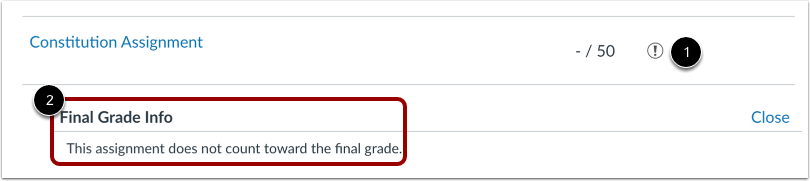
02:43: Some assignments include a black warning icon, which alerts you that points earned
02:47: from this assignment will not count toward your final grade.
02:50: You should still submit this assignment unless it has been excused by your instructor.
02:55: If there are comments in your assignment, the assignment displays a Comment icon. To view comments, click the Comment icon.
03:03: If there are unread comments, an indicator is displayed. Once the comments are read, the indicator disappears.
03:11: Comments are organized chronologically.
03:14: If there is feedback besides text comments, such as media comments, click
03:19: the Feedback icon to open the submission details and view the other feedback.
03:24: To close comments, click the Close link.
03:28: If you can view scoring details, click the Check Mark icon.
03:32: You can view the grade distribution for the assignment and view the mean, high, low,
03:36: median, upper quartile, and lower quartile scores.
03:41: The graph's horizontal line extends from 0 to the assignment's highest possible score.
03:48: The white box extends from the lowest to the highest student scores. Your score appears as a blue square on this plot.
03:56: You will only see scoring details if more than five other students have submitted that assignment in the course.
04:03: If you do not see the scoring details, then fewer than five students have submitted the assignment.
04:09: To close scoring details, click the Close link.
04:13: An assignment may also include a Rubric icon, which means the assignment
04:17: included a rubric for grading purposes. To view your results, click
04:21: the icon. View your score based on the rubric. To close
04:25: the rubric, click the Close Rubric link.
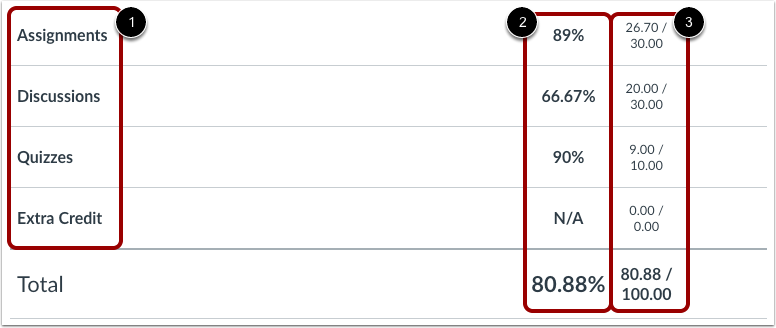
04:29: The Grades page will list the assignment groups
04:31: included in your course. Assignment groups allow instructors to organize
04:35: assignments, discussions, and quizzes into groups and apply
04:40: specific grading rules or weights to those groups.
04:43: You can view the percentage score for each group and the points you've earned versus
04:48: the total points possible.
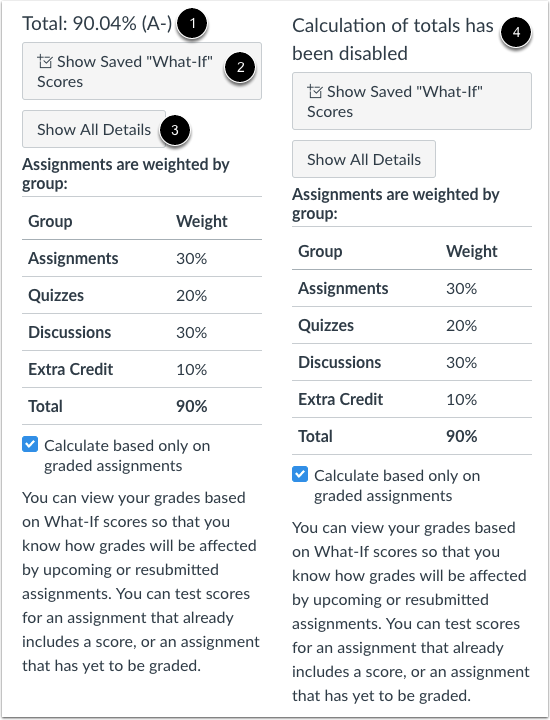
04:50: The grade summary shows your total grade allows you to view any saved
04:54: What-if scores and allows you to show or hide, all scoring details, comments
04:59: and rubrics shown in the grades page. Depending
05:03: on the grade calculation for your course, your total grade May display as a point
05:07: value or as a percentage
05:10: Your instructor may restrict you from viewing your total grade.
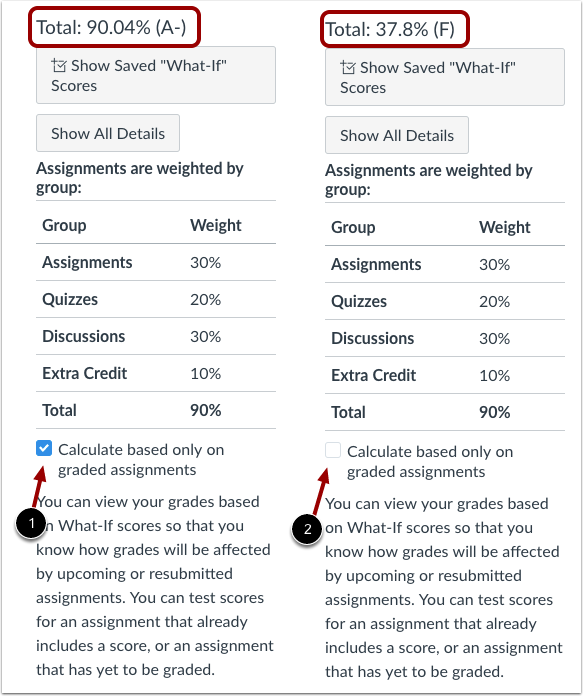
05:14: The current grade is calculated by adding up the graded assignments according to their
05:18: weight in the course grading scheme. This grade is calculated with the Calculate
05:22: based only on graded assignments checkbox selected in the sidebar.
05:27: The total grade is calculated by adding all the assignments according to their weight
05:31: in the course grading scheme (both graded and ungraded assignments). To
05:36: view the total grade, deselect the sidebar checkbox. The grade
05:40: at the top of the sidebar will reflect your total grade.
05:44: The sidebar shows the information about how your grades are calculated.
05:49: If your assignment groups are weighted, the sidebar will show the breakdown of weighted
05:53: assignment groups.
05:55: Assignment groups will always display as a percentage.
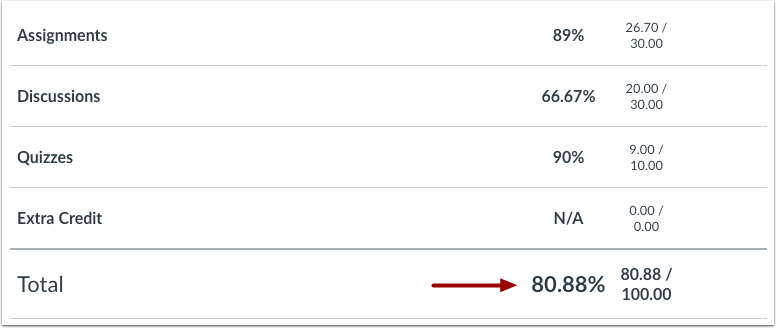
05:58: If your instructor allows you to view total grades, you can see a
06:02: breakdown in the points you've earned versus the total points possible.
06:06: If your course does not use assignment groups, your total grade can be displayed in
06:10: points or percentage. If your total grade is displayed in points,
06:15: you can view your overall grade percentage.
06:17: Again, your instructor may restrict you from viewing your total grade.
06:22: If your institution restricts viewing quantitative data, your total
06:26: grade is displayed using a grading scheme, usually letter grades.
06:30: Again, your instructor may restrict you from viewing your total grade.
06:35: If you have more than one course, you can use the course drop-down menu to view
06:39: grades in other courses. If your grades page
06:43: shows assignments and learning Mastery headings, you can also view your standards
06:47: based scores in the learning Mastery link.
06:51: This guide covered how to view my grades in a current course.