As a student, you can make an announcement within a group.
View the video transcript
00:07: How do I add an announcement in a group?
00:10: You can add an announcement in a group by clicking the group navigation home.
00:14: Then click the add announcement button.
00:18: You can also add an announcement in a group by clicking the announcements link.
00:22: Then click the add announcement button.
00:25: Enter an announcement title in the topic title field.
00:29: Add content using the rich content editor.
00:32: After adding an announcement in the rich content editor a word count displays.
00:38: If enabled by your instructor, you can disallow threaded replies or allow other
00:42: users to like the announcement.
00:45: Click the publish button.
00:48: View the announcement
00:51: To manage the announcement click the options icon then select an
00:55: option. You can mark the announcement as read Mark the announcement
00:59: as unread edit the announcement or delete it.
01:04: View the announcement in the group announcements page
01:07: This guide covered how to add an announcement in a group.
Open Announcements
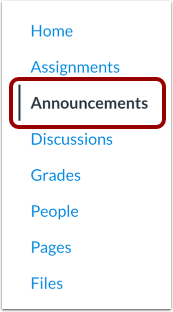
Open a group in which you are a member. Then, in Group Navigation, click the Announcements link.
Add Announcement in Group Home Page
You can also add an announcement in a group by clicking the Group Navigation Home link [1] and then clicking the Add Announcement button [2].
Add Announcement
Click the Add Announcement button.
Create Announcement
Enter an announcement title in the Topic Title field [1].
Add content using the Rich Content Editor [2]. A word count displays [3].
If enabled by your instructor, you can allow other users to comment on or like the announcement. To enable comments, select the Allow Participants to Comment checkbox [4]. To enable likes, select the Allow liking checkbox [5].
Publish Announcement
Click the Publish button.
View Announcement
View the announcement.
To manage the announcement, click the Options icon [1], then select an option [2]. You can mark the announcement as read, mark the announcement as unread, edit the announcement, or delete it.
If the IgniteAI Translations for Discussions & Announcements feature is enabled at your institution, you can translate the announcement by clicking the Enable Translation button.
Note: If the Enable Translation button does not display, the feature is not enabled at your institution.
View Announcements Page
View the announcement in the group Announcements page.