If your course has enabled Microsoft Education and Assignment Enhancements, you can upload a file from your Microsoft OneDrive for an assignment.
Files uploaded from Microsoft Education are added to your Canvas user files submissions folder.
Canvas accepts Microsoft Word, Microsoft PowerPoint, Microsoft Excel, and PDF types.
Notes:
- If the assignment you are accessing displays differently, Assignment Enhancements may not be enabled in your course or your instructor may not have used a supported assignment type.
- If the Microsoft Education submission type does not display, your instructor has not installed the app in your course.
- Canvas will require you to authorize access to your OneDrive account.
- You can only attach one file for your submission.
- When Microsoft Education files are uploaded as a submission, changes later made to the file in OneDrive will not be updated in the submission.
- Assignment Enhancements does not support Cloud Assignments.
- If your instructor has created an External Tool assignment, the Assignment Submission page may appear differently depending on the tool.
- Canvas does not support file uploads larger than 5 GB.
Open Assignments
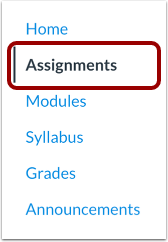
In Course Navigation, click the Assignments link.
Note: You can also access your Assignments through your user or course dashboard, the Syllabus, Gradebook, Calendar, or Modules.
Open Assignment
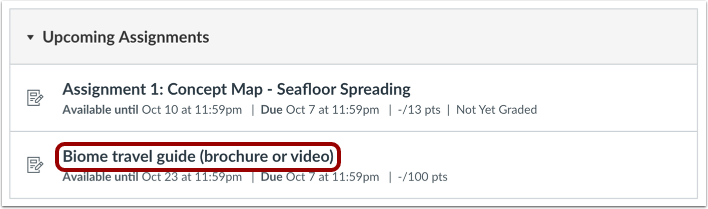
Click the name of the assignment.
Submit Microsoft Education URL
To add an Microsoft Education URL as your assignment submission, click the Web URL option in the Choose a submission type section [1].
Create a shareable URL for your Microsoft Education file.
Then, in Canvas, add the shareable website URL to the Enter Web URL field [2].
Once added, your website URL will be saved as an assignment submission draft.
Note: If a shareable link is not created, your instructor will not have permission to view your file.
To upload a Microsoft Education file as your assignment submission, click the More option in the Choose a submission type section [1].
Click the Apps icon [2], then click the Microsoft Education link [3].
Note: If the Microsoft Education option does not display, your instructor has not installed the app in your course.
Select File
Microsoft Education displays a list of allowed file types.
Click the checkbox of the appropriate file [1].
To save your upload as a draft, click the Embed or Link button [2].
Submit Assignment
To submit your Microsoft Education file or URL as your assignment submission, click the Submit button [1].
If you are working on an additional assignment attempt, you can cancel your submission by clicking the Cancel Attempt button [2].
View Submission
When your submission is successfully submitted, the Progress Tracker displays a Submitted status [1] and your most recent submission displays [2].
If you choose, you may resubmit another version of your assignment by clicking the New Attempt button [3].
If you've submitted multiple assignment submissions, you can view previous submissions by clicking the Attempt drop-down [4].
To add an assignment comment for your instructor, click the Add Comment button [5].
Notes:
- If you're not able to resubmit work, your instructor may have limited the number of allowed submissions or the assignment may no longer be accepting submissions due to the assignment's availability dates.
- Once you've submitted your work, the assignment will still display in the Assignments page and the Syllabus.