Your instructor may require you to submit a peer review of another student's discussion reply. To complete the peer review, you must review the student's discussion reply and add a comment in the comment sidebar.
If your instructor includes a rubric, which is a pre-determined outline of how an assignment is graded, you must assign a grade using the rubric. However, your instructor may also ask you to leave a comment in the comment sidebar.
Discussion peer reviews cannot be anonymous.
Learn how to see if you have been assigned a peer review discussion.
Notes: For standard graded discussions, students must post at least one discussion entry to meet the participation requirement.
00:07: How do I submit a peer review to a discussion?
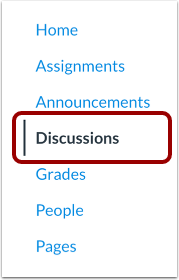
00:10: In course navigation click the discussions link
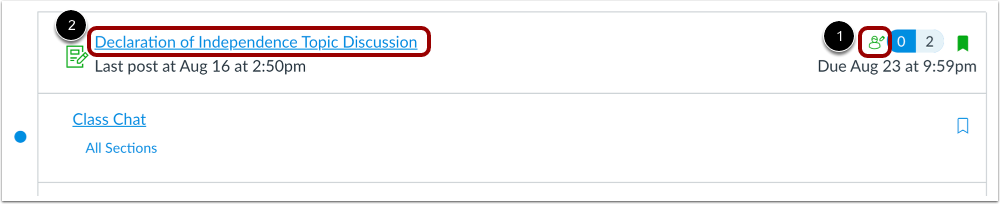
00:14: To view a peer-review discussion. Click the peer review icon or click the title
00:18: of the discussion.
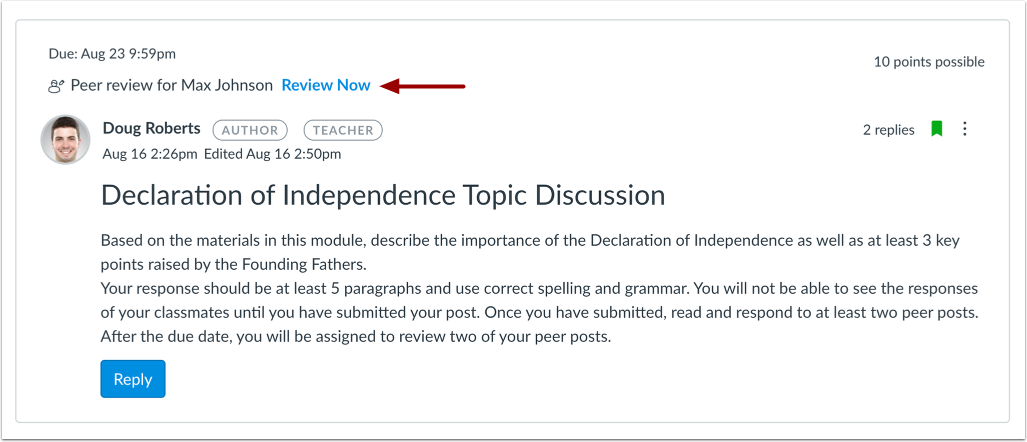
00:20: Click the review Now link.
00:23: If your assignment does not include a rubric you are required to add at least one
00:27: comment. You cannot view any existing feedback submitted by another
00:31: student or the instructor. Type a comment in the comment field
00:35: leave a media comment or attach a file.
00:39: Click the save button.
00:42: A message will appear on your discussion to confirm you have completed the peer review.
00:47: This guide covered how the submit a peer review to a discussion.
Open Discussions
In Course Navigation, click the Discussions link.
Note: You can also access your Discussions through your user or course dashboard, Assignments, the Syllabus, Gradebook, Calendar, or Modules.
View Discussions
To view a Peer Review Discussion, click the Peer Review icon [1] or click the title of the discussion [2].
Checkpointed Discussions
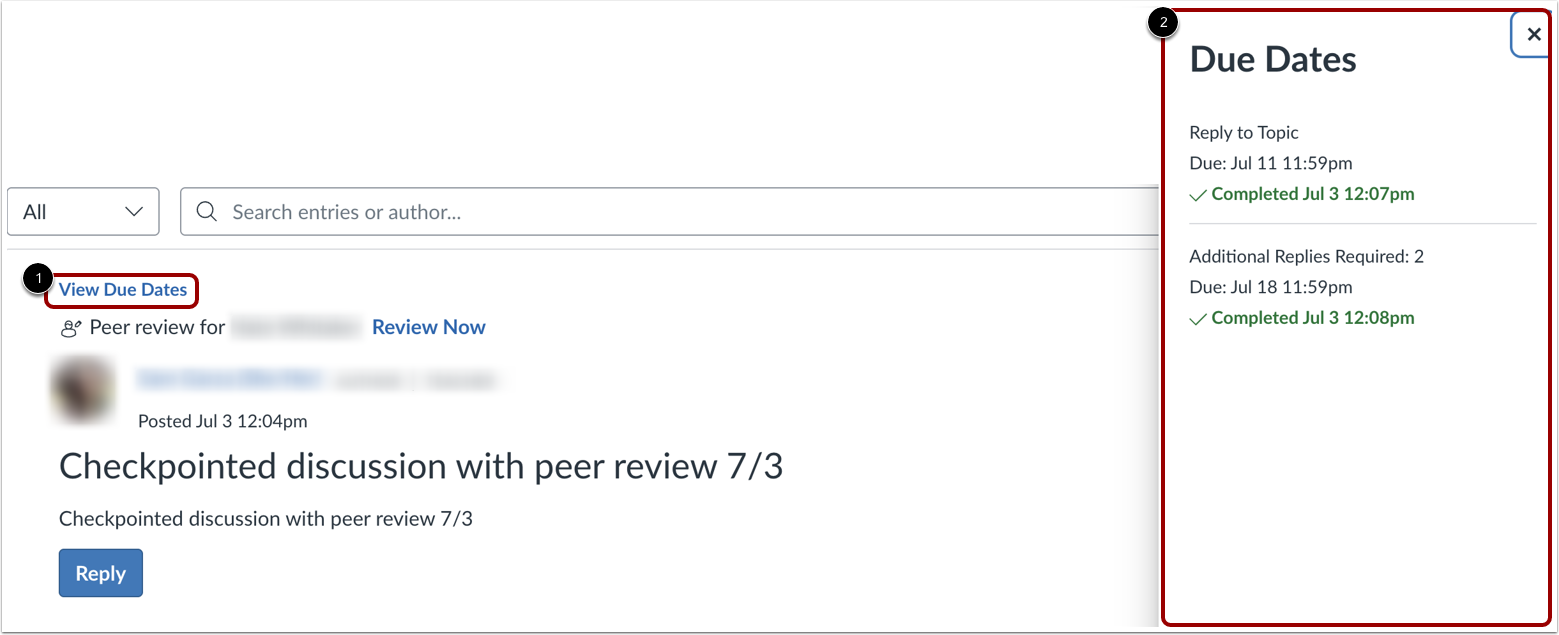
For checkpointed discussions, complete the requirements for both initial post and required replies. To check your progress, click the View Due Dates link [1], then view the Due Dates tray [2]. Peer reviews are only auto-assigned to students who have met all participation requirements.
Open Assigned Peer Review
Click the Review Now link.
Note: If you see an "Access Denied" message when clicking the Review Now link, reply to the discussion first, then click the Review Now link.
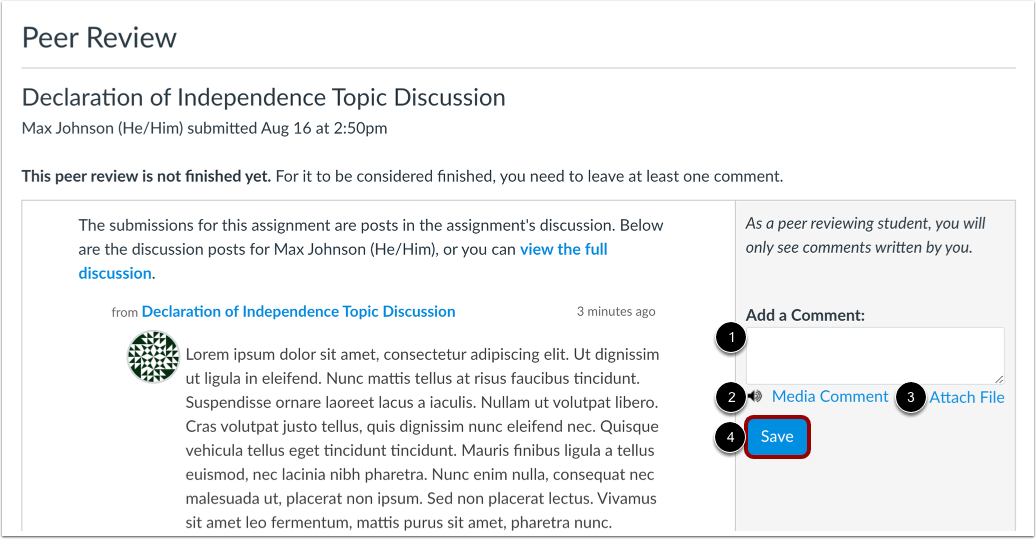
If your assignment does not include a rubric, you are required to add at least one comment. You cannot view any existing feedback submitted by another student or the instructor.
Type a comment in the comment field [1], leave a media comment [2], or attach a file [3].
Click the Save button [4].
Confirm Completed Peer Review
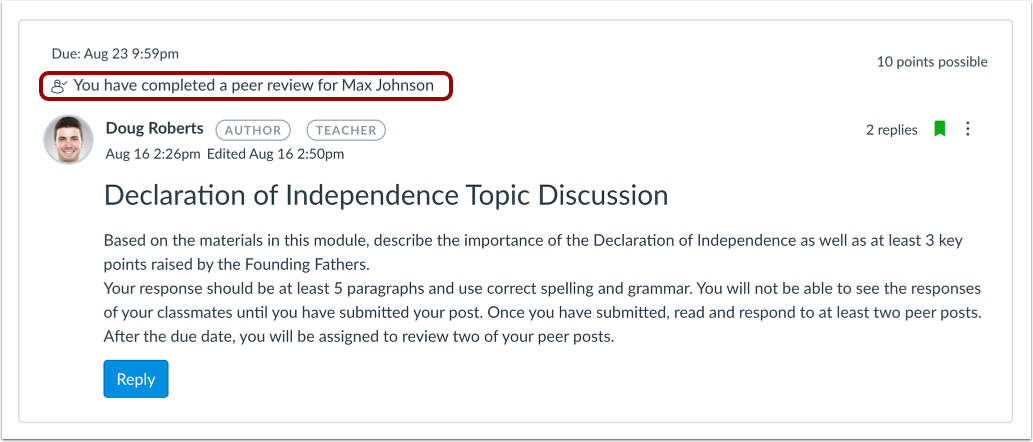
A message will appear on your discussion to confirm you have completed the peer review.
Note: You may need to refresh your browser to see that you've completed the required steps for the peer review.