The Portfolio page is where you can create and manage your portfolios in Canvas. Portfolios help you organize and showcase your work.
Notes:
- Each student can have up to 100 Showcase Portfolios. Both published and draft portfolios count toward this limit.
- Your portfolio is private by default. Other students cannot see your work unless you send them your specific sharing link. Content saved as a draft is visible only to you.
View the video transcript
00:05: How do I create a Showcase Portfolio as a student?
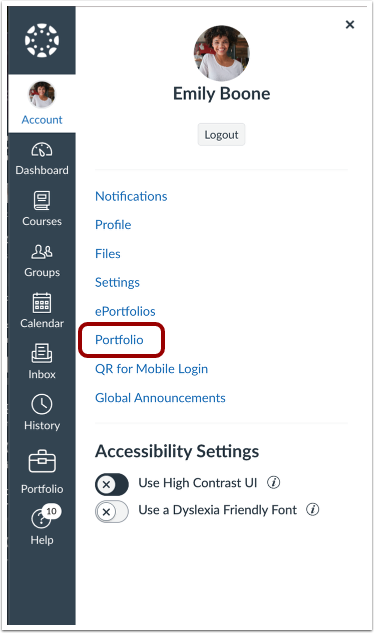
00:09: In the User Navigation, click the Portfolio link.
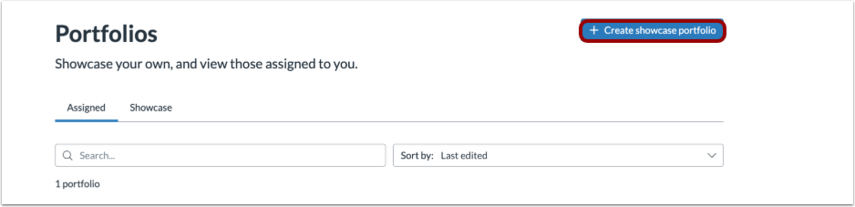
00:13: Click the Create showcase portfolio button.
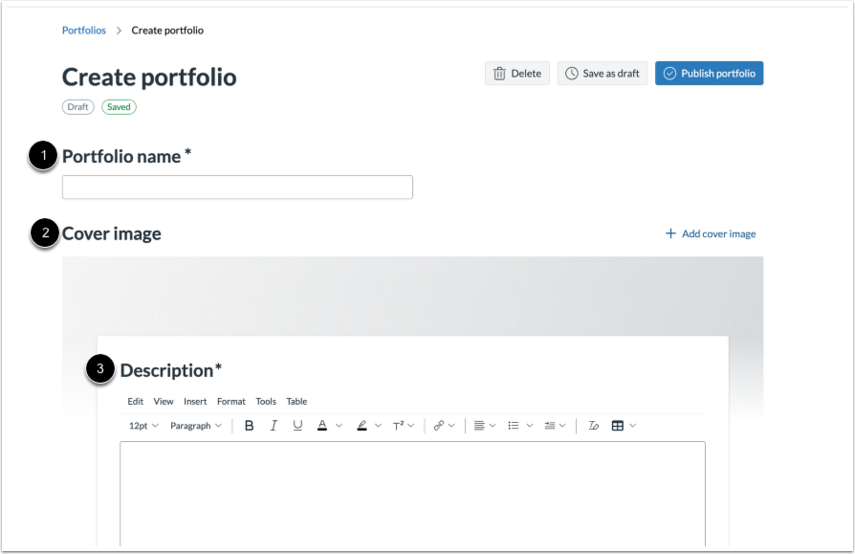
00:17: Add a Portfolio name, an optional Cover image and a Description.
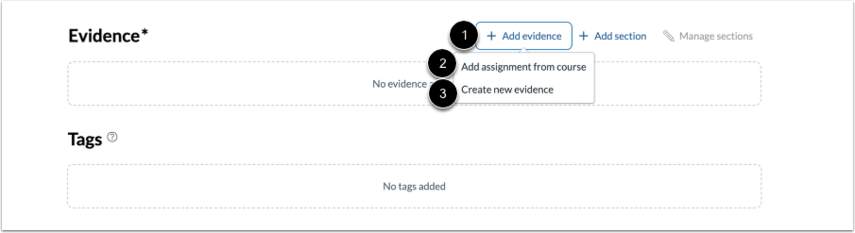
00:22: To add evidence in a portfolio, click the Add evidence link, then choose to Add assignment from course or Create new evidence.
00:32: To create a section, click the Add section link.
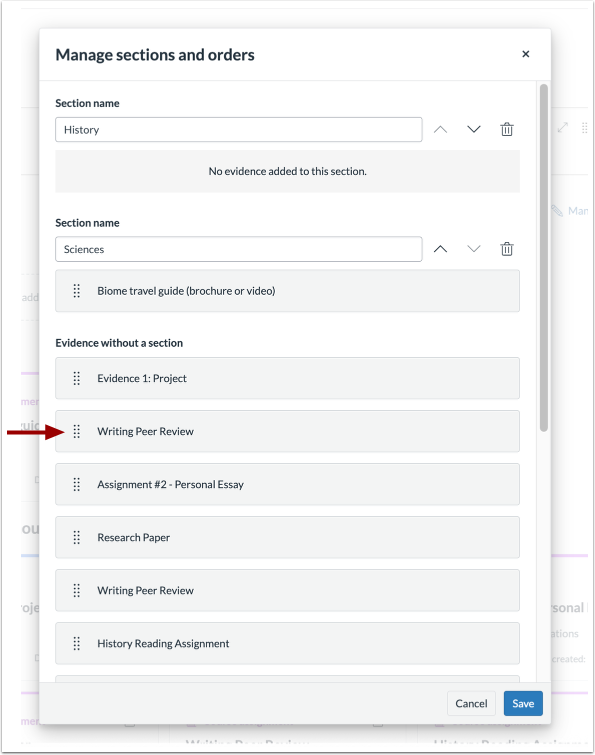
00:35: To order or delete sections, click the Manage sections link.
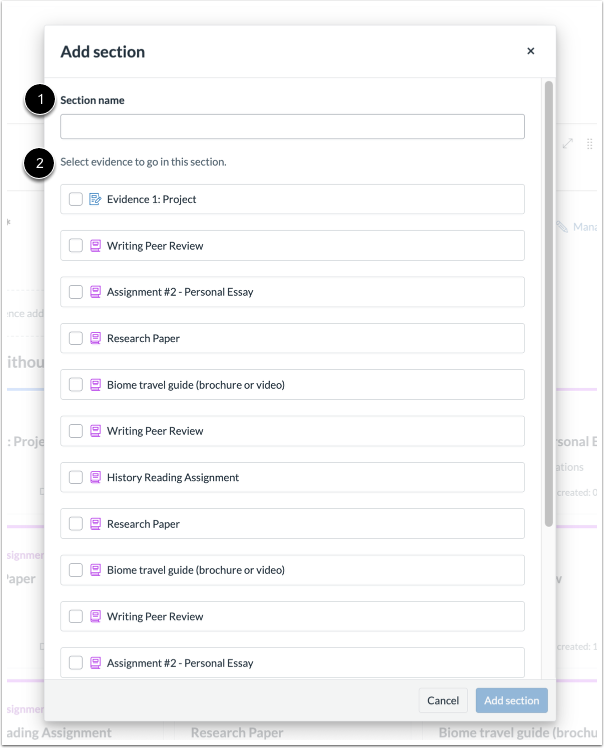
00:40: Add a section name and then select the evidence to go in this section.
00:45: Drag and drop evidence to move it to the desired section. Evidence can also be reordered within a section using drag and drop.
00:53: To save a portfolio as a draft, click the Save as draft button.
00:58: Click the Publish portfolio button to to finalize and share your portfolio.
01:03: When a portfolio is published, you can Delete, Export , Share, or Edit your work.
01:10: This guide covered how to create a showcase Portfolio as a student.
Open Portfolio
In the User Navigation, click the Portfolio link.
Create a Portfolio
Click the Create showcase portfolio button.
Add Portfolio Details
Add a Portfolio name [1], an optional Cover image [2] and a Description [3].
Add Evidence
To add evidence in a portfolio, click the Add evidence link [1], then choose to Add assignment from course [2] or Create new evidence [3].
Note: Tags added to your evidence display in the Tags section.
Add Sections
To create a section, click the Add section link [1]. To order or delete sections, click the Manage sections link [2].
Section Details
Add a section name [1] and then select the evidence to go in this section [2].
Manage Sections
Drag and drop evidence to move it to the desired section. Evidence can also be reordered within a section using drag and drop.
Save as Draft
To save a portfolio as a draft, click the Save as draft button [1]. Click the Publish portfolio button [2] to to finalize and share your portfolio.
When a portfolio is published, you can Delete [1], Export [2], Share [3], or Edit [4] your work.
Note: Portfolios can be exported in multiple formats, including PDF, HTML, or as a bulk file download. When sharing a portfolio, you can either generate a unique public link or share directly to LinkedIn.