As a student, you can delete announcements only within a group. You can delete an announcement in the Announcements Index Page or within an open announcement.
View the video transcript
00:07: How do I delete an announcement in a group?
00:10: Open a group in which you are a member then in group navigation, click
00:14: the announcements link.
00:17: To delete an announcement from the index page locate the announcement.
00:21: Click the options icon and click the delete link.
00:25: To delete multiple announcements at a time click the check boxes next to
00:29: the announcements. You want to delete and click the delete icon.
00:33: You can also delete an announcement by opening the individual announcement.
00:36: Click the name of the announcement.
00:39: Click the options icon and click the delete link.
00:43: Click the okay button.
00:46: This guide covered how to delete an announcement in a group.
Open Announcements
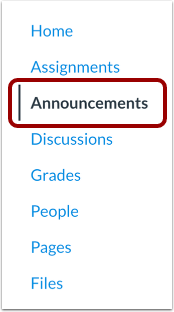
Open a groupin which you are a member. Then, in Group Navigation, click the Announcements link.
Delete in Announcements Index Page
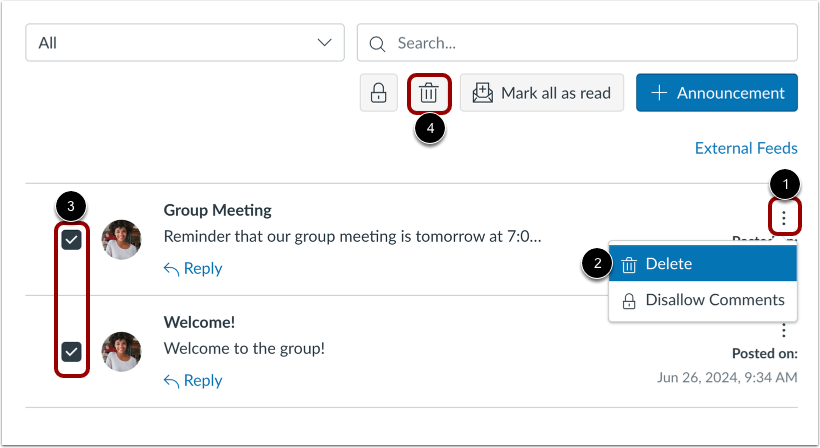
To delete an announcement from the index page, locate the announcement. Click the Options icon [1] and click the Delete link [2].
To delete multiple announcements at a time, click the checkboxes next to the announcements you want to delete [3] and click the Delete icon [4].
Delete Open Announcement
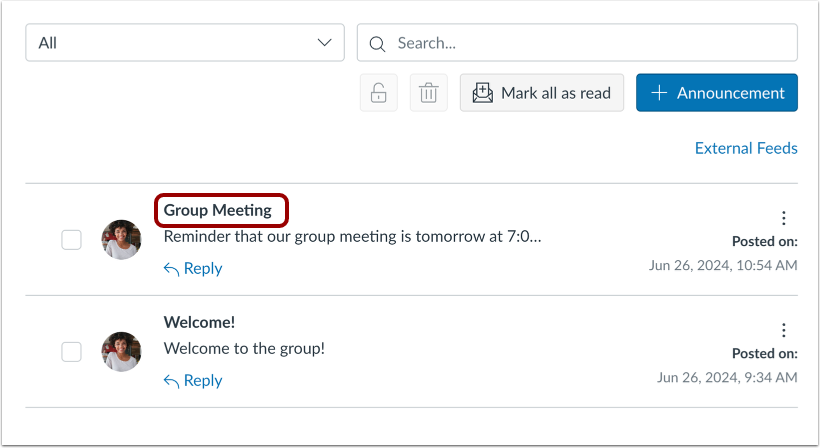
You can also delete an announcement by opening the individual announcement. Click the name of the announcement.
Click the Options icon [1] and click the Delete link [2].
Confirm Deletion
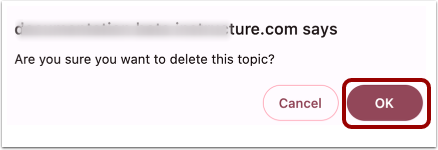
Click the OK button.