The Course Navigation Menu is a series of links on the left side of your course that help you access different course areas. The Course Navigation Menu is visible by default, but you can choose to collapse it.
Notes:
Open Course
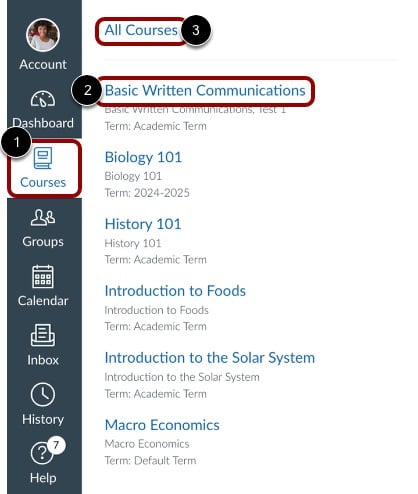
In Global Navigation, click the Courses link [1]. Then, click the name of the course [2], or to view all courses, click the All Courses link [3].
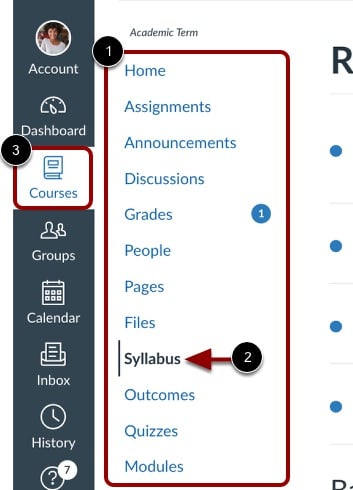
View the Course Navigation Menu [1]. The currently active link is highlighted with different color text and a line indicator [2]. This highlight helps you quickly identify the feature area you are currently viewing in Canvas.
To view all courses again, click the Courses button [3].
By default, new courses show links leading to the index pages for the following areas:
Notes:
Open Course Navigation Link
To open a feature area, click the Course Navigation link.
To collapse the Course Navigation Menu, click the Menu icon.
Expand Course Navigation Menu
When the Course Navigation menu is collapsed, it is not visible. To expand and view the Course Navigation Menu, click the Menu icon.
Note: When you expand or collapse the Course Navigation menu, the menu expands or collapses in all your courses.