View the video transcript
00:07: How do I use groups as a student?
00:10: In global navigation click the groups link then click a group named
00:14: link.
00:16: You can view the group's course code or nickname and the group name.
00:20: The group homepage displays recent messages
00:23: The group homepage also displays to do items that are coming up and a link
00:27: to the group calendar.
00:29: You can use the group navigation to view or make group announcements create
00:33: a group page view group membership create or reply to group
00:37: discussions View and upload group files access
00:41: group conferences or access group collaborations.
00:47: This guide covered how to use groups as a student.
Open Group
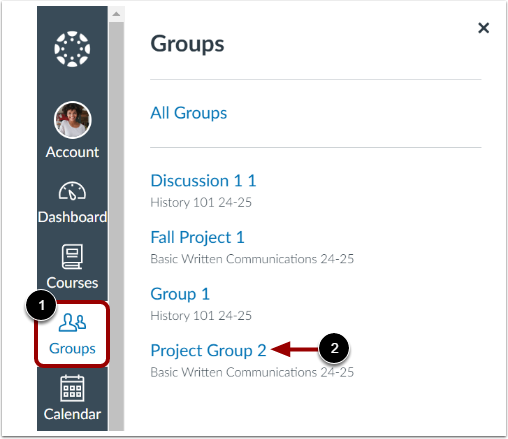
In Global Navigation, click the Groups link [1], then click a group name link [2].
You can learn more about viewing your groups or viewing all available groups.
View Group Details
You can view the group's course code or nickname [1] and the group name [2].
The Group Home page displays recent messages [3], To Do items that are coming up [4], and a link to the group calendar [5].
Use Group Navigation
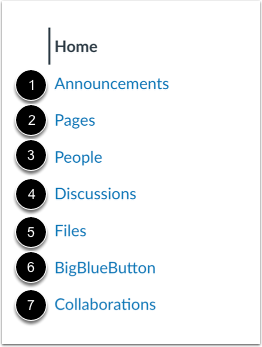
You can use the Group Navigation to view or make group announcements [1], create a group page [2], view group membership [3], create or reply to group discussions [4], view and upload group files [5], access group conferences [6], or access group collaborations [7].