Once you have taken a quiz, you can view your quiz results for any quiz created in New Quizzes. You can also view feedback left by your instructor for specific answers, including feedback for individual answer choices in some question types.
Notes:
- If your quiz results are different from the images in this lesson, your instructor has restricted view of the results page. Instructors can select to hide points awarded, points possible, quiz items, correct and incorrect indicators, and feedback.
- If the quiz you are accessing displays differently, your instructor may have used the Classic Quizzes tool to create the quiz. Functionality may differ between these quiz types. For help with quiz results, please see How do I view quiz results as a student?
- If you attempt to access New Quizzes after the deadline, you will find a locked assignment page instead.
View the video transcript
00:05: How do I view my quiz results as a student in New Quizzes?
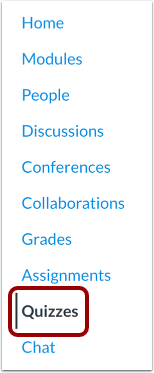
00:09: In Course Navigation, click the Quizzes link.
00:13: To open a quiz, click the title of the quiz.
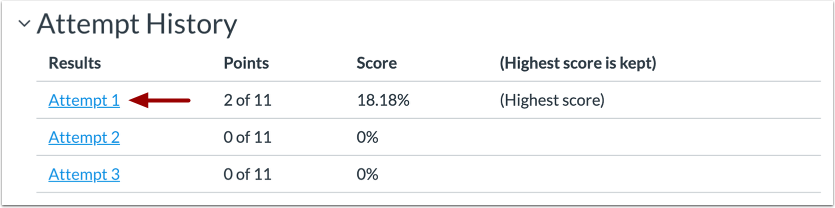
00:30: To open results for an attempt, click the link for that attempt.
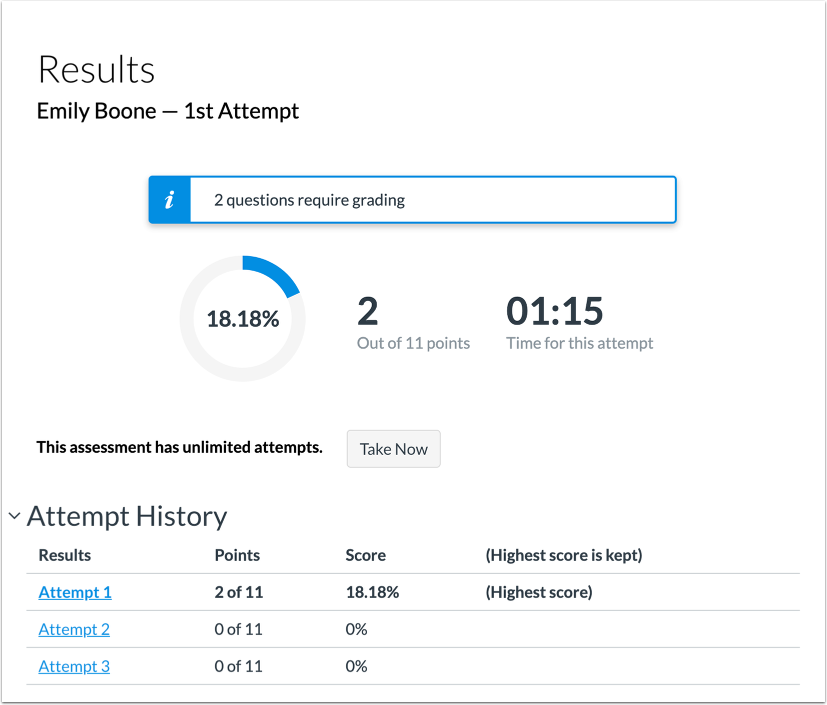
00:34: View the results for your quiz.
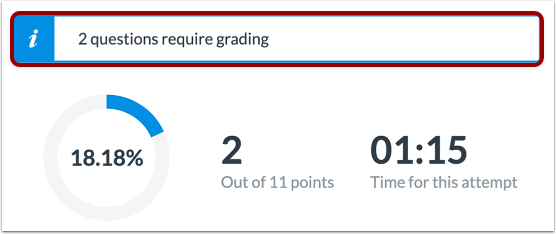
00:37: If any of your quiz questions require instructor grading, a notification displays
00:41: in the Results page.
00:43: If you cannot view your results, your instructor has restricted view of the results
00:47: page. You can still view if your quiz submission was successful or not.
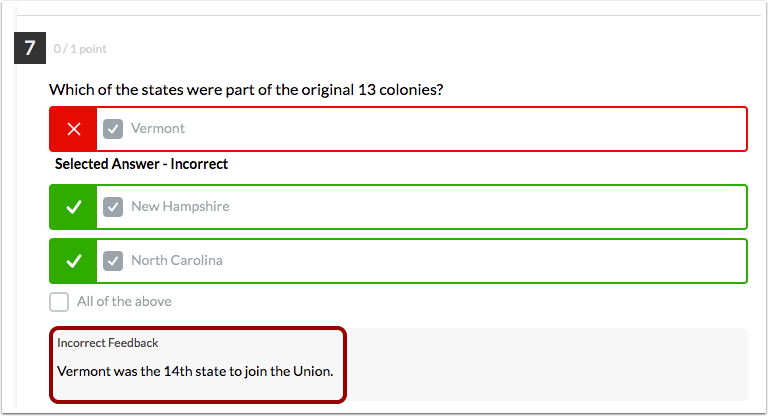
00:53: You can view the total points earned for each question.
00:56: Correct answers are indicated by a green checkmark icon.
01:01: Incorrect answers are indicated by a red X
01:04: icon. Incorrect answers include the solution for the correct response.
01:10: If your instructor has added feedback to a question, you can view that feedback in
01:14: your quiz results. For multiple answer questions, your instructor may include
01:18: feedback for each answer choice.
01:20: This guide covered how to view my quiz results as a student in New Quizzes.
Open Quizzes
In Course Navigation, click the Quizzes link.
Open Quiz
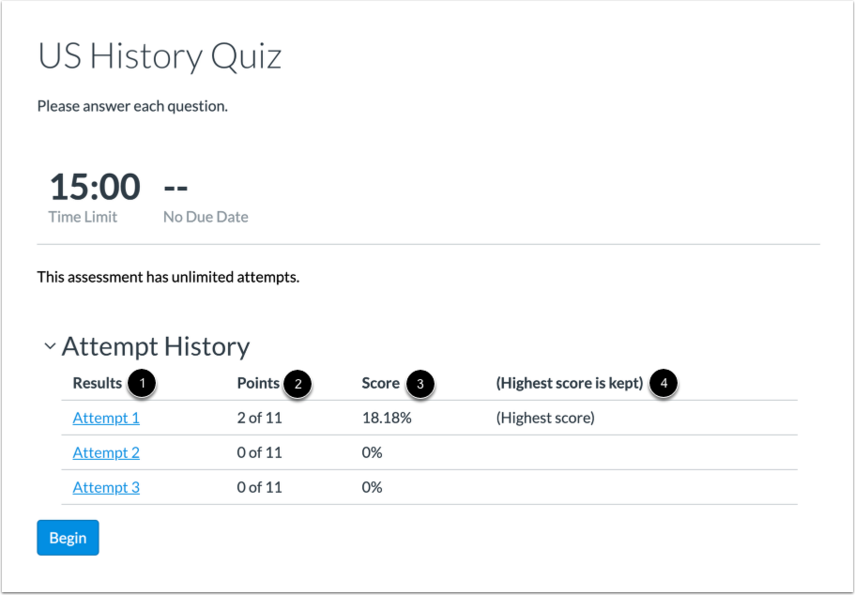
To open a quiz, click the title of the quiz.
View Attempt History
You can view the attempt history for each attempt you’ve completed for a quiz [1]. The Attempt History table includes the points [2] and score [3] earned for each attempt. You can also view which of your scores will be added to your grades [4].
Notes:
- If you cannot view points in your quiz results, your instructor has hidden points awarded and/or points possible.
- If the quiz you are accessing displays differently, your instructor may have used the Classic Quizzes tool to create the quiz. Functionality may differ between these quiz types. For help with quiz results, please see How do I view quiz results as a student?
Open Results
To open results for an attempt, click the link for that attempt.
View Results
View the results for your quiz.
View Grading Message
If any of your quiz questions require instructor grading, a notification displays in the Results page.
View Results Restriction Message
If you cannot view your results, your instructor has restricted view of the results page [1]. You can still view if your quiz submission was successful or not [2].
View Answers
You can view the total points earned for each question [1].
Correct answers are indicated by a green checkmark icon [2]. Incorrect answers are indicated by a red X icon [3]. Incorrect answers include the solution for the correct response [4].
Note: If you cannot view answers for quiz items, your instructor has hidden quiz items or correct/incorrect indicators.
View Feedback
If your instructor has added feedback to a question, you can view that feedback in your quiz results. For multiple answer questions, your instructor may include feedback for each answer choice.
View Submission Details
To see the New Quiz results that are closed due to availability dates, click the Submission Details link.