You can view discussion threads in a discussion. Focused discussion replies are shown in hierarchal order; threaded discussions are hierarchal, collapsable, and expandable. You can view discussion reply threads in a separate sidebar or inline.
Notes:
- If the discussion is an anonymous discussion, student names and profile pictures do not display. Posts created by the instructor display the instructor's name and profile picture.
- If enabled at your institution, you can access AI-supported translations for Discussions.
View the video transcript
00:07: How do I view a discussion thread as a student?
00:10: In course navigation click the discussions link
00:14: Click the title of the discussion
00:17: View the discussion topic in any replies
00:20: You can use the toolbar options to view and sort discussion replies.
00:25: When viewing discussion thread replies, you can view them in a split screen sidebar
00:29: inline on the same page. When viewing inline collapse
00:33: and expand all discussion threads by clicking the expand threads and collapse threads
00:37: buttons.
00:40: Discussion replies display below the discussion topic learn how to view
00:44: and sort discussion replies and Report discussion replies.
00:49: To view threaded reply options. Click the options icon.
00:52: You can Mark replies as read unread Mark threaded
00:56: replies as read unread return to the topic quote
01:00: the reply or report the reply.
01:04: To view threads in a split-screen sidebar.
01:06: Click the view split screen button.
01:10: When viewing split screen discussion thread replies discussion reply
01:14: threads are collapsed. You can view the reply indicators showing the
01:18: number of unread and total replies.
01:21: To expand the discussion thread replies sidebar click the hash replies
01:25: link. View the read and unread replies.
01:29: To view reply options. Click the options icon.
01:33: To collapse the discussion thread replies sidebar.
01:36: Click the close icon.
01:39: The guide covered how to view a discussion thread as a student.
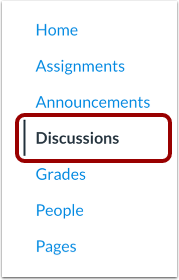
Open Discussions
In Course Navigation, click the Discussions link.
Open Discussion
Click the title of the discussion.
View Discussion
View the discussion topic [1] and any replies [2].
You can use the toolbar options to view and sort discussion replies [3].
View Inline Discussion Thread Replies
When viewing discussion thread replies, you can view them in a split screen sidebar or inline on the same page. When viewing inline, collapse and expand all discussion threads by clicking the Expand Threads and Collapse Threads buttons [1].
When a discussion thread reply is collapsed, you can view the reply indicators showing the number of unread and total replies. To expand the discussion thread for an individual reply, click the # Replies link [2].
To view threaded reply options, click the Options icon [3]. You can mark replies as read/unread, mark threaded replies as read/unread, return to the topic, quote the reply, copy a permalink to a reply, or report the reply [4].
View Split Screen Discussion Thread Replies
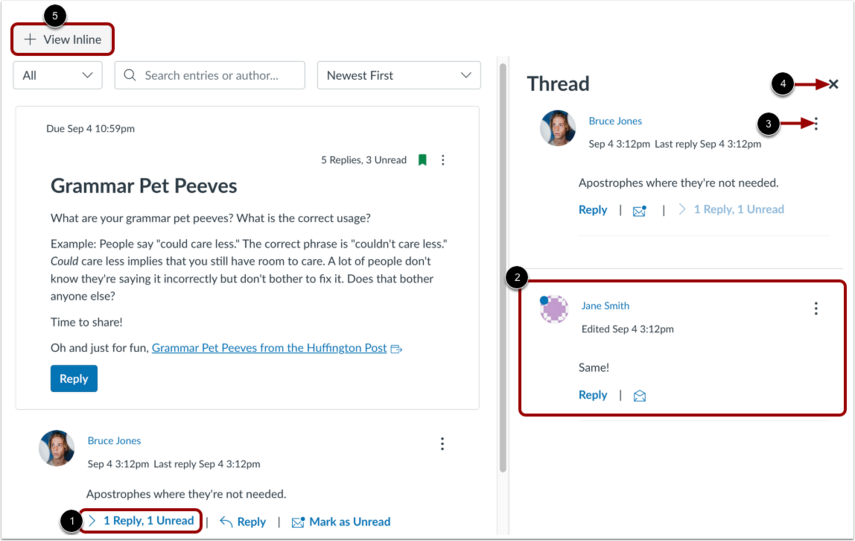
To view threads in a split screen sidebar, click the View Split Screen button.
When viewing split screen discussion thread replies, discusion reply threads are collapsed. You can view the reply indicators showing the number of unread and total replies.
To expand the discussion thread replies sidebar, click the # Replies link [1]. View the read and unread replies [2].
To view reply options, click the Options icon [3].
To collapse the discussion thread replies sidebar, click the Close icon [4].
To view discussion threads inline on one page, click the View Inline button [5].