The Discussion Index page allows you to view all the discussions within a course as well as participate in course and group discussions.
Note: Your instructor may choose to hide the Discussions link in Course Navigation. If the Discussions link is not available, you can still access Discussions through other areas of Canvas.
View the video transcript
00:07: How do I view discussions as a student?
00:10: In course navigation click the discussions link
00:14: Discussions are organized into three main areas.
00:18: Pinned discussions these are discussions that your instructor wants you to pay specific
00:22: attention to and appear at the top of the discussions page.
00:25: This section heading only displays if there are discussions within this section as designated
00:30: by your instructor.
00:32: Discussions these are current discussions within the course discussions
00:36: are ordered by most recent activity this section heading only displays
00:40: if there are discussions within this section.
00:44: Closed for comments these discussions have been manually closed for comments
00:48: or the discussion has passed the available from until date.
00:52: These are discussions that are only available in a read-only state and are ordered
00:56: by most recent activity this section section heading displays,
01:00: even if there are no discussions within this section.
01:04: Each discussion displays whether or not it is a graded discussion.
01:08: The name of the discussion and the date on which the last discussion reply was posted.
01:13: The due date if any
01:16: The number of unread total posts in the discussion
01:20: And whether or not you are subscribed to the discussion.
01:24: You can also view availability dates for individual discussions.
01:28: An unread icon next to a discussion indicates an unread discussion.
01:33: The number of unread total posts will not appear for group discussions and discussions
01:37: that have no discussion replies.
01:40: There will also be a peer-review icon if a graded discussion has been assigned peer
01:44: reviews.
01:46: The first dates you may see are the availability dates your instructor may use
01:50: availability dates to restrict discussion replies to a specified date range.
01:55: The availability dates are the range of time that the discussion is accessible to you.
01:59: Availability dates also appear on the assignments page for all discussions with a signed
02:04: availability dates.
02:06: If the discussion does not have a date listed the discussion is open.
02:09: You can reply to the discussion at any time during your course.
02:14: If the discussion says not available until date the discussion is locked
02:18: until the specified date.
02:21: If the discussion says available until date you can reply to the discussion
02:25: until the specified date.
02:28: If the discussion is in the closed for comment section the discussion cannot accept
02:32: submissions. Discussions in this section may show a was locked
02:36: at date to indicate when the discussion was closed for comments.
02:41: The second set of dates are the due dates for each respective discussion.
02:45: However, due dates only apply to graded discussions any replies
02:49: to discussions after the due date are marked as late some instructors May deduct
02:53: points for late replies. You can still reply to late discussion
02:57: before the available until date. Due dates also include
03:02: a time if your instructor does not set a due time the listed date
03:06: displays the courses default due time.
03:10: There are a few ways to filter discussions.
03:13: View all or only unread discussions by selecting an option from the drop-down
03:17: menu.
03:19: Search for a discussion by typing a discussion title a user name or
03:23: a keyword in the search field.
03:26: Start a new discussion by clicking the add discussion button Note some
03:30: instructors may choose to disable this option.
03:33: Change the discussion settings to manually Mark posts as read by clicking the settings
03:37: icon.
03:39: Click the name of a discussion
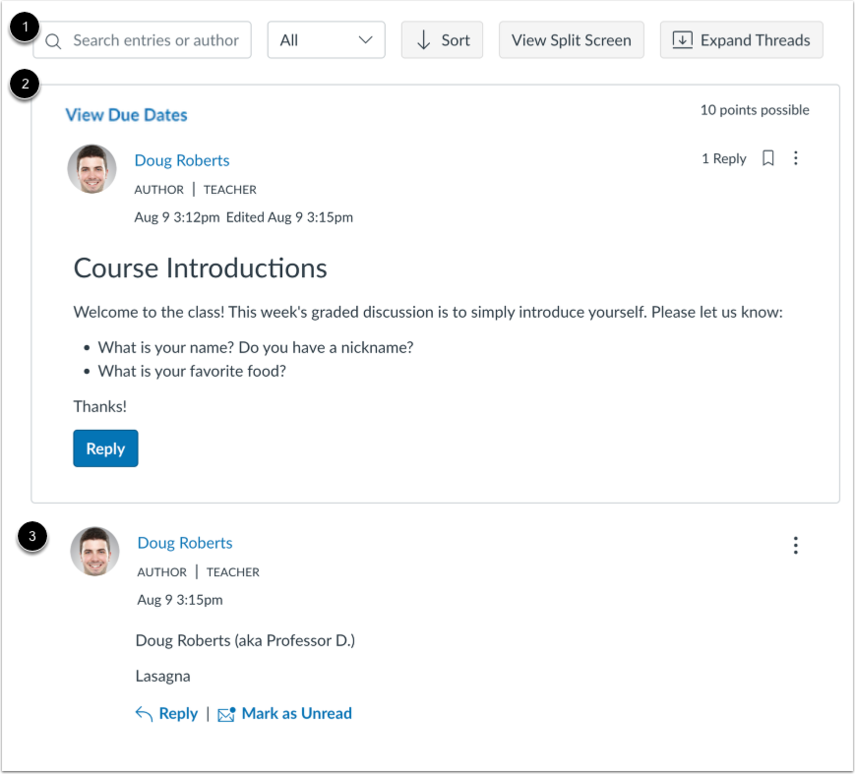
03:42: A discussion includes three sections the discussion toolbar discussion
03:46: topic and discussion replies
03:50: The discussion toolbar remains at the top of the discussion topic when you are viewing discussion
03:54: replies.
03:56: To search for replies or specific authors enter your terms in the search
04:00: field. To filter replies click the all drop-down menu.
04:04: You can filter by all replies or unread replies.
04:08: To sort replies by newest or oldest click the sort button.
04:13: To view threaded replies in a split-screen sidebar click the view split
04:17: screen button.
04:19: To view threaded replies all at once click the expand threads button.
04:24: You can collapse the threaded replies by clicking the collapse threads button.
04:29: To view threaded replies inline. Click the inline button.
04:33: If the discussion is an anonymous discussion a message displays noting that
04:37: your name and profile picture will be hidden from other course members.
04:42: The discussion topic section includes important information about the discussion including
04:46: the discussion title and description.
04:50: You can also view the name of the author user role labels for Tash and
04:54: teacher instructor roles the date and time.
04:56: The discussion was published due date the number of points possible and
05:01: number of replies.
05:04: To view the options menu for a discussion. Click the options icon.
05:08: To mark all replies as read click the mark all as read link.
05:13: To view the discussion rubric click the show rubric link
05:17: Discussion replies display below the discussion topic learn how to view
05:21: and sort discussion replies and Report discussion replies.
05:26: To view threaded replies options click the options icon.
05:29: You can Mark replies as read unread Mark
05:33: threaded replies as read unread return to the topic quote
05:37: the reply or report the reply.
05:41: When viewing split screen discussion thread replies, you can collapse and expand
05:45: the discussion thread replies sidebar.
05:48: When a discussion thread reply is collapsed you can view the reply indicators
05:52: showing the number of unread and total replies.
05:56: To expand the discussion thread replies sidebar click the hash of replies
06:00: link.
06:02: View the read and unread replies.
06:05: To view threaded replies options click the options icon.
06:08: You can Mark replies as read unread Mark
06:12: threaded replies as read unread return to the topic quote
06:16: the reply or report the reply.
06:20: To collapse the discussion thread reply sidebar.
06:22: Click the close icon.
06:25: If you are unable view responses from other students, you may be required to make a
06:29: reply before you can view them. Once you reply to the discussion any
06:33: other replies will be visible.
06:36: If a discussion is a group discussion, you will be directed to discussions in your
06:40: group.
06:42: When creating or editing discussion topics or replies you will enter and
06:46: edit your content using the rich content editor.
06:49: The rich content editor allows you to format text link text to
06:53: coerce or external content insert media and attach files.
06:59: The guide covered how to view discussions as a student.
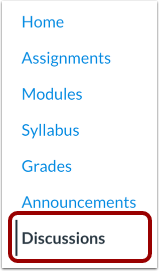
Open Discussions
In Course Navigation, click the Discussions link.
Note: If the Discussions link is not available in Course Navigation, you can access course discussions through the Modules page.
View Discussions
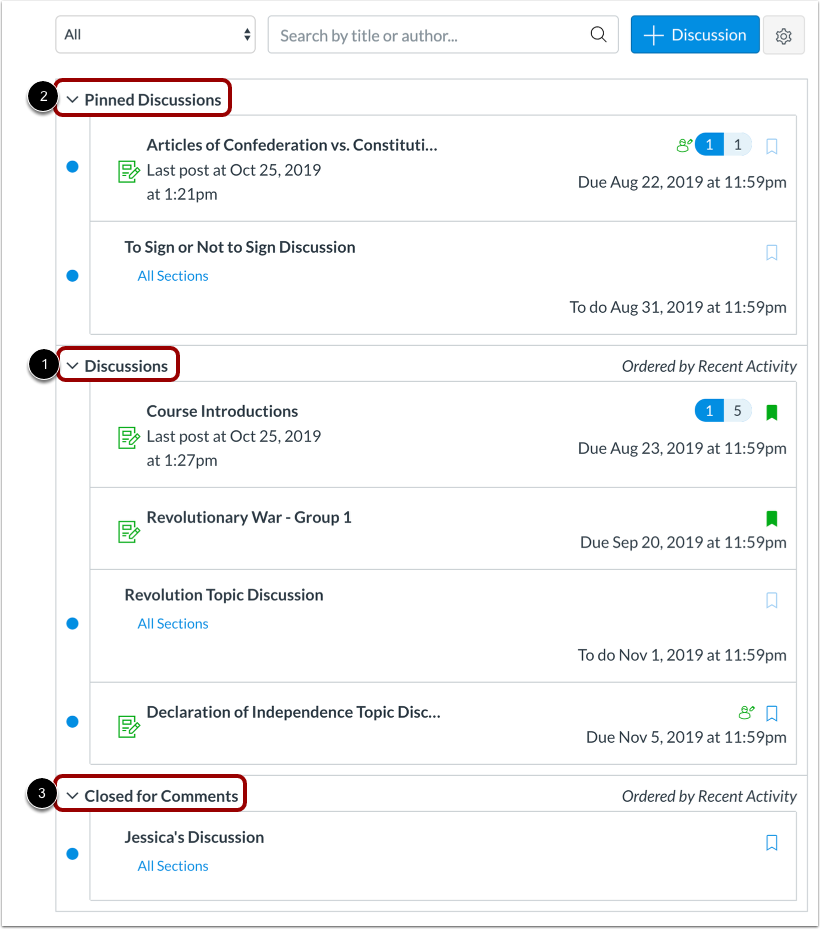
Discussions are organized into three main areas.
Discussions [1]: These are current discussions within the course. Discussions are ordered by most recent activity. This section heading only displays if there are discussions within this section.
Pinned Discussions [2]: These are discussions that your instructor wants you to pay specific attention to and appear at the top of the Discussions page. This section heading only displays if there are discussions within this section as designated by your instructor.
Closed for Comments [3]: These discussions have been manually closed for comments, or the discussion is past the available from/until date. These are discussions that are only available in a read-only state and are ordered by most recent activity. This section section heading displays even if there are no discussions within this section.
View Individual Discussion
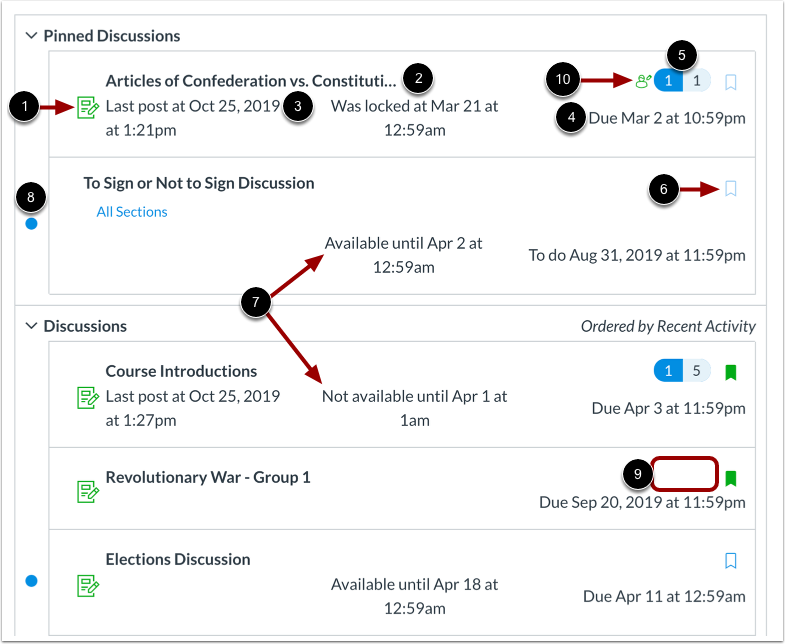
Each discussion displays whether or not it is a graded discussion [1], the name of the discussion [2], the date on which the last discussion reply was posted [3], the due date (if any) [4], the number of unread/total posts in the discussion [5], and whether or not you are subscribed to the discussion [6].
You can also view availability dates for individual discussions [7].
An unread icon next to a discussion indicates an unread discussion [8]. The number of unread/total posts will not appear for group discussions and discussions that have no discussion replies [9].
There will also be a peer review icon if a graded discussion has been assigned peer reviews [10].
View Availability Dates
The first dates you may see are the availability dates. Your instructor may use availability dates to restrict discussion replies to a specified date range. The availability dates are the range of time that the discussion is accessible to you. Availability dates also appear on the Assignments page for all discussions with assigned availability dates.
If the discussion does not have a date listed, the discussion is open; you can reply to the discussion at any time during your course [1].
If the discussion says Not Available Until [date], the discussion is locked until the specified date [2].
If the discussion says Available until [date], you can reply to the discussion until the specified date [3].
If the discussion is in the Closed for Comments section, the discussion cannot accept submissions [4]. Discussions in this section may show a "Was locked at [date]" to indicate when the discussion was closed for comments [5].
Note: If the listed date is set to 12 a.m. the last day for the assignment to be submitted is the full day before the listed date. For instance, if an assignment is Available until December 15, you can access the assignment until December 14 at 11:59 p.m.
View Due Dates
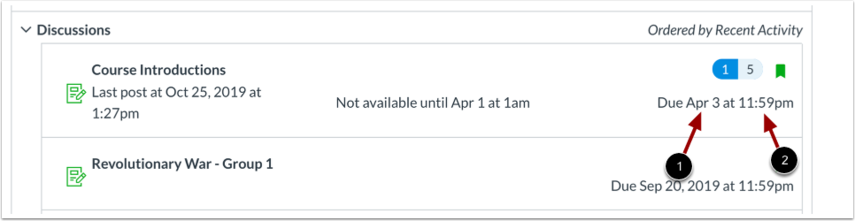
The second set of dates are the due dates for each respective discussion [1]. However, due dates only apply to graded discussions. Any replies to discussions after the due date are marked as late; some instructors may deduct points for late replies. You can still reply to late discussion before the Available until date.
Due dates also include a time [2]. If your instructor does not set a due time, the listed date displays the course's default due time.
Note: The Due date may be before or on the Available date.
Filter Discussions
There are a few ways to filter Discussions:
- View All or only unread discussions by selecting an option from the drop-down menu.
- Search for a discussion by typing a discussion title, a user name, or a keyword in the Search field.
- Start a new discussion by clicking the Add Discussion button. (Note: Some instructors may choose to disable this option.)
- Change the discussions settings to manually mark posts as read by clicking the Settings icon.
Open Discussion
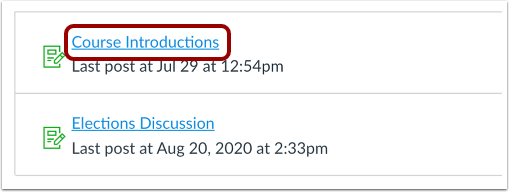
Click the name of a discussion.
View Discussion
A discussion includes three sections: the discussion toolbar [1], discussion topic [2], and discussion replies [3]. You have several options to view and sort discussions.
View Anonymous Discussion Message
If the discussion is an anonymous discussion, a message displays noting that your name and profile picture will be hidden from other course members.
View Discussion Topic
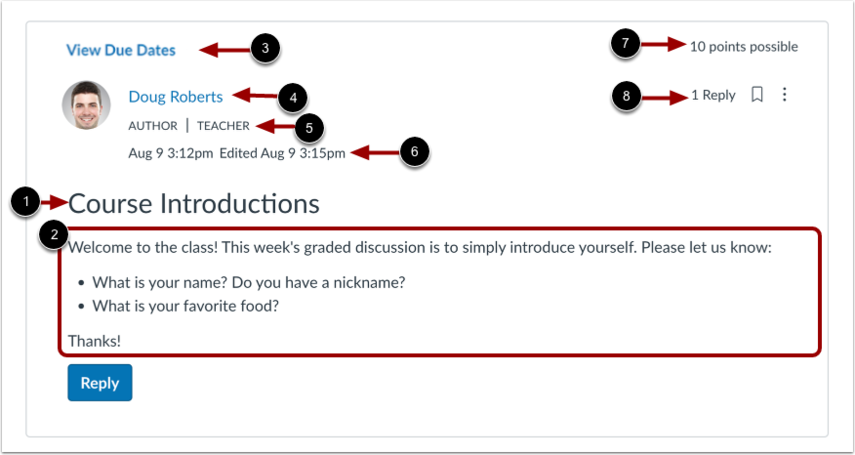
The discussion topic section includes important information about the discussion, including the discussion title [1] and description [2].
If enabled by your institution, you can view multiple due dates and checkpoints for a graded discussion [3], the name of the author [4], user role labels for Teaching Assistants (TA) and Teacher (Instructor) roles [5], the date and time the discussion was published [6], the number of points possible (if any) [7], and number of replies [8].
Note: If the discussion is an anonymous discussion, student names and profile pictures do not display. Posts created by the instructor display the instructor's name and profile picture.
View Discussion Options
To view the Options menu for a discussion, click the Options icon [1].
To mark all replies as read, click the Mark All as Read link [2]. To view the discussion rubric, click the Show Rubric link [3].
Note: If the Show Rubric link does not display in the Options menu, a rubric has not been added to the discussion by your instructor.
View Discussion Replies
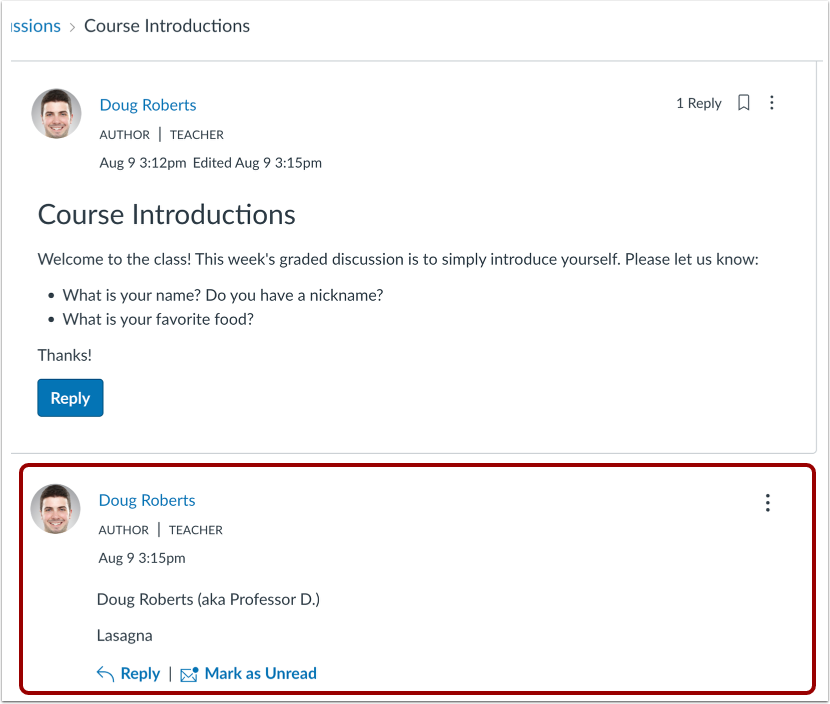
Discussion replies display below the discussion topic. You can view and sort discussion replies or report discussion replies.
View Inline Discussion Thread Replies
When viewing inline discussion thread replies, you can collapse and expand the discussion threads by clicking the Expand Threads and Collapse Threads buttons.
View Split Screen Discussion Thread Replies
To view threaded replies in a split screen sidebar, click the View Split Screen button.
View Discussion with Required Replies
If you are unable to view responses from other students, you may be required to make a reply before you can view them. Once you reply to the discussion, any other replies will be visible.
View Group Discussion
If a discussion is a group discussion, you will be directed to Discussions in your group.
View Rich Content Editor
When creating or editing discussion topics or replies, you will enter and edit your content using the Rich Content Editor. The Rich Content Editor allows you to format text, link text to course or external content, insert media, and attach files.