00:07: How do I create a discussion in a group as a student?
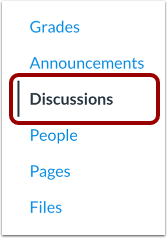
00:11: In group navigation click the discussions link
00:15: Click the add discussion button.
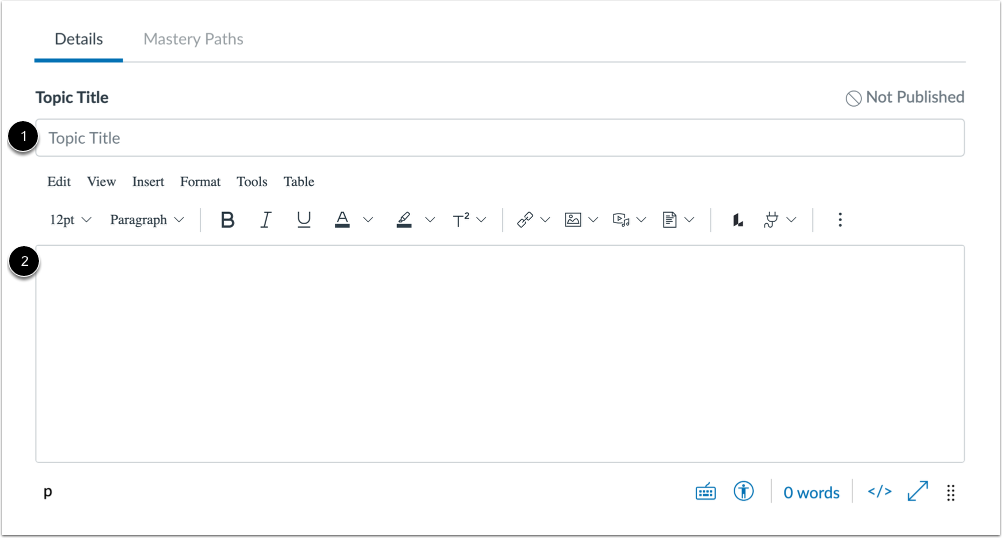
00:18: Enter a discussion title in the topic title field.
00:21: Add discussion content using the rich content editor.
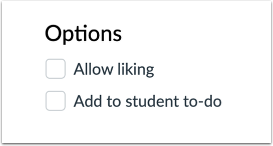
00:26: Select options for your discussion such as allowing others to like it and adding
00:30: it to other group members to-do lists.
00:34: To start the discussion click the save button.
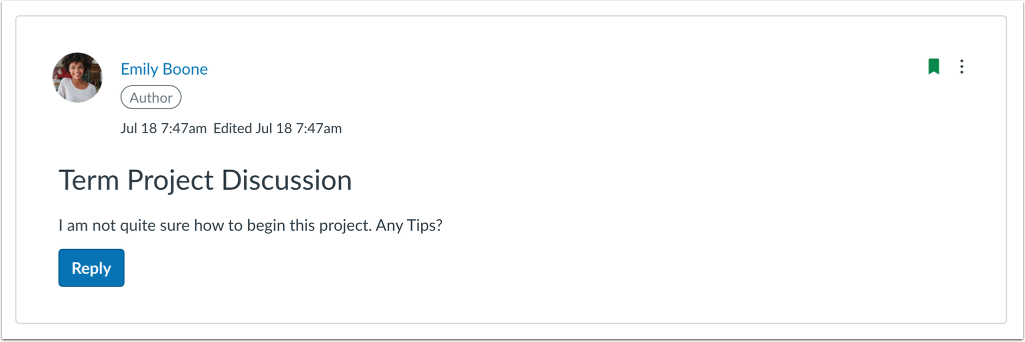
00:37: View the discussion you started in your group. If you need to edit
00:41: the discussion click the edit button.
00:44: Edit the discussion settings
00:47: If discussions redesign is enabled for your course and you need to edit the discussion
00:51: click the options menu and select the edit link.
Open Discussions
In Group Navigation, click the Discussions link.
Add Discussion
Click the Add Discussion button.
Create Discussion
Enter a discussion title in the Topic Title field [1].
Add discussion content using the Rich Content Editor [2].
Set Discussion Options
Select options for your discussion, such as allowing others to like it and adding it to other group members to-do lists.
Save Discussion
To start the discussion, click the Save button.
View or Edit Discussion
View the discussion you started in your group.
If you need to edit the discussion, click the Edit button.
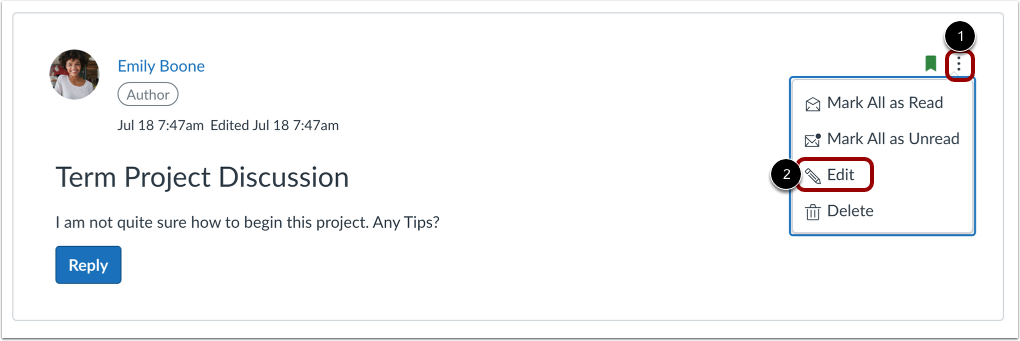
If Discussions Redesign is enabled for your course and you need to edit the discussion, click the Options menu [1] and select the Edit link [2].