00:05: How do I use the dashboard?
00:07: In global navigation. Click the dashboard link.
00:11: The dashboard is your landing page in canvas, depending on your institution,
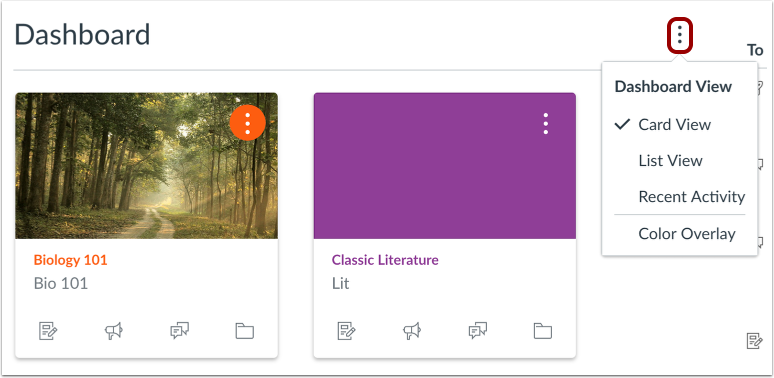
00:16: your dashboard, May default to one of three views, card view list, view,
00:20: or recent activity View,
00:22: Or observers to filter your dashboard by a linked student.
00:25: Click the student drop-down menu.
00:29: When enabled, instructors can see an alert icon on a course card when course grades
00:33: and content haven't been exported. Instructors can download the course content,
00:38: export student grades, or dismiss the reminder.
00:42: Card view displays course cards for quick access to all your favorite courses.
00:46: The same courses display in the courses, link from the global navigation menu,
00:50: observers only see courses for the students.
00:53: They're observing
00:55: Recent activity, view displays, all recent activity for all courses.
01:00: This view displays all course to do items in an agenda View.
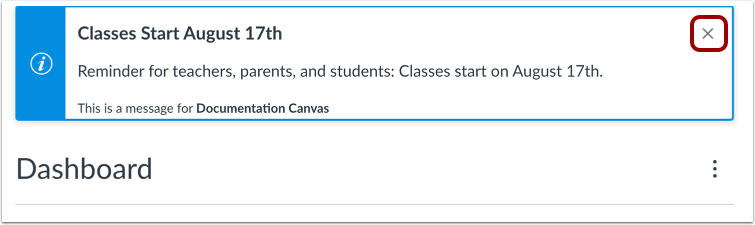
01:05: The dashboard may also include Global announcements which are announcements created
01:10: by your institution to remove the announcement from your dashboard.
01:14: Click the remove icon,
01:17: If you dismiss a global announcement, you can view dismissed announcements on
01:21: the global announcements page.
01:23: To change your dashboard view, click the options, menu and select your preferred viewing
01:28: option.
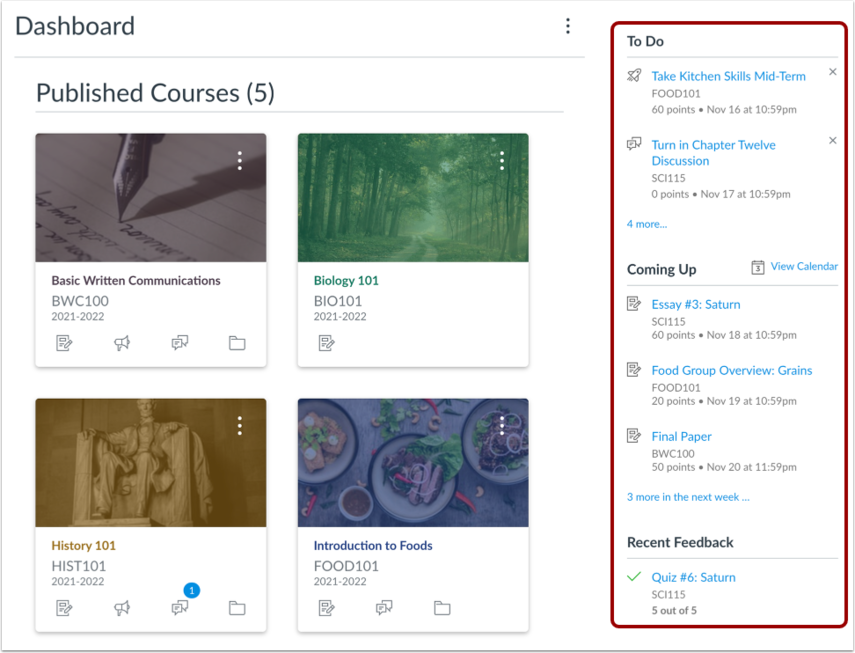
01:29: When set to card view or recent activity view, the dashboard also includes
01:34: a sidebar. The sidebar includes a to-do lists upcoming assignments,
01:38: links to recent feedback, and buttons for creating a course or
01:42: viewing grades.
01:44: This guidde covered how to use the dashboard.