Parchment Digital Badges has partnered with Talent Neuron to display skills that lead to a successful career or promotion directly from your learner's badge award. When you issue badges with a Parchment Digital Badges issuer, you can link your badges with skills that connect to job market data when those badges are viewed or shared.
- Parchment Digital Badges uses Talent Neuron as the default skills taxonomy for alignment to competencies. Parchment Badges customers can continue to use Lightcast or other custom skill frameworks using the Flexible Skills option.
- Along with skills alignment, this integration provides robust market insights on in-demand skills, geographic locations where those skills are needed, and available job opportunities for Parchment Badges users.
- Badging programs can take advantage of this vast skill library to highlight their programs and empower learners in their fields.
- With growing interest in non-degree and skills-focused training programs, this powerful combination of solutions will enable the design of high quality, stackable programs designed to upskill and reskill workers by combining online certificates, industry certifications, apprenticeships and micro-badges.
Why should I include Talent Neuron skills in my badge?
When you award a badge, recipients will be able to view the specific skill the badge represents. This information will be locked in the badge's metadata.
- When viewed, the skill will link to a skill page displaying data for the job market for that skill
- Organizations outside the U.S., U.K., and Canada can choose to link to job market data provided by Indeed in their country
Edit Organization
Any skills previously associated with Lightcast are migrated to the Talent Neuron taxonomy. This feature is available to all subscribers of Parchment Digital Badges. The skill option must be enabled at the organization level to be used when creating or editing badges. To access this, click the drop-down menu [1], and select an organization [2]. Click the Edit organization link[3].
Enable skill option from the organization page
In the Edit organization page, select the Content settings tab.
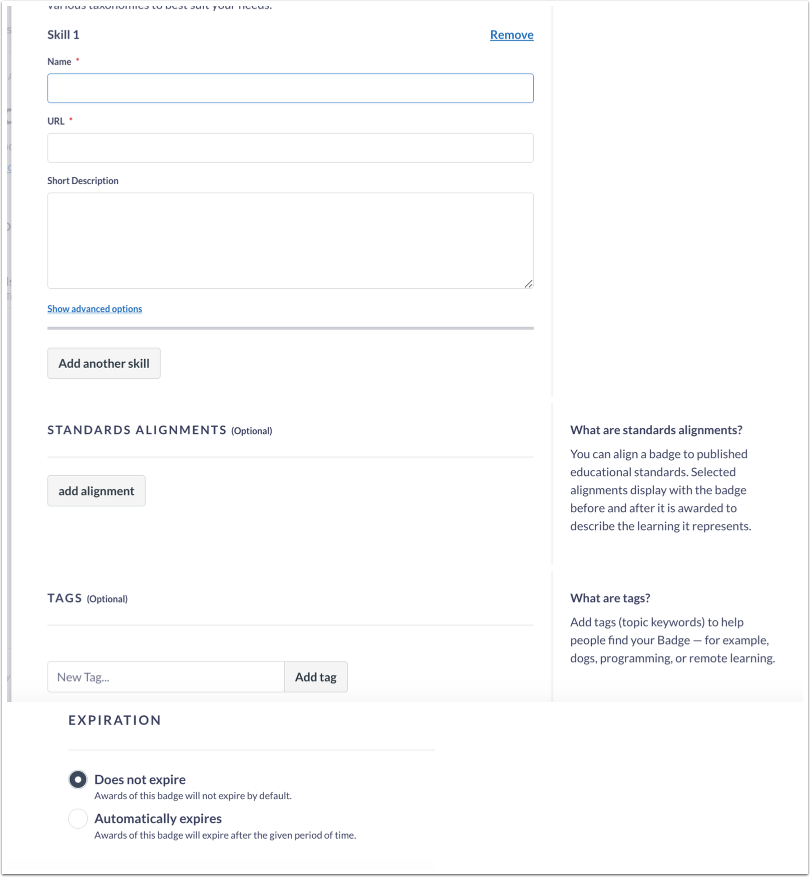
To use other preferred taxonomies, select the Flexible Skills option [1]. To select the default taxonomy, select the Default Taxonomy option [2].
Save Changes
To apply changes, click the Save button.
Confirm Skill Taxonomy on Issuer
In the Issuers page, click the Edit Issuer link.
Click the Content Settings tab [1]. The Use Settings from Organization is enabled by default [2]. To customize the settings, toggle this off and select one of the available options.
Save Issuer
Click the Save issuer button.
Select Issuer
Click the Issuers tab and select the issuer you would like your badge to be awarded from.
Click the Badges tab.
Create Badge
Click the Create badge button [1] or select an existing badge you wish to edit and click the Edit Badge link [2].
To learn more about badge creation, see our article on creating badges.
Add Demonstrated Skills
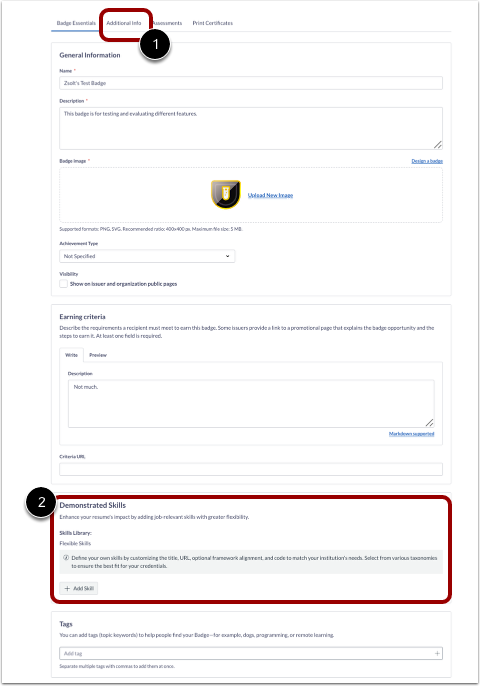
To add a skill using the default Taxonomy, click the Additional Info tab [1], Enter the skill(s) you wish to represent with this badge award [2]. You will see suggestions auto-populate based on your entered criteria. Select the most appropriate suggestion to add it to your badge.
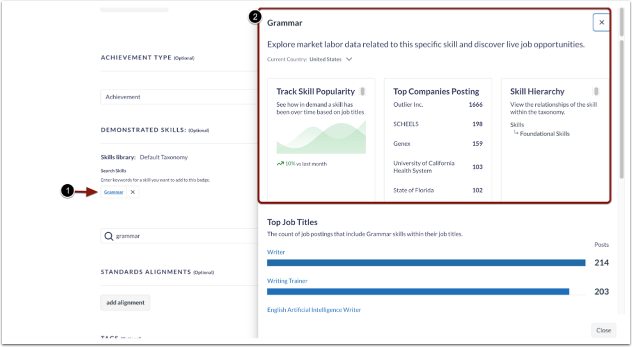
To view details about a selected skill, click the skill link [1]. A tray displays market labor data and live job opportunities related to this skill [2].
Add Skills
Enter the skill(s) you wish to represent with this badge award. You will see suggestions auto-populate based on your entered criteria. Select the most appropriate suggestion to add it to your badge.
View Skills page
In the Parchment Digital Badges Navigation, click the Skills tab [1]. To view skills aligned with badges, click the Organization Skills tab [2]. To view TalentNeuron Skills, click the Default Taxonomy Skills tab [3]. Entries with the same alignment code are grouped as a single card and use the most recently used name. Entries with no alignment code appear separately.
In the search field [4], admins and issuers can enter a name or keyword to locate specific skills. To sort Organizational and TalentNeuron skills, click the Filter drop-down menu [5]. Organizational Skills can be sorted by recent badge use, alphabetical order, or usage frequency, while TalentNeuron Skills can be sorted alphabetically [6].
To change skill visibility, click the Options icon [7]. To hide the skills from the public page, click the Make it Private link [8]. To view Organizational Skills on the organizations public page, click the View Public Page link [9].
Click a Talent Neuron skill card [1] to open the Skill Tray for metadata and usage [2].
Note: Flexible skills use a grouping logic in which entries that share the same alignment code are combined into a single card and display the most recently used name. Entries without an alignment code appear as separate cards.
Complete Badge Creation
To complete the badge creation, click Create badge.
View skills on the badge's public page
On the badges public page, the skills associated with the badge will be displayed in the Skills section.
To open the webpage displaying data about the skill and the jobs related to it, click the Skills link[1] associated with the Badge. To Apply to the job posting, click the Apply button[2].
In regions outside the US, UK and Canada, job data may be linked on career boards.