As an admin, you can manage what issuers show for instructors in the Parchment Digital Badges LTI.
Notes:
Open Admin
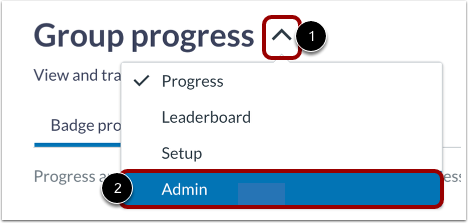
In the Group drop-down menu [1], click the Admin link [2].
Open Settings
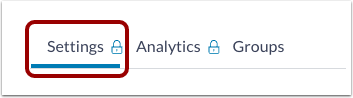
To view available issuers, click the Settings link.
Manage Issuers
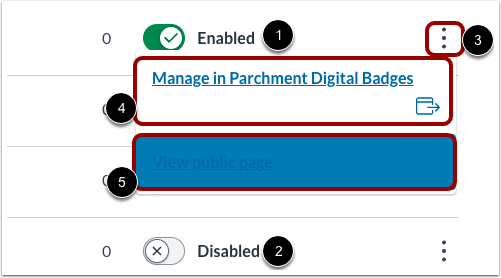
To enable an issuer, click the status button to enable [1] or disable [2] an issuer.
To manage an issuer, click the Options icon [3].
To view an issuer on the website, click the Manage in Parchment Digital Badges link [4].
To view the issuer on a public page, click the View public page link [5].
Manage Deployment Preferences
When configuring settings for Parchment Digital Badges within Canvas, you can enable or disable settings and permissions.
To let Canvas course roles dictate authoring permissions and serve as the default setting, click the Open Authoring radio button [1].
To allow instructors to create and modify badges within the integration, click the Allow instructors to create and modify badges toggle [2].
To allow instructors to subscribe to pathways for the group, click the Allow instructors to make pathway subscriptions toggle [3].
To verify user accounts and permissions with the course issuer before granting badge access, click the Governed Mode radio button [4].
To ensure group and membership data is synced after a course copy, click the Enable Auto Group Sync After Course Copy toggle [5].
To copy digital badges data to destination courses created from templates or blueprint courses, click the Copy Credentials Data from Canvas Course Template toggle [6].
Notes:
- Users without an eligible issuer role retain view-only access for progress monitoring and reporting.
- An Organization-level role without a role on that issuer does not give authoring access.