The Parchment Digital Badges Pathways LTI app allows Moodle instructors to add Parchment Digital Badges Pathways to courses. Instructors can view group or individual progress along the learning pathway. Students are able to see their own individual progress and are provided with a roadmap of their learning journey. Parchment Digital Badges Pathways can be constructed using Open Badges from any platform and/or issuer. Parchment Digital Badges Pathways is a feature of Parchment Digital Badges. To learn more about a Parchment Digital Badges subscription see What is Parchment Digital Badges?
Prerequisites
- Ensure you're enrolled as an instructor in the Moodle course
- Define an issue in Parchment Digital Badges before creating the Parchment Digital Badges Pathway
- Define the set of badges that will be used for the pathway
- Create and publish a Parchment Digital Badges Pathway
A single pathway can be added to multiple courses and/or multiple pathways can be added to a single course.
Installing the Parchment Digital Badges Pathway LTI is easy! Parchment Digital Badges Pathways gives instructors and students an easy-to-use view of their progress through a pathway right in their Moodle courses. Here's how to set it up.
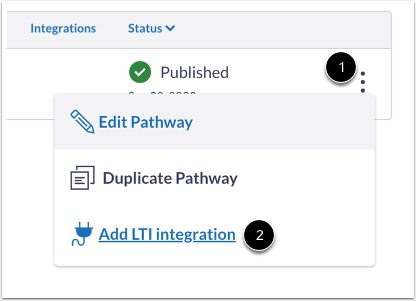
From your Issuer dashboard in Parchment Digital Badges Pathways, find the pathway you want to add to your course in the list of pathways and select LTI integrations. Complete the install by copying the key and secret from Pathways into Moodle. See below for details. Step-by-step: How to install
- Sign in to your Parchment Digital Badges account and navigate to select Issuer from the top navigation bar.
- Select an issuer associated with your organization from the list.
- Select the Pathways tab.
- Select the title of the pathway you wish to use in Moodle.
- Select the LTI integrations tab.
- Select the Add integration button
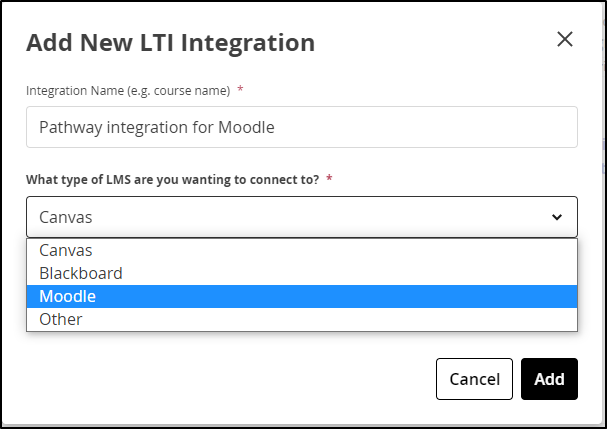
- Give your new integration a meaningful name and select the type of integration you're creating.
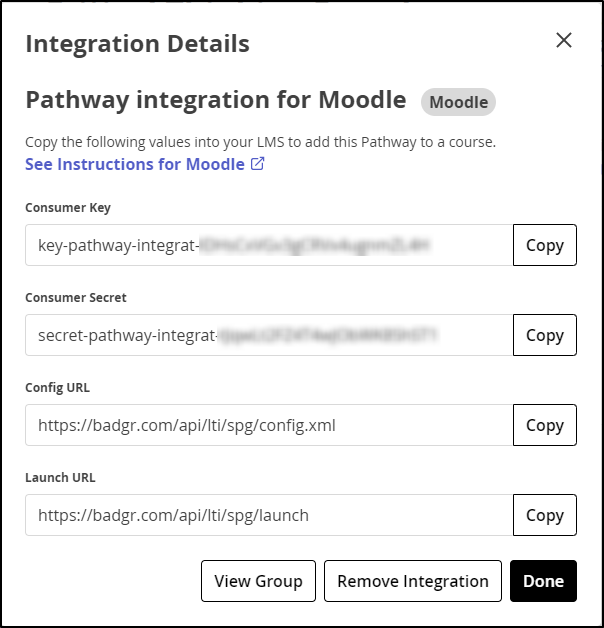
- A card should appear in the LTI integrations for your pathway with your designated name.
10. In another tab, go to the desired Moodle account, sub-account or course and Turn editing on.
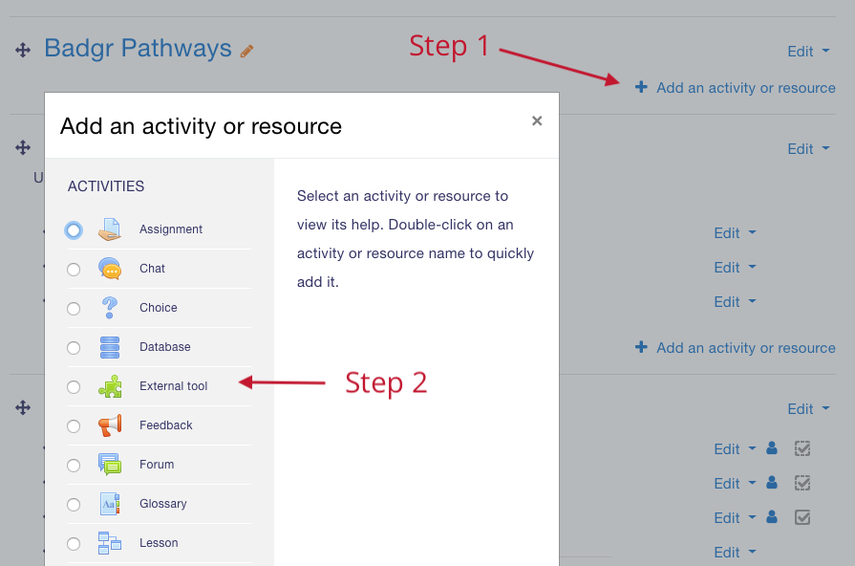
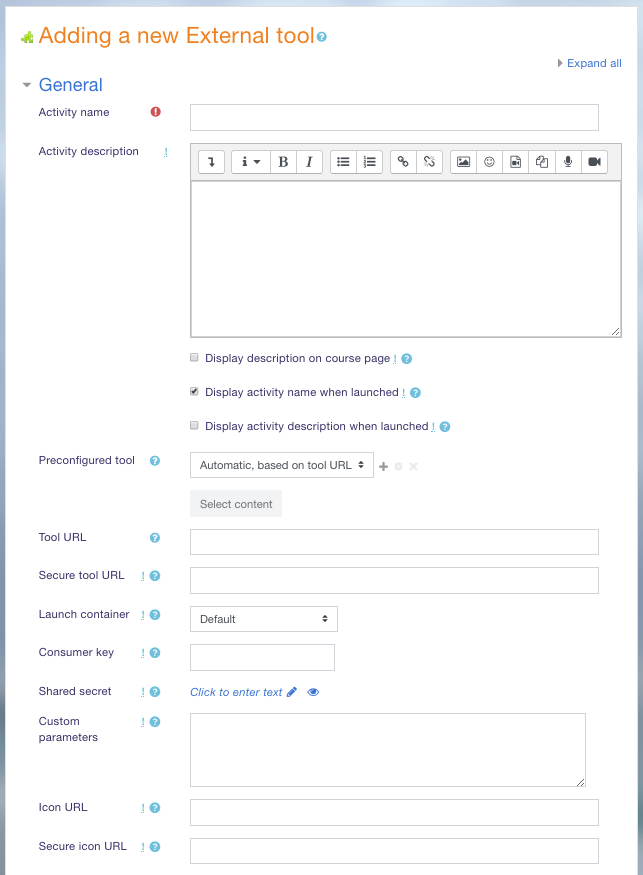
11. Select Add an activity or resource, then select External tool.
12. Copy and paste the Consumer key, Consumer secret (Shared secret) and Config URL presented in the Parchment Digital Badges Pathways dialog box into your Moodle integration. Copy the name or fill out a name you won't forget.
13. Once the information is entered, select Save. 14. Observe the new menu item, Pathways, in the course navigation along the left side. Click this item to view your pathway. Students who access the pathways menu in a course will automatically be subscribed to the pathway
Troubleshooting
There are a few error messages you may encounter if the LTI app is not added correctly. 1. If the config.xml URL does not work with your LMS, try using this URL instead: If the Config URL is used in the Secure tool URL, you'll see an "Unexpected server error" message. 3. If the consumer key and secret are incorrect or entered in the wrong fields, "Loading Pathways..." will be displayed but will not produce any results.