This article is for users who are subscribed to a pathway as badge recipients.
To access the badges and pathways they subscribed to, users need to create a Parchment Digital Badges account. Once they are subscribed to a pathway, they will receive an invitation email to join the group and subscribe to the pathway. They will also see a notification once they log in to their account.
Note: If the pathway progress for a recipient doesn't show all the badges the recipient or issuer expects should be there, the recipient should ensure the badge is visible in their backpack.
Subscribe to Pathway
In the pathway subscription email, select the View pathway button. This will take you to the pathway where you can view your own progress. To interact with the pathway, select the Trust issuer link.
Open Pathway in Parchment Digital Badges
Click the My Pathways tab [1]. Then in the Subscribed Pathways section, click the name of the pathway [2].
To view your badges, click the My Badges tab [3].
View Pathway
You can view the steps you have completed [1] and your progress [2].
To share the pathway and your progress, click the Share pathway button.
If the progress is not up to date or not appearing on a pathway, contact support.
Evaluate and Track Pathway Progress
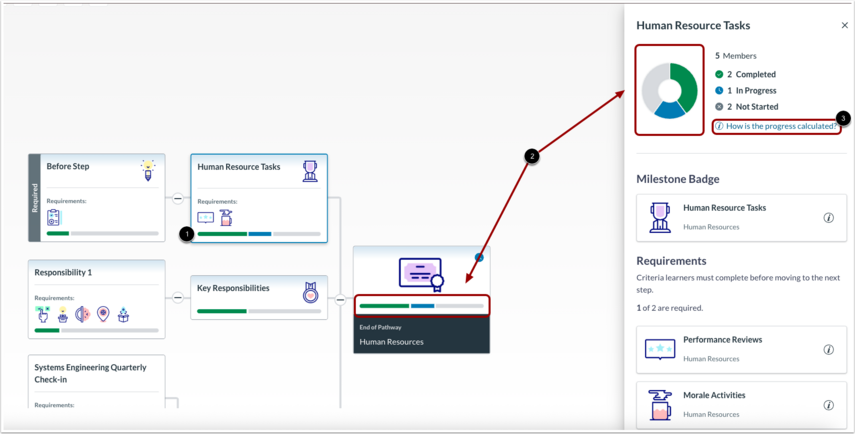
To evaluate and track group pathway progress, click on a group name [1].
Progress tracking is updated for both individual learners and group-level views to accommodate manual evaluation workflows:
- If all badges and manual experiences prerequisite steps are fulfilled, a step is considered complete [1].
- Progress bars and pie charts update in near real time, with a brief delay for data syncing [2].
- Learners marked Criteria Unmet will not count toward step or pathway completion
To learn more about how progress is calculated, click the How is the progress calculated? link [3].
View Badges
Click the My Badges tab [1], then view your badges [2].