As an issuer, you can view the details of skills associated with badges and manage the visibility of your organization's Skills page.
In the Skills tab, dedicated pages are available for all supported skill types in Parchment Digital Badges, including TalentNeuron, Flexible, and OSMT. Each page provides structured metadata tailored to the skill's source, and a stable URL for easy reference.
Open Organization
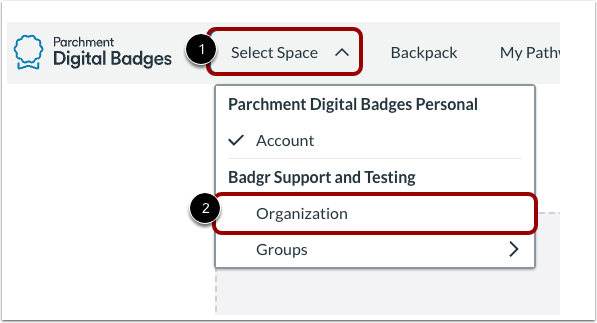
In Parchment Digital Badges Navigation, click the Select Space drop-down menu [1] and then click the Organization link [2].
Open Skills
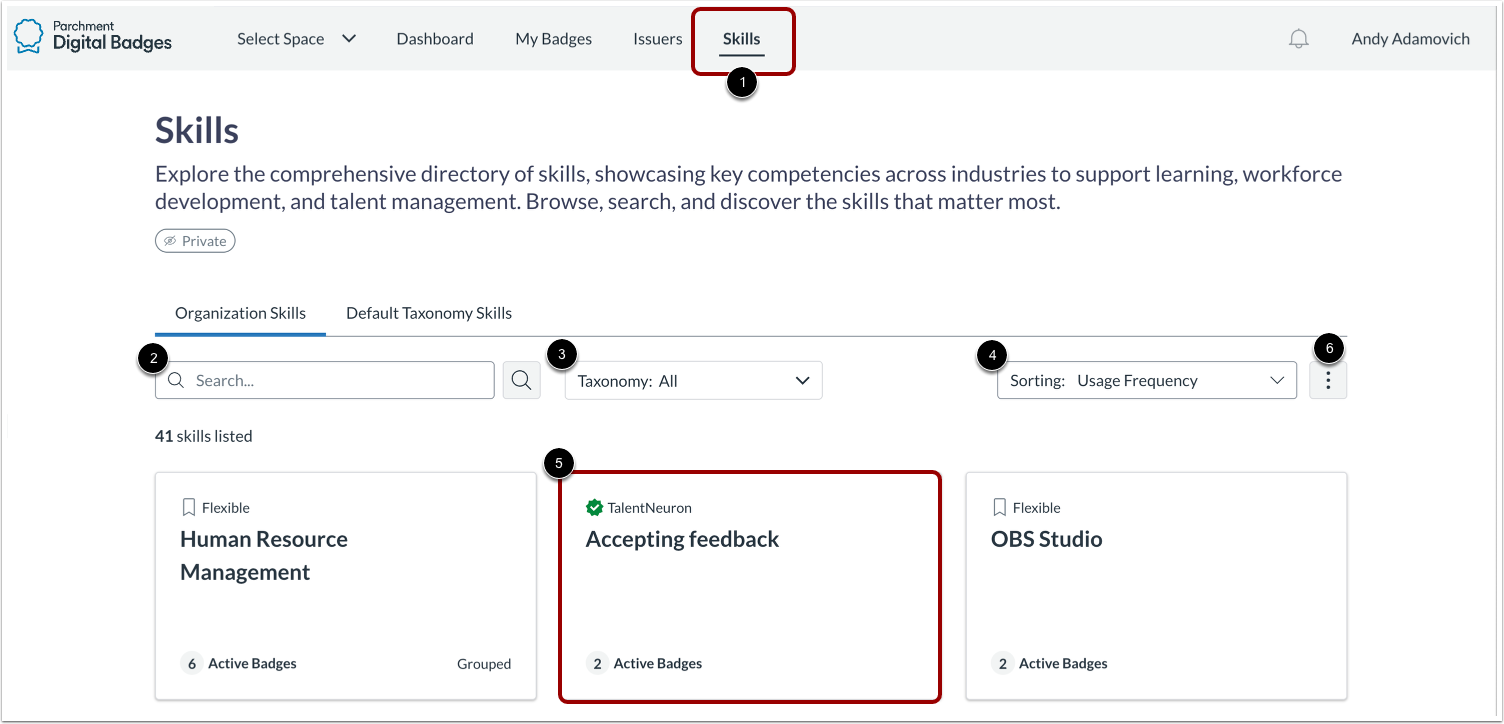
Click the Skills tab [1].
To locate a specific skill, you can use the Search field [2], Taxonomy drop-down menu (if applicable) [3], or Sorting drop-down menu [4].
Click the skill you want to view [5].
You can also manage your organization's Skills page visibility [6].
View Market Labor Insights
In the Skills page, TalentNeuron skills display taxonomy, descriptions, and market labor insights. To view labor market insights, click the Market Labor Insights tab [1]. To view data for a different country or region, click the Location drop-down menu and select a country or region [2].
Note: Changing the selected country or region affects only the current view. It does not change the organization's default location or affect other users.
View Skills Ecosystem
The Skills ecosystem displays Skill Hierarchy [1], Related skills [2], and Related certifications and licenses [3]. Existing information is grouped alongside new insights to establish a clearer information hierarchy. Related skills and qualifications reflect employer demand and market associations
View Market Insights
Market Insights display the supply and demand [1], hiring difficulty [2], skill popularity [3], and salary range for a skill [4], which help users understand current market trends and the value and demand of the skill.
You will also be able to view which industries the skill appears in the market. This shows the companies with the highest number of active or recent job postings that mention this skill. The count reflects postings within your selected location and time window.
View Top Job Titles
In the overview of Top Job Titles, you can see which job titles best matches the skill. To view the job posting trend and live job list, click the name of the job title.
View Job Value and Demand
The Job Value and Demand section displays metrics that show the market competitiveness and value of a role, including the Supply/Demand Ratio, [1] Hiring Difficulty [2], Salary range [3], and Typical job posting duration [4].
View Job Posting Trend
The Job Postings Trend section displays the number of job postings over time, helping users identify changes in demand for the role and understand job-posting activity over the selected period.
View Requested skills and qualifications
The Requested Skills and Qualifications section displays the skills, certifications, licenses, and other qualifications most frequently mentioned in job postings for the role.
View Talent Pool
The Talent Pool Composition section provides an estimated view of the available workforce for the role, including the gender and demographic representation of the talent pool. To view the distribution within the talent pool, hover over the chart.
View Live Job Postings
The Live Job Postings section displays current job opportunities for the role, including job titles [1], employers [2], estimated salaries [3], and locations [4]. To search for listings, enter keywords on the search field [5]. To apply for a listing, click the Apply button [6].
View Aligned Badges
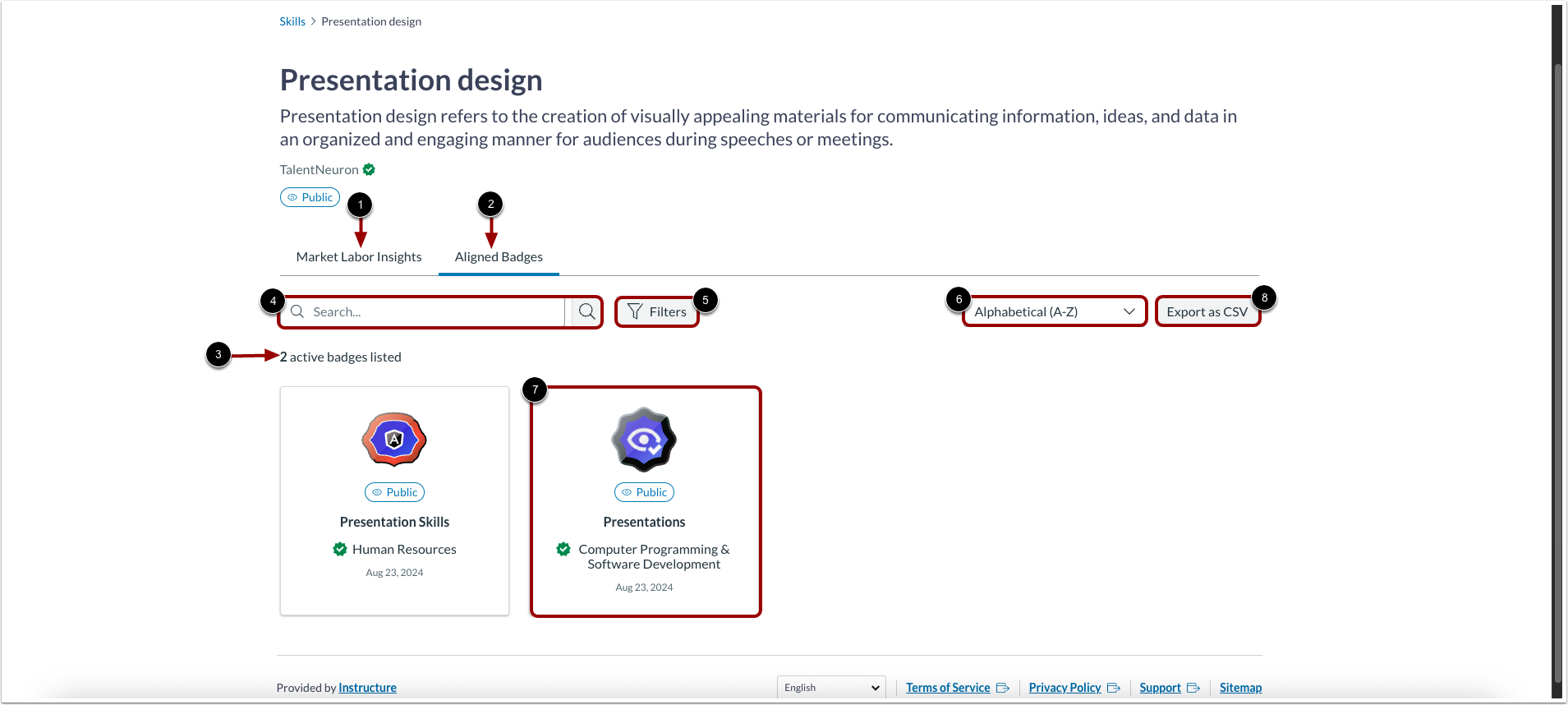
In the Skills page, TalentNeuron skills display taxonomy, descriptions, and market labor insights [1]. To browse a list of badges, click the Aligned Badges tab [2]. The number of badges displays [3]. You can filter by badge name and keywords using the Search field [4]. To filter by issuer or sort the list of badges by name or creation date, click the Filters button [5]. Then, select an option from the drop-down menu [6]. To view badge details in a new tab, click the badge tile [7]. To download the current results, click the Export CSV button [8].
Notes:
- Flexible skills display framework, code, taxonomy, and grouped variants that share an alignment code. When multiple Flexible skills share the same alignment code, they are grouped and the most recently used name displays.
- OSMT skills display metadata and include a link to the source.
Manage Organization Skills Page Visibility
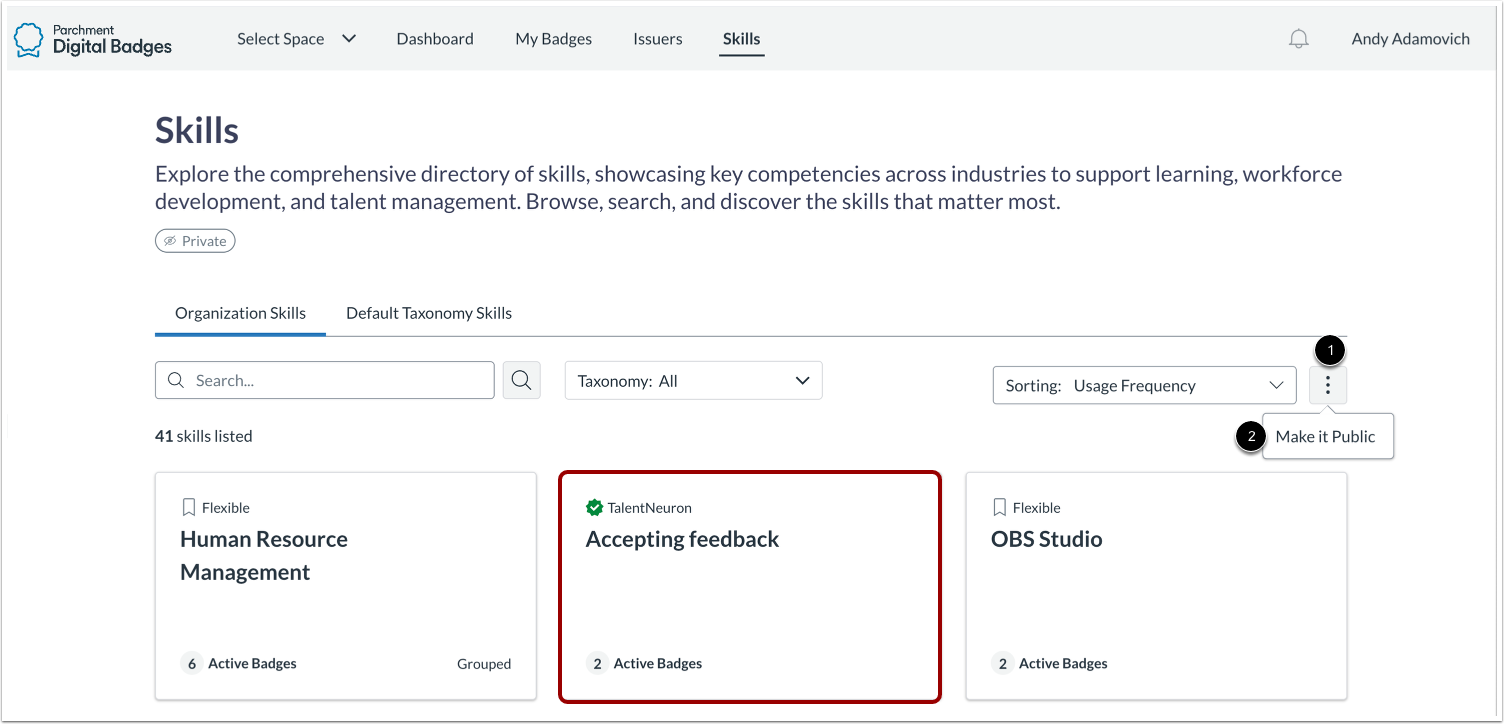
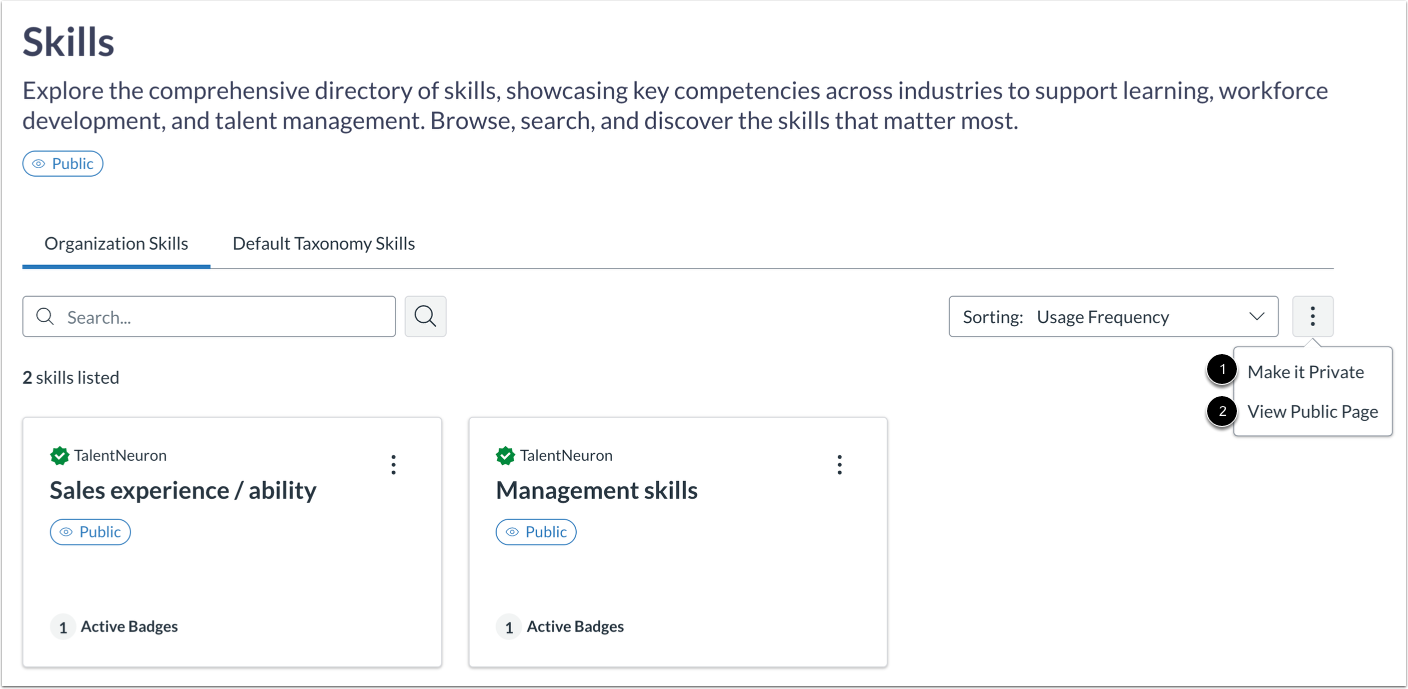
If your organization's Skills page is set to private, you can publish it by clicking the Options icon [2]. Then, click the Make it Public link.
Once published, you can either change it back to private [1] or view the public page [2].