You can add custom badge properties to existing badges in Parchment Digital Badges.
Notes:
- This is a paid feature of Parchment Digital Badges.
- To set up custom badge properties, the feature needs to be enabled in the organization settings, designed in the issuer settings, and activated on the individual badges, where applicable.
- Custom badge properties can only be added to existing badges. Learn how to create a badge.
- To change the property label, description, type or visibility, the property must be removed. If removed from the issuer, the property settings are also removed from the associated badges and awards.
Open Existing Badge
In the Issuer page, locate and open the badge you wish to add a property to.
Edit Existing Badge
In the Badge page, click the Options icon [1] and then click the Edit badge link [2].
Add Custom Badge Property to Existing Badge
Properties can only be added to existing badges.
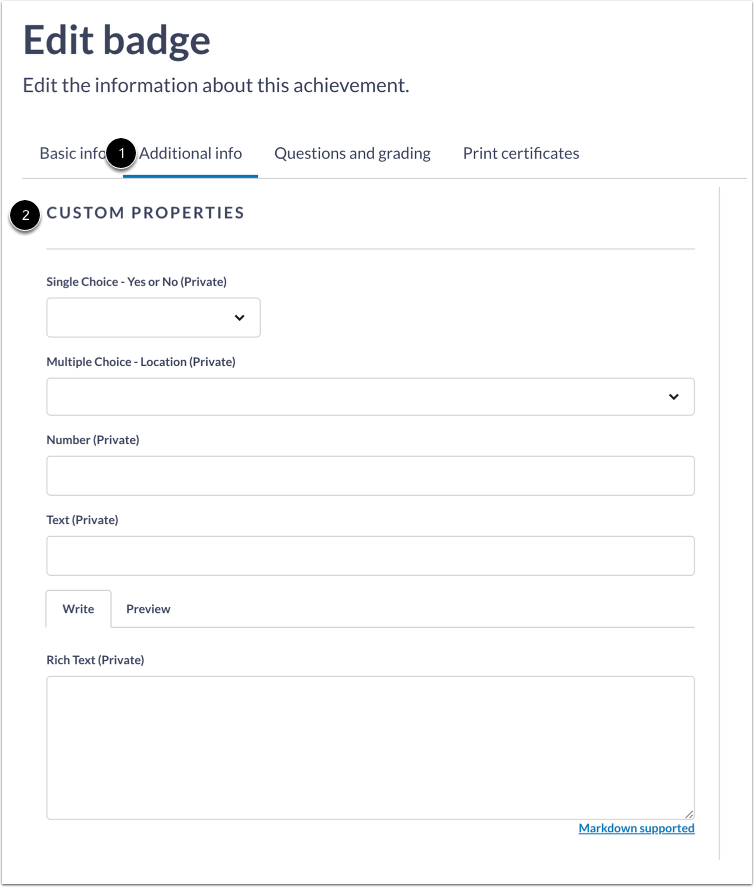
In the Additional details tab [1], scroll to the Custom Properties section [2]. Select the custom property you want to add to the badge.
Note: The property may look slightly different depending on which option you selected when editing your issuer.
View Custom Badge Property
View the added custom badge property or properties.