A single pathway can be added to multiple courses and/or multiple pathways can be added to a single course.
Parchment Digital Badges Pathways is a pro feature.
The Parchment Digital Badges Pathways LTI app allows D2L/Brightspace instructors to add Parchment Digital Badges Pathways to courses. Instructors can view group or individual progress along the learning pathway. Students can see their own individual progress and are provided with a roadmap of their learning journey. Parchment Digital Badges Pathways can be constructed using Open Badges from any platform and/or issuer.
Prerequisites:
- Ensure you're enrolled as a teacher (instructor) in the course.
- Define an issuer in Parchment Digital Badges before creating the Parchment Digital Badges Pathway.
- Define the set of badges that will be used for the pathway.
- Create and publish a Parchment Digital Badges Pathway.
- Create an LTI for the desired pathway.
Installing the Parchment Digital Badges Pathway LTI
Parchment Digital Badges Pathways gives instructors and students an easy-to-use view of their progress through a pathway right in their courses. Here's how to set it up.
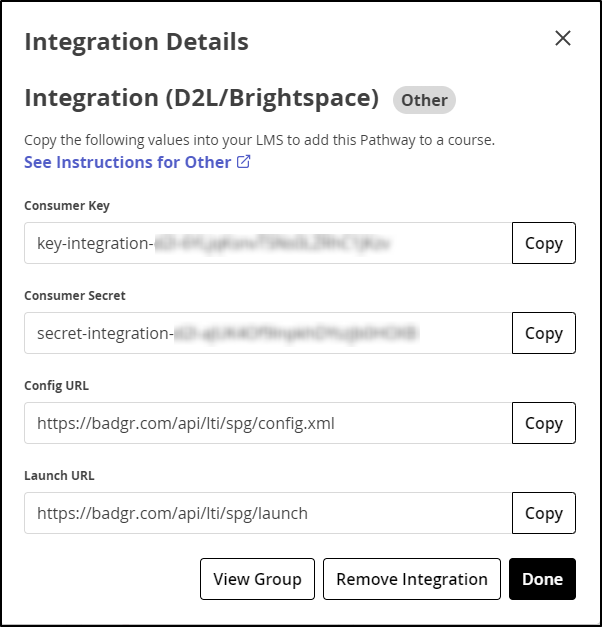
From your issuer dashboard in Parchment Digital Badges Pathways, find the pathway you want to add to your course in the list of pathways and select LTI integrations. Complete the install by copying the key and secret from pathways into your course. See below for details. Step-by-step: How to install
- Sign in to your Parchment Digital Badges account and select Issuer from the top navigation bar.
- Select an issuer associated with your organization from the list.
- Select the Pathways tab.
- Select the title of the pathway you wish to use.
- Select the LTI integrations tab.
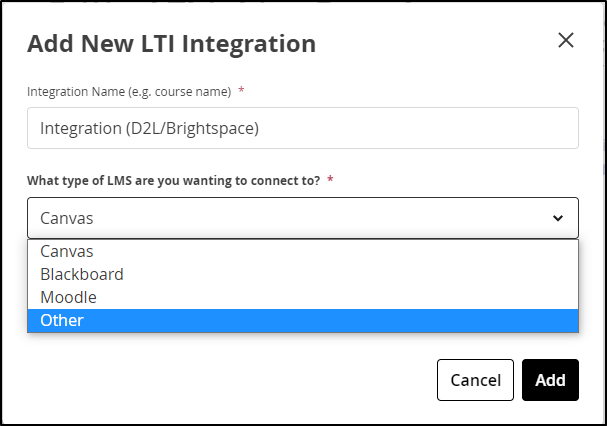
- Select the Add integration button
- Give your new integration a meaningful name and select the Other from the drop-down menu.
- A card should appear in the LTI integrations for your pathway with your designated name.
9. In another tab, sign in as a teacher (instructor) in the desired D2L/Brightspace account, sub-account, or course.
10. Select the External learning tools link at the top of the page and then select the New link button.
11. Enter a title and description for the LTI app you're creating.
12. Under the Key/Secret section of the page, select the radio button corresponding to Link/Secret.
13. Copy and paste the Config URL presented in the Parchment Digital Badges Pathways dialog box into your D2L/Brightspace integration.
14. Edit the URL.
Edit the URL by replacing "/config.xml" with "/launch"
15. Copy and paste the Consumer key and Consumer secret (Shared secret) into the corresponding fields.
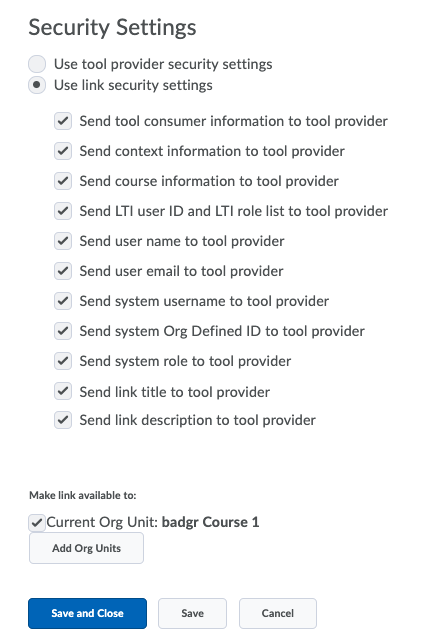
16. At the bottom of the page, under Security settings, select the radio button Use link security settings.
17. Select all the items in the list, then Save and close.
18. Use the dropdown menu from the external tool to preview the results in a new window. The new window should open up a view of your pathway.
19. Add the external tool as Content to the course and make it visible to students.
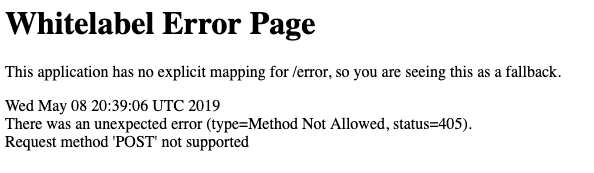
Students When students sign in to the course and access the Pathways LTI app, they will be prompted to agree to theParchment Digital Badges Terms of Service and directed through an authorization process. After authorizing the Parchment Digital Badges app, students can view the pathway right from within their course. Troubleshooting If the config.xml URL does not work with your LMS, try using the Launch URL instead.
For more information, see D2L/Brightspace's documentation: Set up a link to a tool provider.