As you move through Parchment Digital Badges Pathways and earn badges, Parchment Digital Badges tracks your progress and accomplishments in a Learner Record that you can customize and share.
What is a Learner Record?
The Learner Record helps you quickly and easily visualize, understand, and share your pathway progress at a high level without going into each individual pathway. The Learner Record allows you to:
- See which milestone badges you've earned
- Measure your progress along the pathway(s)
- Share your accomplishments with third parties such as admissions departments or hiring committees
The Learner Record encapsulates all the learning that takes place in an organization, similar to a transcript.
View Learner Record
To access the learner record, click the Select Space drop-down menu [1]. Then, select an organization [2].
Note: The learner record is a Parchment Digital Badges feature. If you don't see an organization listed on your menu, you may not be enrolled in a program that subscribes to Parchment Digital Badges.
View My Record Page
Click the My Record tab.
From the My Record page, you can access:
- A dashboard view of the pathways the learner is subscribed to is listed in alphabetical order
- Completed pathways and pathways in progress
- Recently awarded badges
- Information about sharing learner recordings
View Learner Dashboard
The Learner dashboard tab displays completed pathways and pathways in progress. You can hide or view completed pathways using the toggle button. For pathways in progress, you can see your percentage of completion.
View Leaner Record
The Learner record tab provides a more detailed view of pathway progress. From here, you can:
- View a list of the pathways to which you are subscribed
- See which milestone and prerequisite badges you've earned or need to earn
- Select a milestone or prerequisite badge to view specific details about the badge
- Share your learner record and manage what content is displayed
Share Learner Record
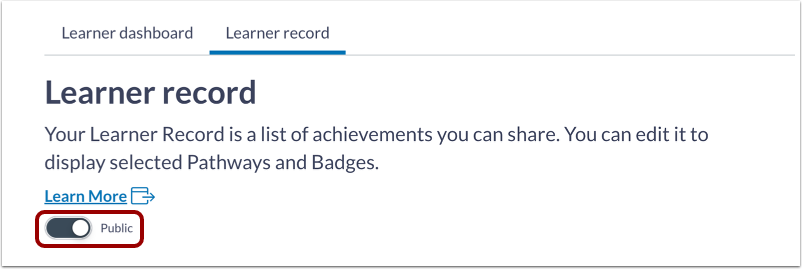
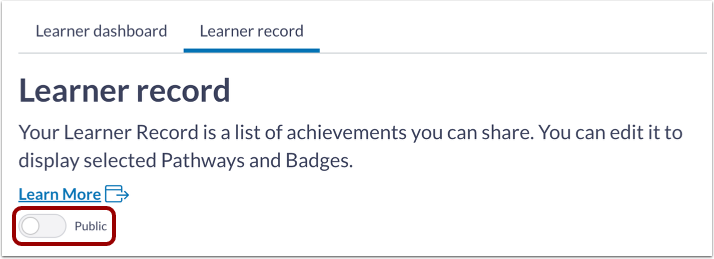
To share the learner record, click the Public toggle button on. When the Public toggle button is on, anyone with the link to your learner record can see your progress. However, you can control what steps of the learner record you share.
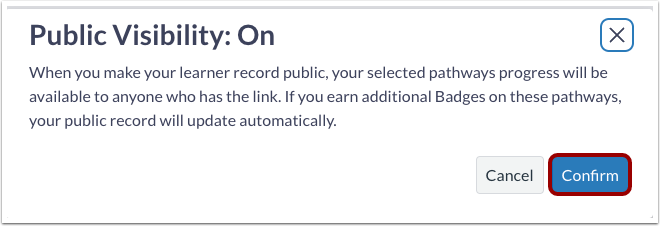
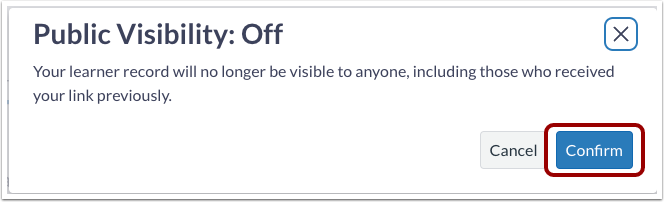
To confirm that you want your learner record to be public, click the Confirm button.
Manage Shared Items
Once the Public button is enabled, you can edit which steps you want to share. To only share certain items, click the Edit button. To control the order in which the items are displayed as well as which items are visible:
- Use the arrows to move individual pathway progress up or down to display them in the order you choose.
- Use the eye symbol to make progress visible or hidden. By default, hidden pathways are moved to the bottom of the list.
Share Learner Record URL
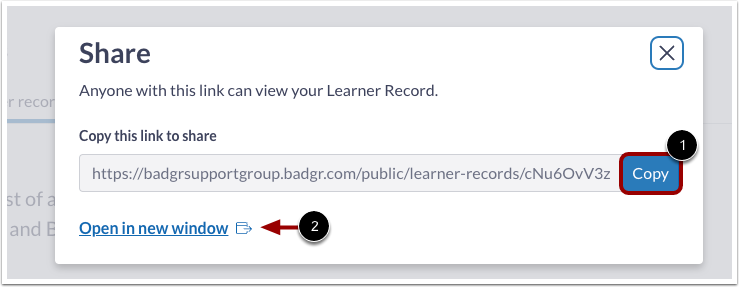
To view and copy the Learner Record URL, click the Share button.
Copy URL
Click the Copy button [1].
To view the Learner Record in a new window, click the Open in new window link [2].
Disable Public Visibility
To turn off public visibility for your learner record, click the Public toggle button off.
Click the Confirm button.
View Non-Public Learner Record
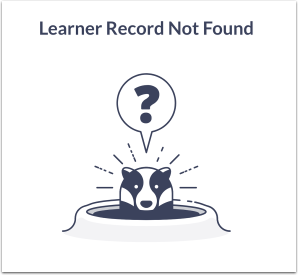
If you have shared a URL to your Learner Record but later turn off public visibility, a "Learner Record Not Found" message displays to anyone attempting to view your URL.
Frequently Asked Questions (FAQ)
Q: Can I create multiple versions of my learner record to share with different people?
A: No. Think of your learner record like a website that’s the same for everyone who visits—there’s just one version at any given time. When you update your learner record, the new version will replace the previous version, and moving forward all visitors will see the new version. If you shared your learner record link with someone in the past and that person uses the link after you make changes, they will see the updated version.
Q: I see the option to make my learner record public. What does “public” mean?
A: When you turn on the Public toggle, anyone who has the link can view your learner record. If the toggle is off, no one can view it. Your learner record will not appear in Internet search results.
Q: Where do I find the link I can use to share my learner record?
A: On the learner record page, turn on the Public toggle, then click the Share button.
Q: Can I see how my learner record will display for others?
A: Yes. To view the public version of your learner record, turn on the Public toggle. Click Share. Copy the link, then enter the link in a new window or tab of your Internet browser.
Q: How does the learner record relate to the overview on the Learner dashboard?
A: The learner record page includes some of the information from the Learner Dashboard — specifically, your pathways, the badges you’ve earned on those pathways, and any badges you have earned that are not part of a pathway. You can select which of these to include in the learner record you share.
Q: What is a milestone badge?
A: Milestone badges represent the achievement of important parts of a journey through the pathway, such as mastery of a competency or completion of a section of a learning program.