Open Badge
Select a badge to award by clicking on the name of the badge.
Award Badge
Click the Award badge button.
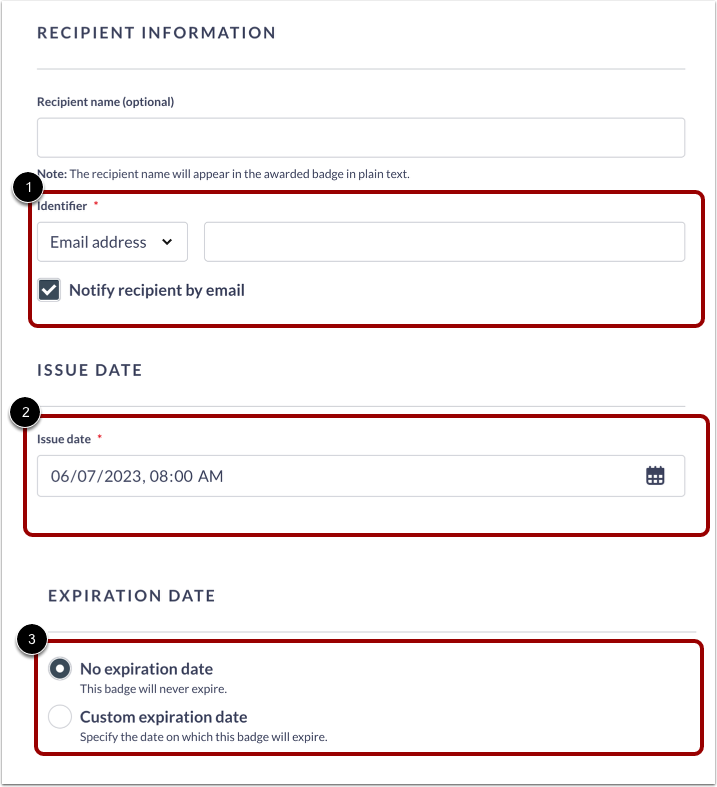
Add the recipient's identifier [1], the badge issue date [2] and, if necessary, the badge expiration date [3].
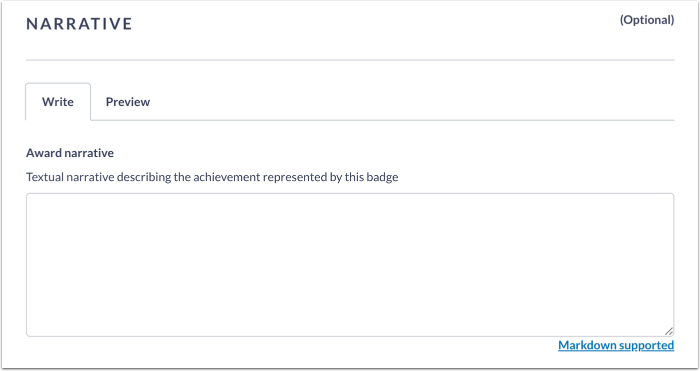
Add Narrative
Narrative text consists of personalized information about the badge from the issuer.
Note: Narratives are included in the Open Badge's metadata and can be viewed by anyone the badge is shared with.
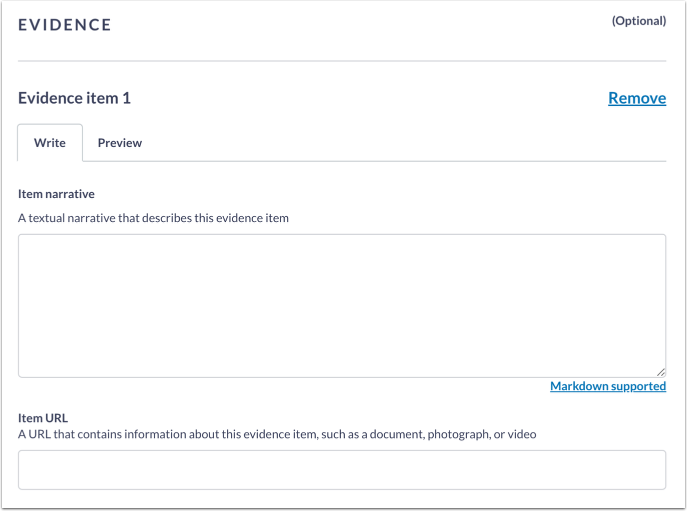
Add Evidence
Evidence is proof that the earner satisfied the earning criteria required for the badge they received.
Notes:
- Evidence URLs are included in the badge's metadata and and can be viewed by anyone the badge is shared with.
- For evidence items, each may include an external URL, a narrative or both. The narrative of each item often is used to describe what is found at the URL, so a student understands what the content is before viewing.
OB3.0 Additional Details
When OB3 is enabled at the organization level, an OB3.0 Additional Details section displays during badge creation or editing [1]. Issuers can complete any of the additional fields [2]. For more details related to the fields, click the Learn how to use these fields link [3].
Award Badge
To award the badge, click the Award Badge button.
View Awarded Badge Recipients
In the badge's Awards tab, you can view all recipients of that badge. To view the field information, click on the recipient email [1].
In the Badge details view, field information displays for badge recipients and viewers.