How do I add skills to a Parchment Digital Badges Badge?
1. Introduction
When awarding badges with Parchment Digital Badges, you can associate these badges with specific skills that connect to job market data when they are viewed or shared.
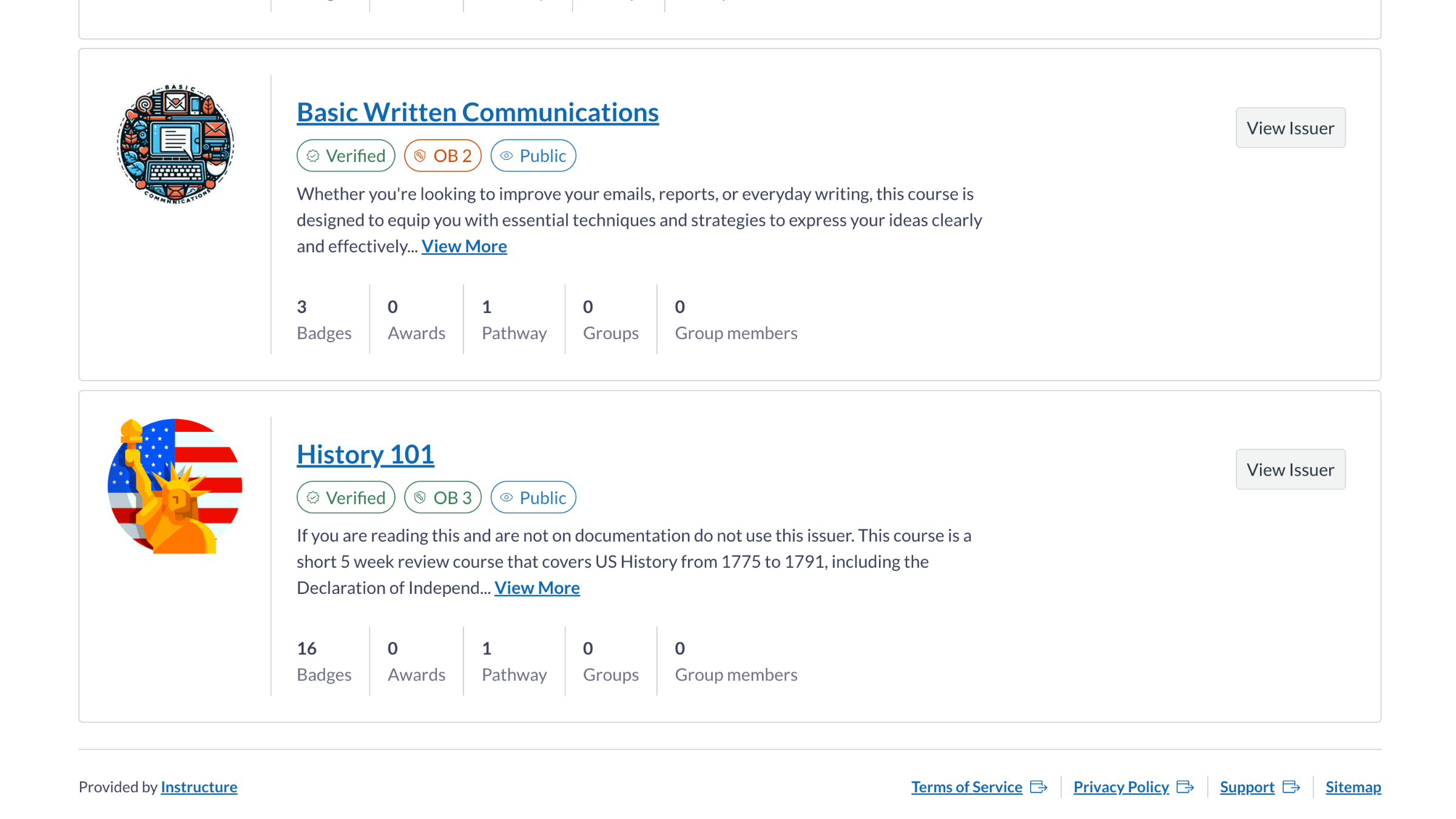
2. Open Issuer
To open the Issuer, click the View Issuer button.
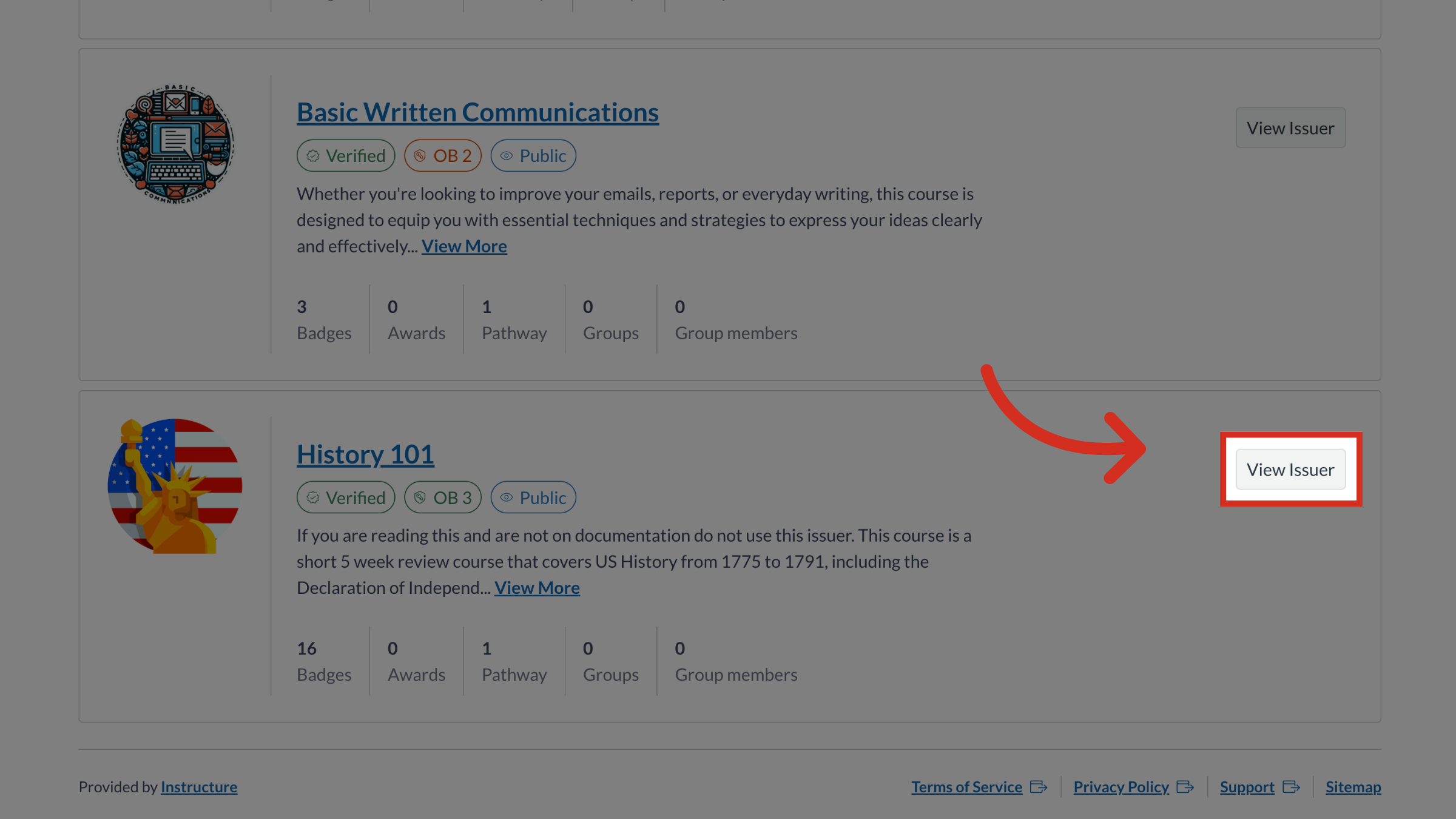
3. Open Edit Badge
Then click the Issuer badge options button and click the Edit Badge link.
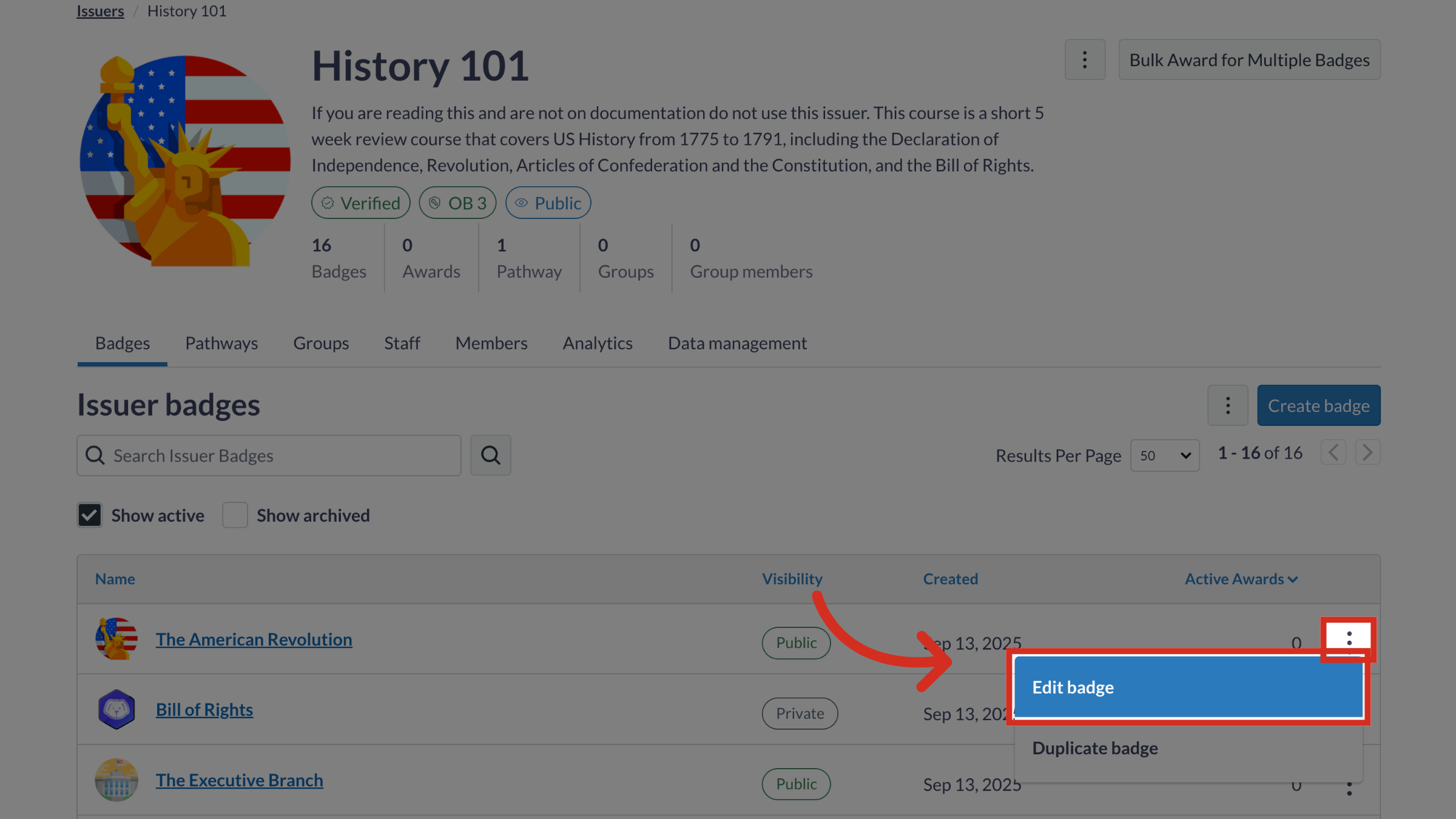
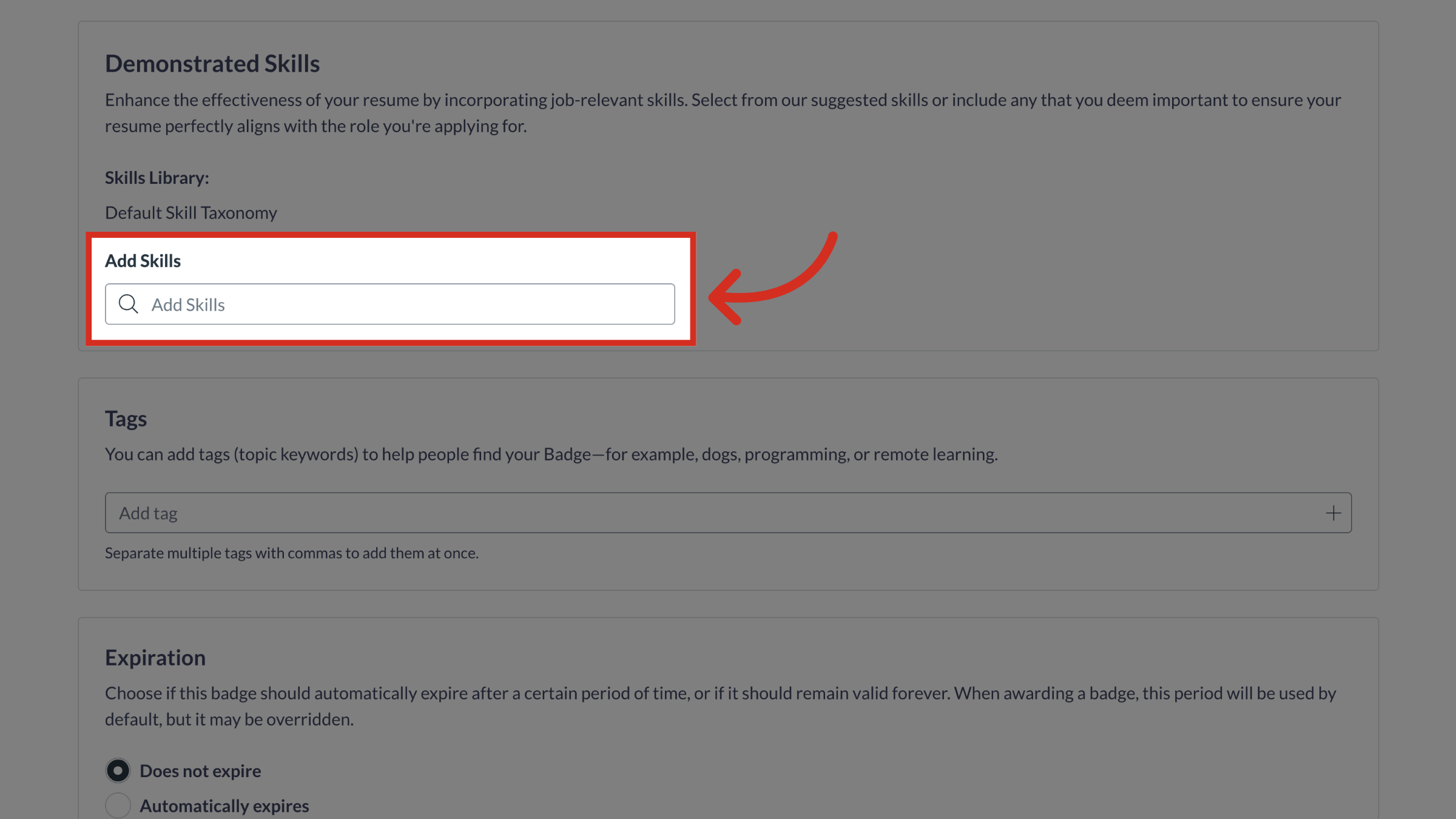
4. Add a Skill
In the Demonstrated Skills field, type in the skills you would like to add.
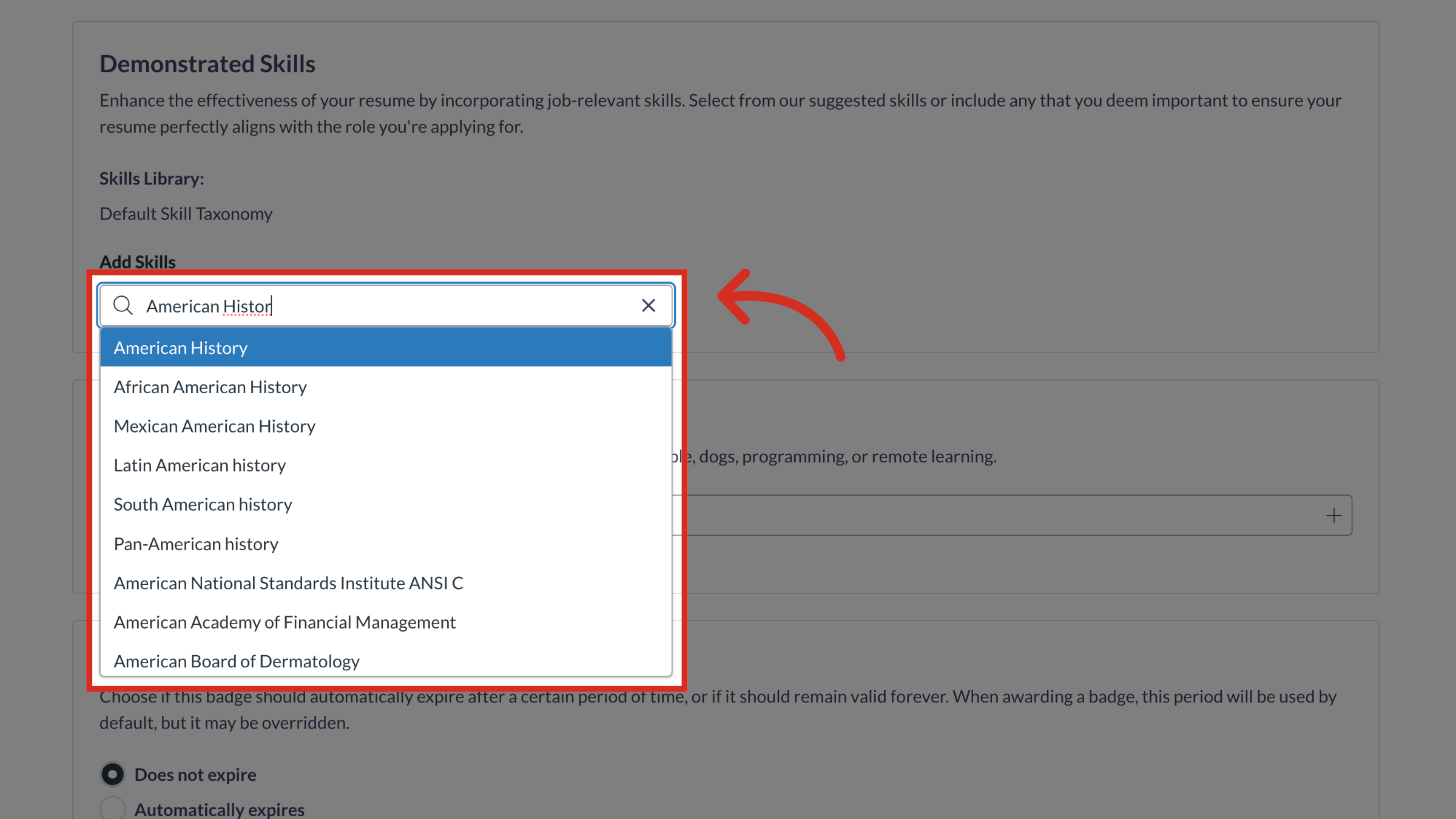
5. Select Skill(s)
Select the skill(s) to add.
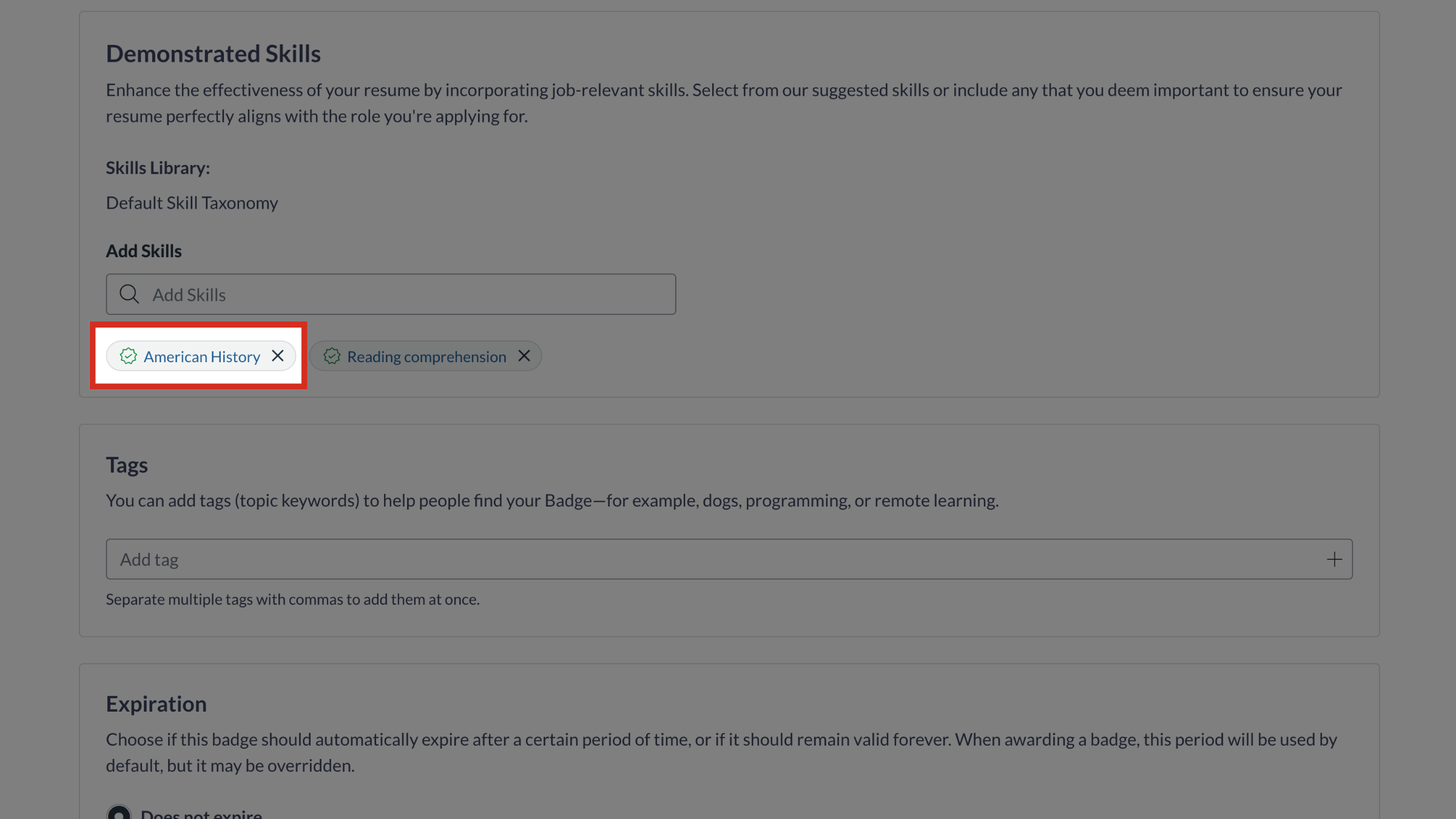
6. View Skill Details
To view the details of the skill you added, click the skill name.
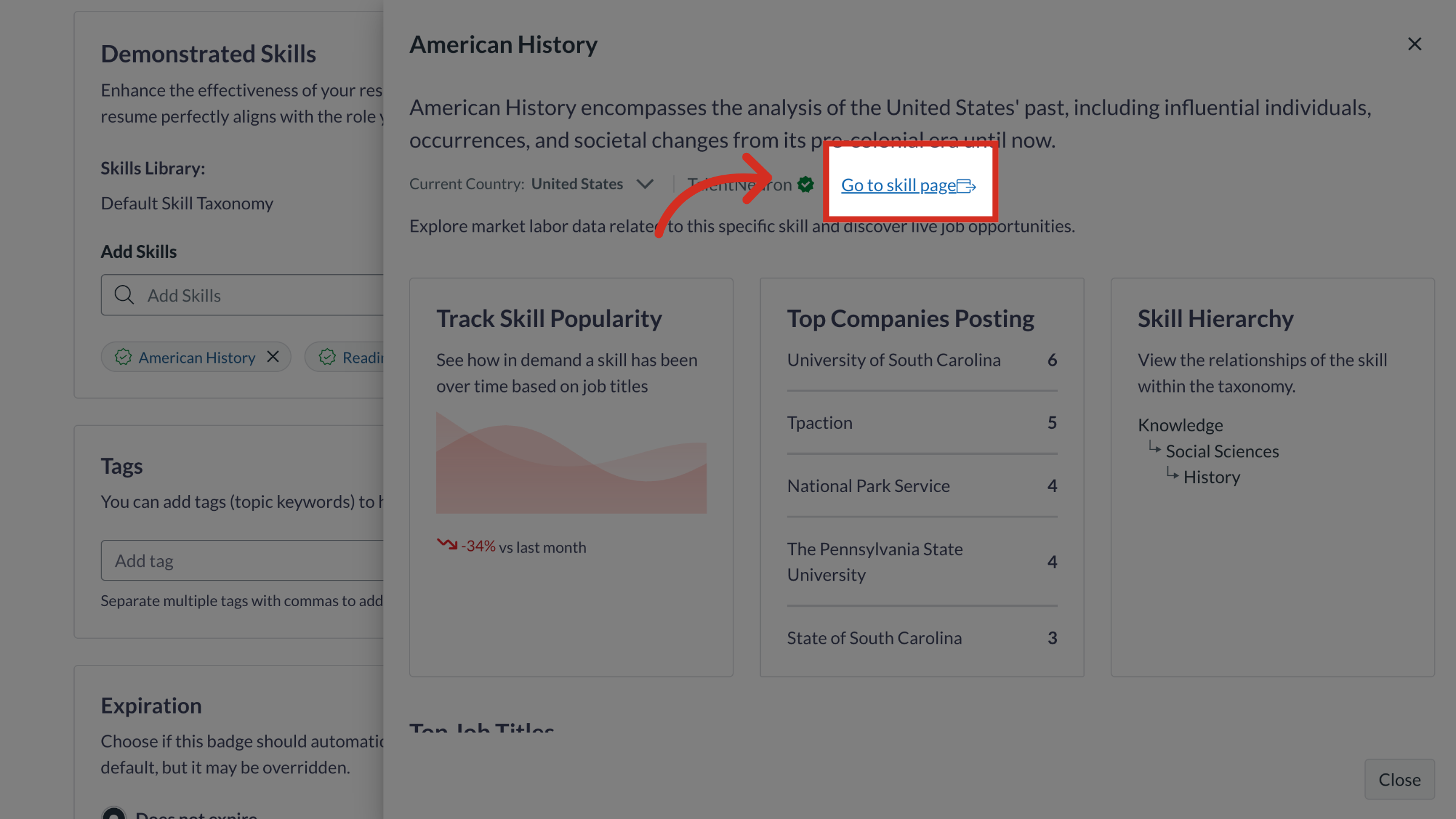
7. Open Skill Page
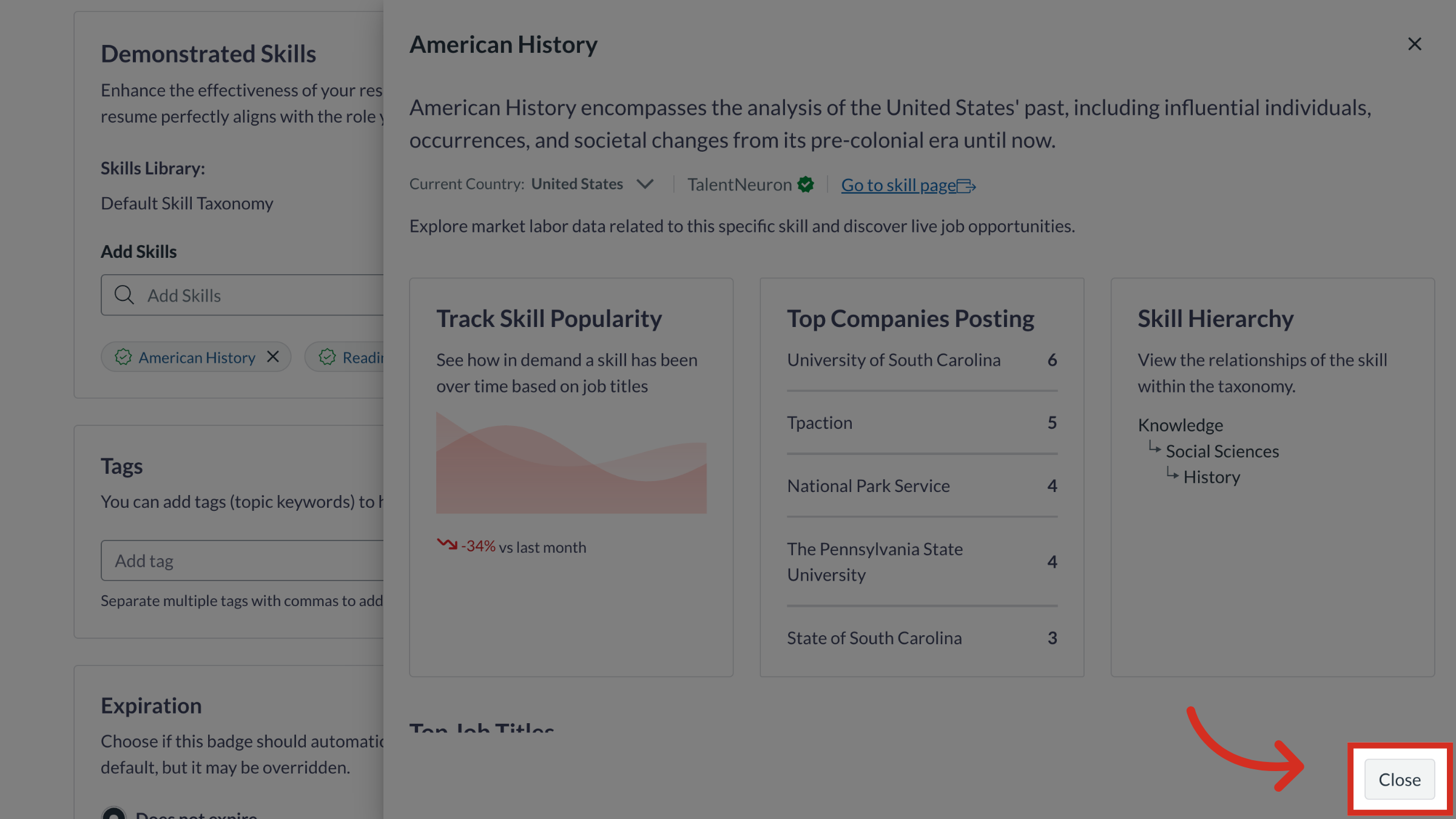
The Skills tray displays. To view the details in the Skills page, click the Go to skill page link.
8. Exit Skills Tray
To exit the Skills Tray, click the Close button.
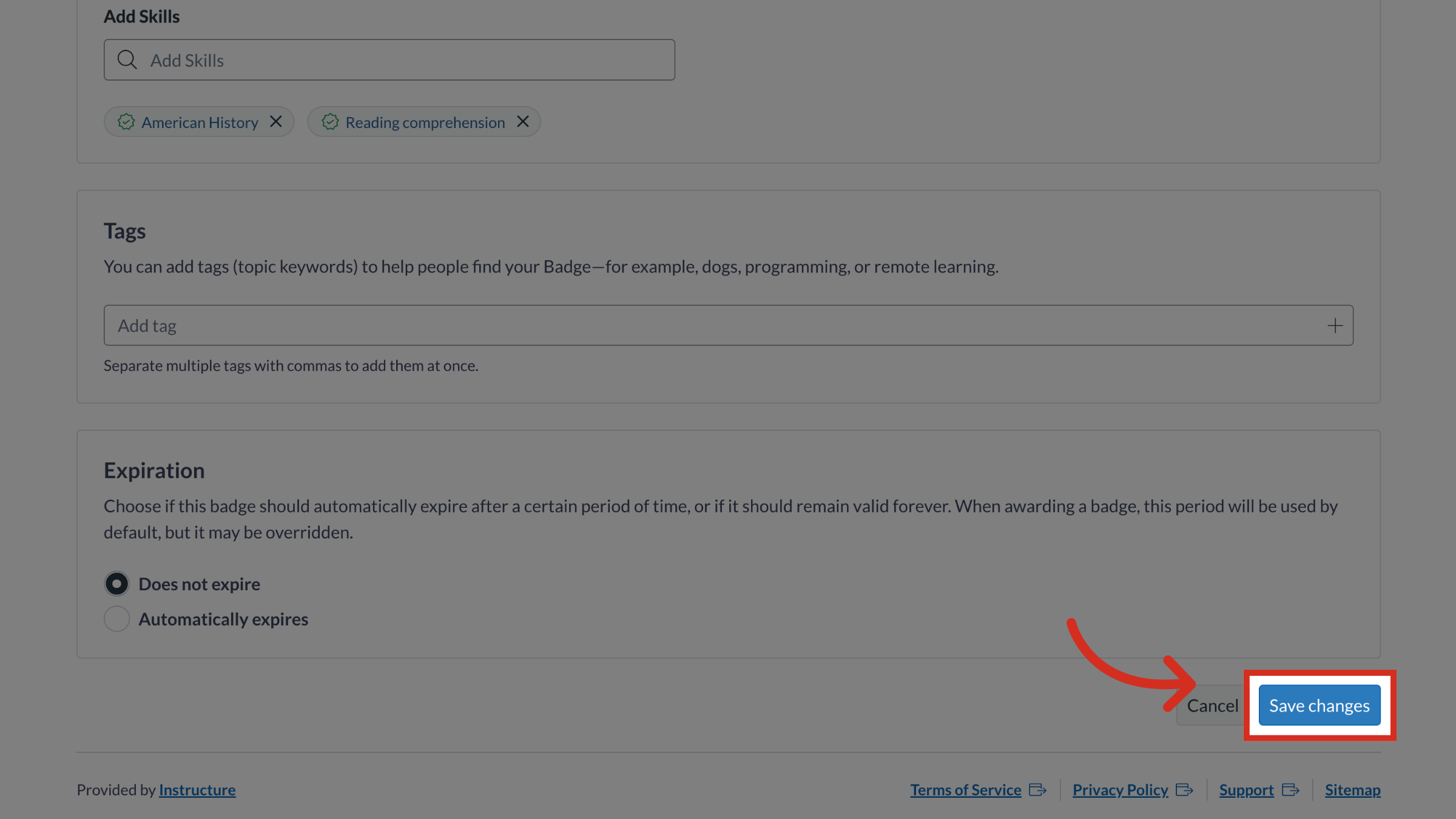
9. Save Changes
To save the added skill, click the Save changes button.
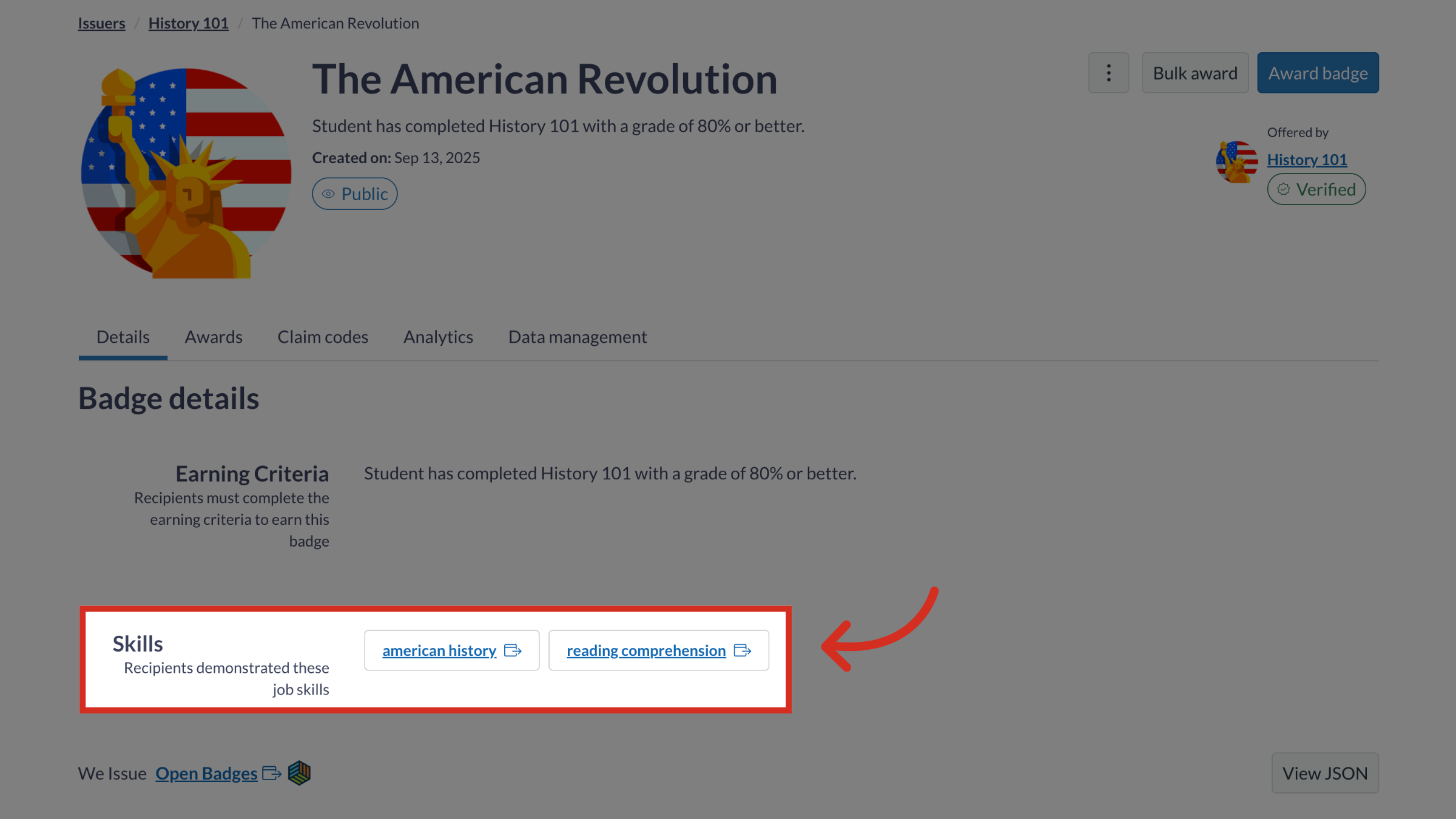
10. View Skills
Once saved, you can view all skills associated with the badge.