The data management tab on the Issuer page allows you to export badge awards, issuer data, or badge classes to CSV or JSON files from a designated time period. It also allows you to update and replace existing badges with new ones from different sources.
Note: The Data Management feature is available with a paid Parchment Digital Badges subscription.
Export Organization-Level Badge Awards
To export badge awards at the organization level, click the Analytics tab [1], then click the Data management button [2].
In the Data Management page, you can find:
- Badge list exports [1]
- Badge award exports [2]
- Group exports [3]
Note: The exported file uses a CSV format.
Export Issuer-Level badge awards
In your Parchment Digital Badges account, click the Issuers tab [1]. Then, click the Data management tab [2]. Choose a start and end date to define the time period for the badge awards you would like to view [3]. If you do not select a start and end date, then all badges awarded to all recipients will be included in the CSV file.
Click the Export CSV button [4].
Export Issuer
When exporting an issuer, you can select Badge Classes [1], Include Assertions (only available if Badge Classes are selected) [2], Include Recipient Groups [3], Include Pathways [4] and Compress Output (ZIP file) [5]. Once done, click the Export Issuer button [6].
Note: The exported file uses the JSON format.
You can open the file in Excel or another spreadsheet program to view the badge award information.
Export Group
In the Export groups section, issuers can download structured data for all groups associated with an issuer.
- Export Groups [1]: Export groups to download a list of all active groups tied to the issuer. The export includes manually created groups, LMS-linked groups, API-created groups, and pathway-generated groups. It always contains the core fields: Group Name, Group ID, alignment type (badge or pathway), and learner count.
- Archived Groups [2]: Include archived groups toggle to include inactive or sunset groups for retrospective analysis
Issuers can customize exports using the following optional metadata fields:
- Include group creation method [3]: Shows how and when each group was created (UI, API, LMS, or pathway), including LMS course IDs and deep links where applicable
- Include group expiration method [4]: Displays expiration dates and whether expiration is managed manually or synced from an LMS
- Include staff members [5]: Includes staff names and unique identifiers associated with each group
Additionally, Issuers can generate:
- Export badges [6]:Badge and pathway alignment details, including requirement names, thresholds, award methods, and visibility rules
- Export learners progress [7]:One row per learner showing badge progress, latest award, alignment path, and evidence details
Update and replace a badge
The Data Management tab on a badges details page allows issuers to replace the selected badge with one from a different Parchment Digital Badges server or another Open Badges-compliant platform. Before a badge is awarded, it is referred to as a badge class or badge template. Badge classes are listed under an issuer and can be edited.
After a badge is awarded, it becomes a badge assertion. Assertions are permanent records that include embedded metadata such as the recipients email, badge details, and award date. Badge assertions cannot be edited.
In your Parchment Digital Badges account, click the Issuers tab [1]. Select an issuer from the list. In the badge you would like to update and replace, click the Data management tab [2].
In a different tab or window, find the badge you wish to use to update and replace the badge you initially selected. This can be from a different Parchment Digital Badges server location, the same server but a different issuer or a different Open Badge compliant badging platform.
Save or copy the public URL [1] or JSON [2] from an awarded badge assertion.
Return to the tab containing the badge you wish to update [1].
Paste or upload the badge image [2], URL [3], or JSON [4] in the appropriate field. Click the Continue button [5].
To return to the data management page, click the Cancel button [1]. To update and replace the badge, click the Replace badge button [2].
Note: Once a badge is updated, all information associated with the original badge (including its image, criteria, and description) will be permanently overwritten. You can edit the new badge, but you cannot revert to the original version.
Export Badge Class
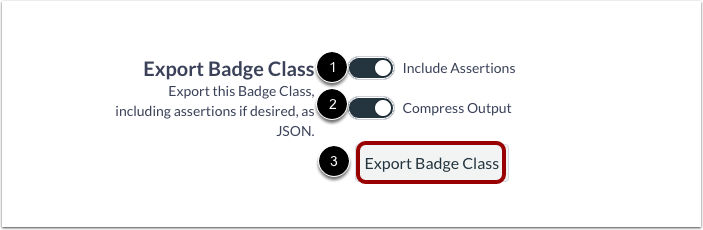
In the Data Management tab of a selected badge class, you can choose to Include Assertions [1] and Compress Output [2]. Once done, click the Export Badge button [3]
Note: The exported file uses a JSON format.
Previously awarded badges
When you replace a badge class, all previously awarded badges are updated with the new badge information. The text should update right away, but if the badge image has changed, it may take 13 days to fully refresh.
If the updated image is not showing:
- Wait 13 days for the badge to re-sync.
- Refresh your browser to load the latest version.
- Still not seeing the new image? Contact support at support@badgr.com.