You can download the contents of your ePortfolio as a zip file.
Notes:
- ePortfolio downloads do not include comments.
- Admins with masquerade permissions can download ePortfolios directly from the web interface without masquerading as the owner first.
View the video transcript
00:05: How do I download the contents of my ePortfolio?
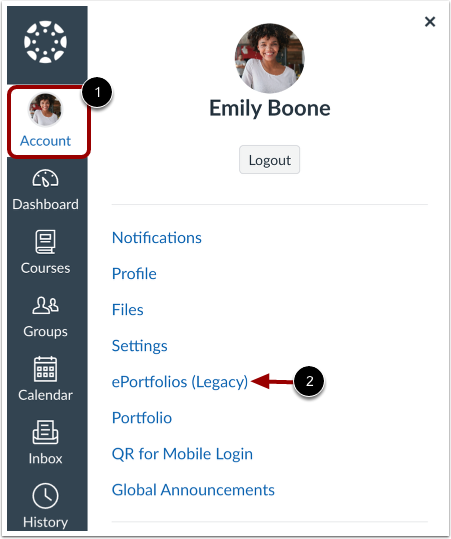
00:09: In Global Navigation, click the Account link, then click the ePortfolios (Legacy) link.
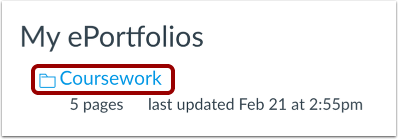
00:16: Click the title of the ePortfolio.
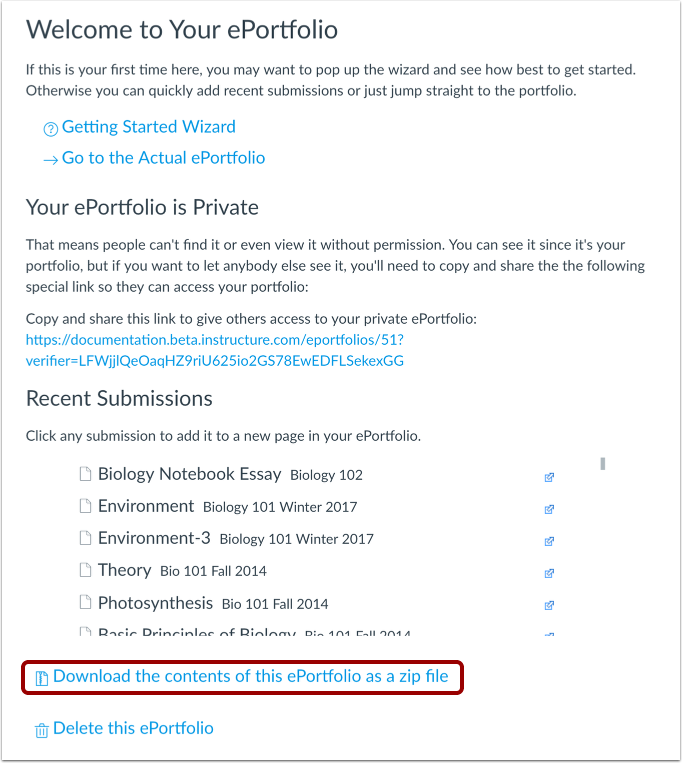
00:19: To download your ePortfolio, click the Download the contents of this ePortfolio as
00:23: a zip file link.
00:25: You can monitor the download through the progress bar.
00:28: It will download as a .zip file to your browser's
00:31: set download location.
00:34: Admins with masquerade permissions can download ePortfolios directly from the web
00:38: interface without masquerading as the owner first.
00:42: This guide covered how to download the contents of my ePortfolio.
Open ePortfolios
In Global Navigation, click the Account link [1], then click the ePortfolios (Legacy) link [2].
Open ePortfolio
Click the title of the ePortfolio.
Download ePortfolio
To download your ePortfolio, click the Download the contents of this ePortfolio as a zip file link.
View Download Process
You can monitor the download through the progress bar. It will download as a .zip file to your browser's set download location.
View User's ePortfolio
When viewing a user's ePortfolio, an admin has access to the download link without masquerading.