You can view all your company's product listings, add products, and retire products from the Partner Portal's Landing Page. You can manage your company's educational technology products and curate what is showcased to customers.
Open Products
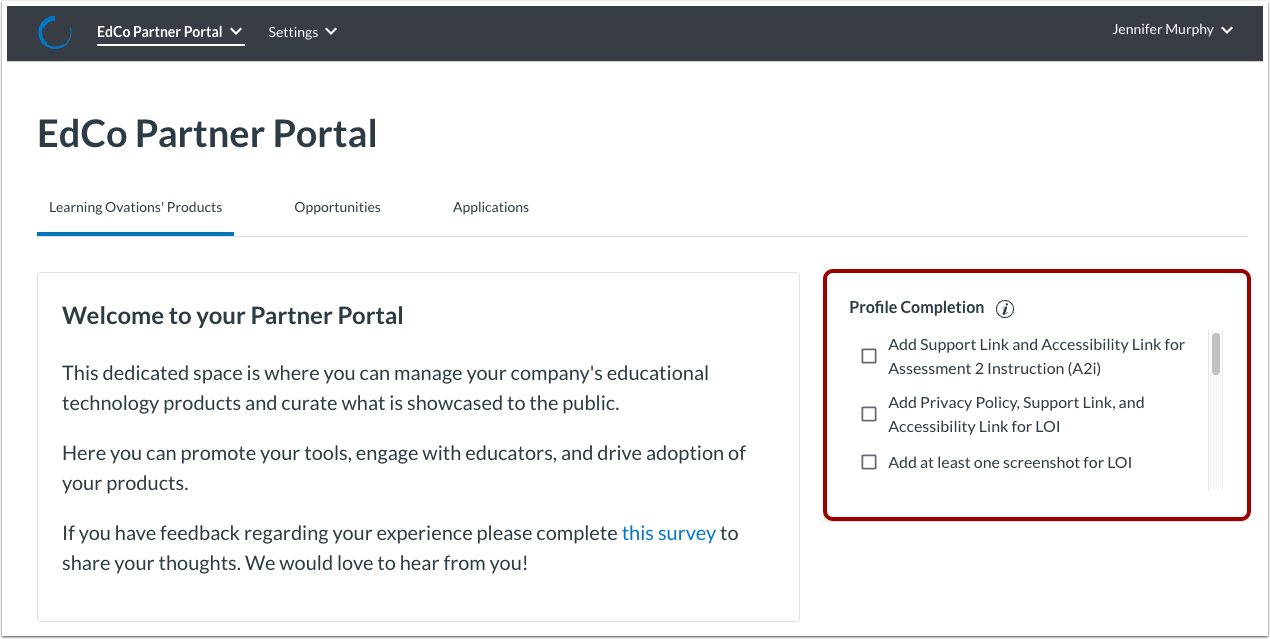
When you log in to the EdCo Partner Portal, the product landing page displays. You can also access it by clicking the EdCo Partner Portal link in top menu bar.
View Profile Completion Checklist
To assist you in increasing the visibility of your products, the Profile Completion container displays a list of steps you can perform. These are optional but can increase the discoverability of your edtech products and tools.
View Product Listing
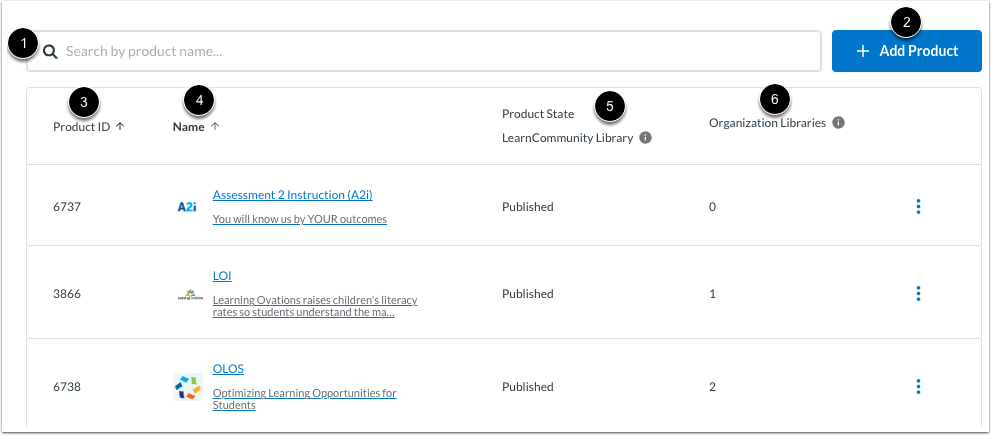
Your company products are listed in the table.
To search for a product, enter text in the Search field [1].
To add a product, click the Add Product button [2].
Each product displays a Product ID [3], product name [4], product state (published, unpublished, or retired) [5], and the number of customer LearnPlatform libraries to which the product was added [6].
Note: To sort the table based on product ID or name, click the column title.
View or Edit Product Details
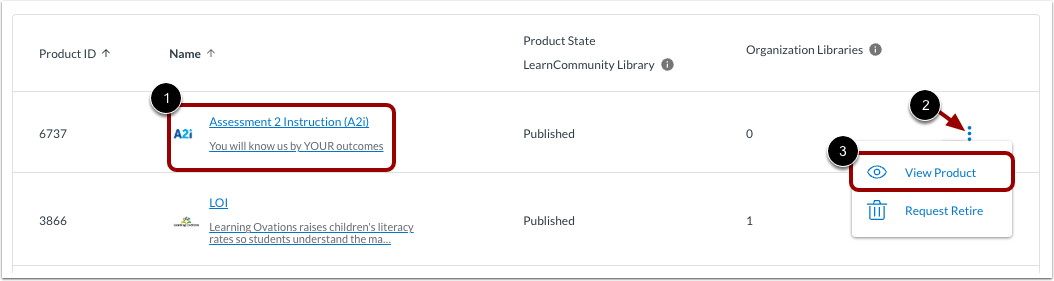
To view or edit product details, click the product name link [1]. Alternatively, click the Options icon [1]. Then click the View Product link [2].
Learn more about editing product details.
Note: From the Options icon, you can also remove a product. Learn more about retiring a product.