By default, products in your LearnPlatform organization product library display alphabetically. However, as a LearnPlatform administrator, you can pin products to keep them at the top of the library.
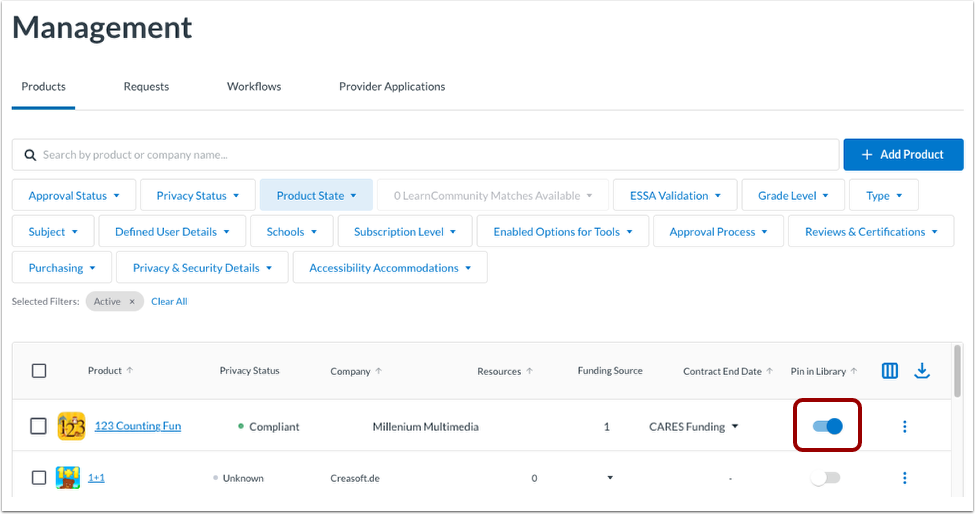
To pin products, you must first enable pinning by adding the Pin in Library column to your product library management page. You can then pin products in the Products Management page.
Note: Products are pinned only in the organization product library, not in the Public Product Library.
Enable Pinning
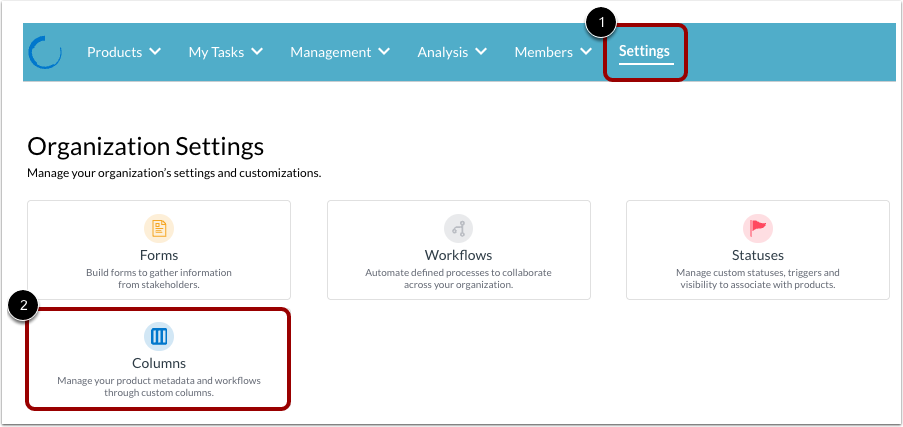
To enable pinning, click the Settings tab [1]. Then click the Columns tile [2].
Use Pin in Library Column
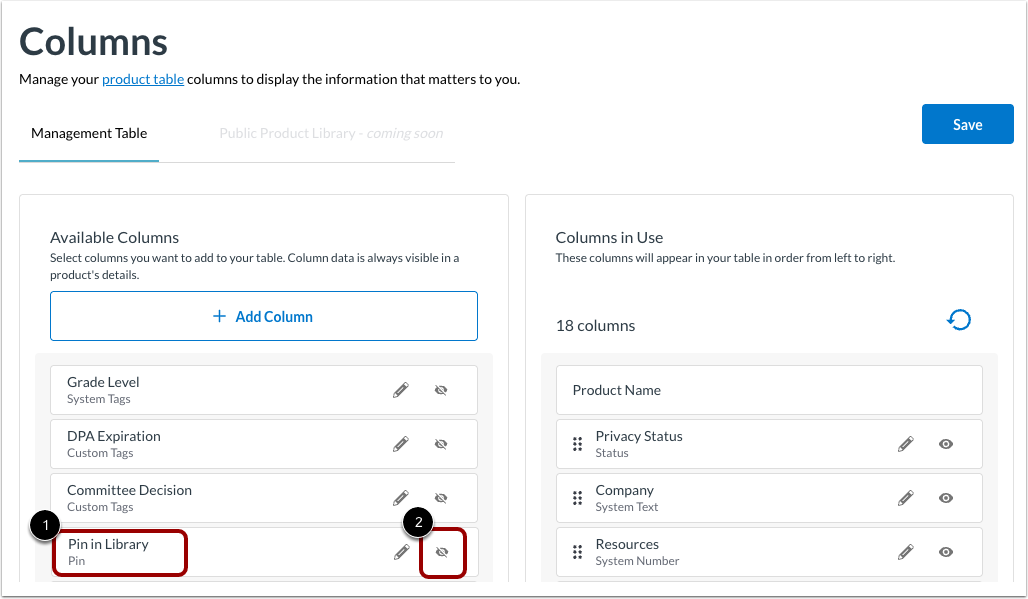
In the Available Columns table, locate the Pin in Library column [1]. Then, click the Use this Column icon [2].
Save Columns
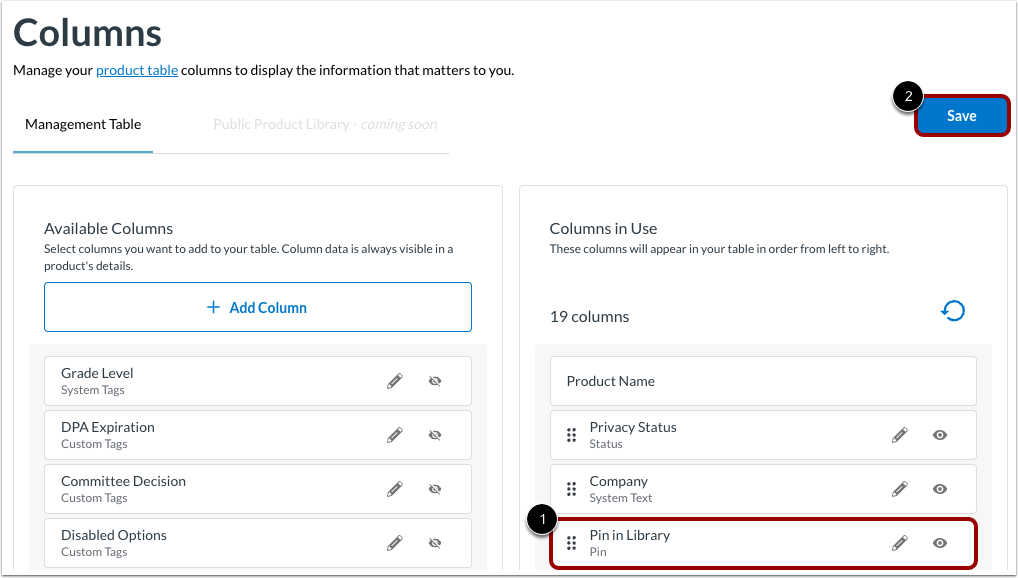
The Pin in Library column displays in the Columns in Use table [1].
Click the Save button [2].
Open Products Mangement
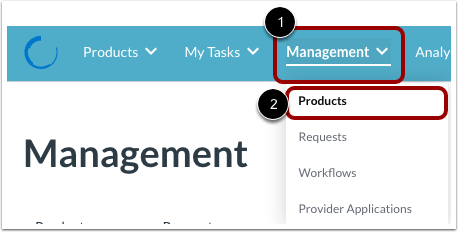
Click the Management drop-down menu [1]. Then click the Products link [2].
Enable Pin in Library
Click the Pin in Library toggle button on.
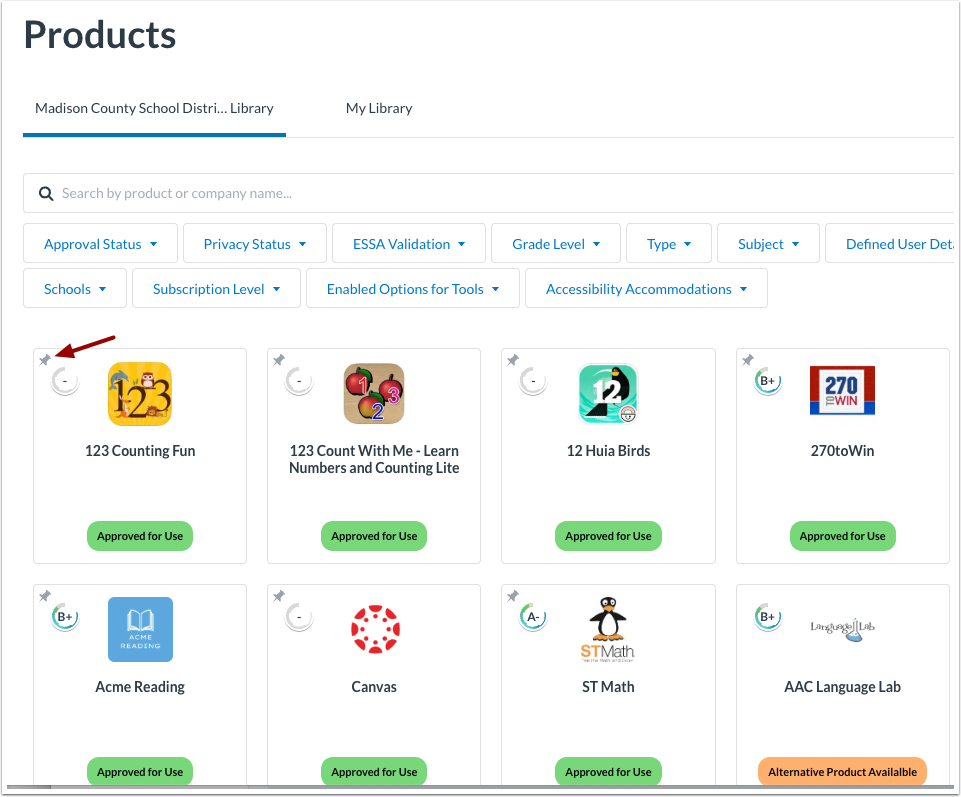
View Pinned Product
In your organization product library, Pinned products display the Pin icon and are listed first in the organization product library.