When creating a provider application as a LearnPlatform administrator, you can add members of your organization as application reviewers who examine vendor/provider applications. You can mark reviewers can be as mandatory and assign a due date for the review.
Reviewers receive an email when applications are submitted.
Open Provider Applications
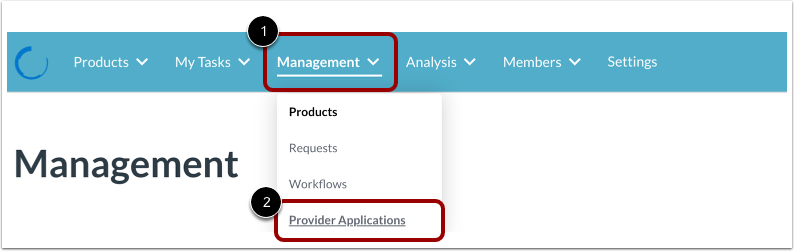
Click the Management drop-down menu [1], then click the Provider Applications link [2].
Open Create Provider Application
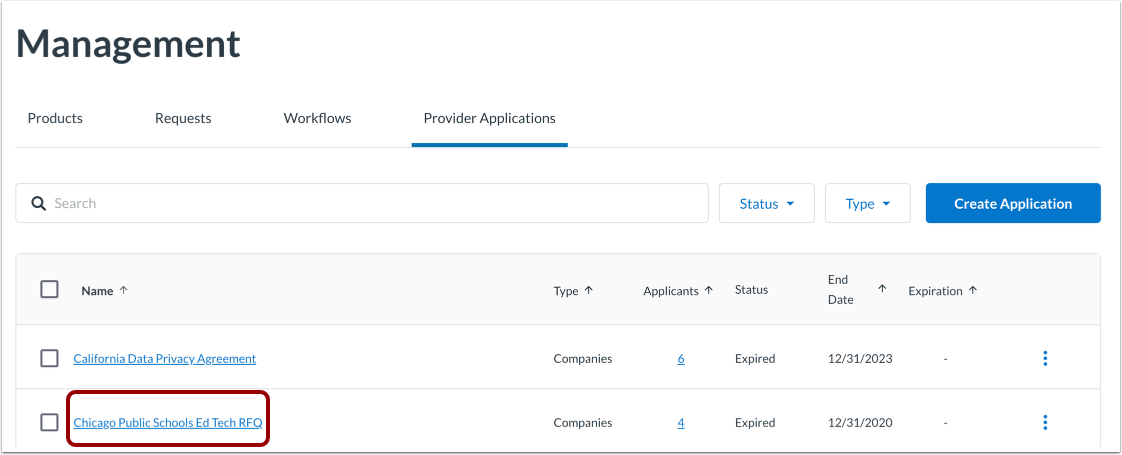
Click the application name link.
Open Add Reviewers
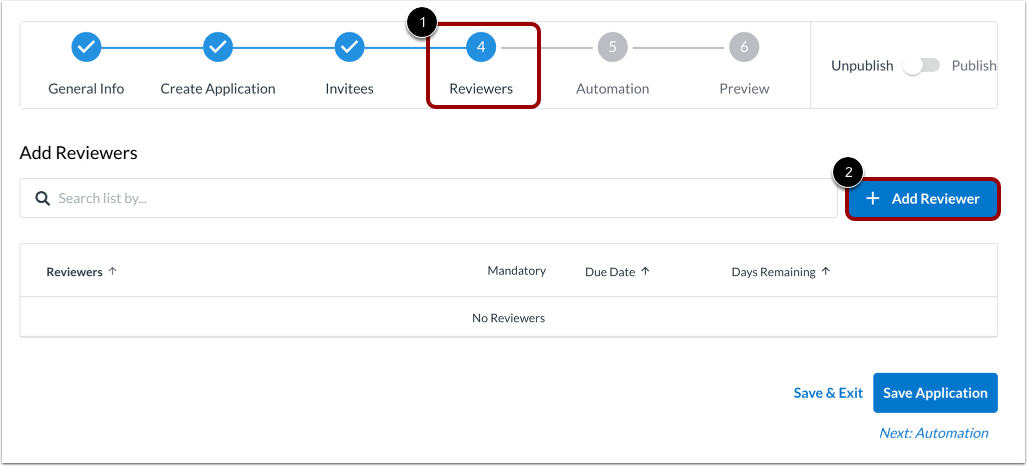
Click the Reviewers tab [1]. Then click the Add Reviewer button [2].
View Existing Reviewers
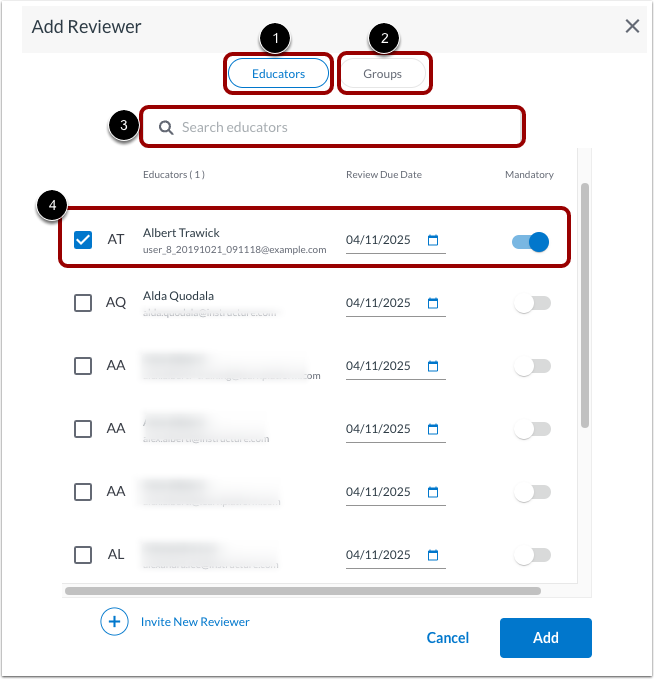
To add an educator as a reviewer, click the Educators button [1].
To add a group of educators, click the Groups button [2].
To search for an reviewer in the list, enter text into the Search field [3].
You view educator or group names, email addresses, review due dates, and whether the reviewer is mandatory [4].
Edit Due Date or Make Mandatory
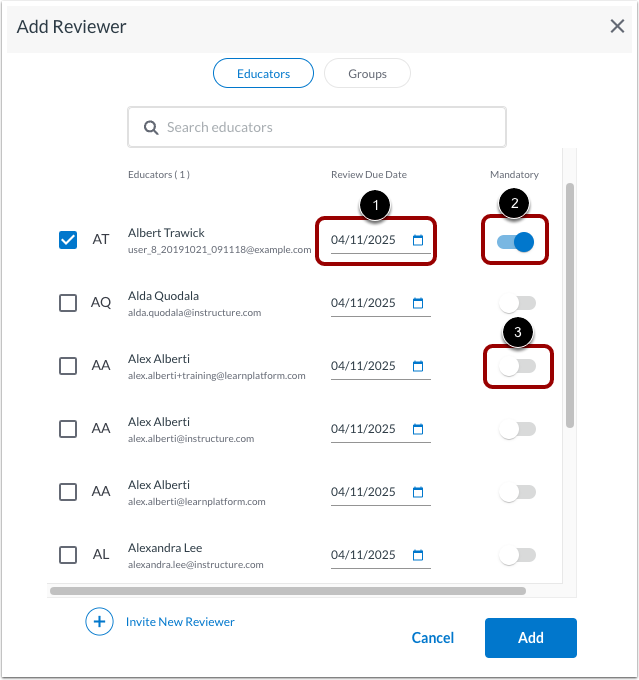
To change the due date by which the review should occur, click the Review Due Date field and select a different date from the calendar[1].
To require that the reviewer submits a review, click the Manatory toggle button on [2].
To remove the Mandatory requirement, click the Mandatory toggle button off [3].
Add New Reviewer
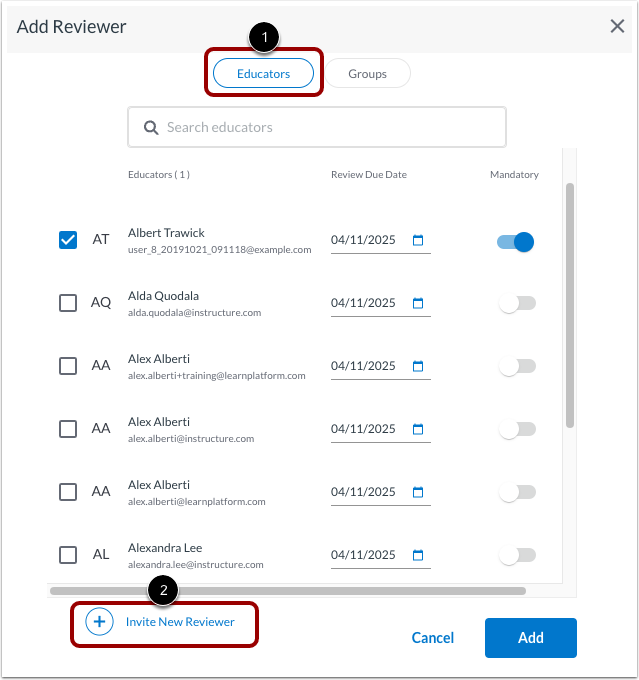
To add a reviewer not listed, click the Educators tab [1].
Click the Invite New Reviewer link [2].
Enter Reviewer Details
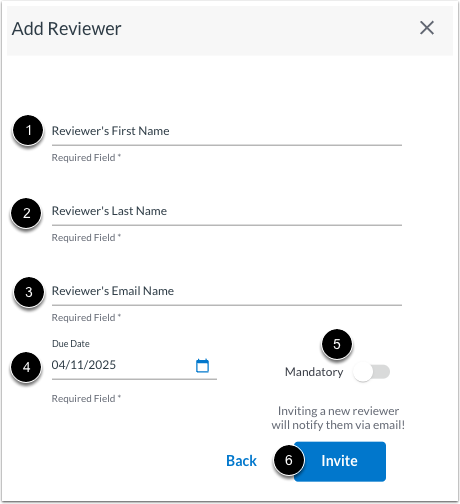
Enter the reviewer's first name [1], last name [2], and email address [3].
Click the Due Date field [4]. Then select a review date from the calendar. The review date is the date by when the review must be completed.
To require that the reviewer submits a review, click the Manatory toggle button on [5].
Click the Invite button [6]. The reviewer will receive an email notification that they have been added as a reviewer.
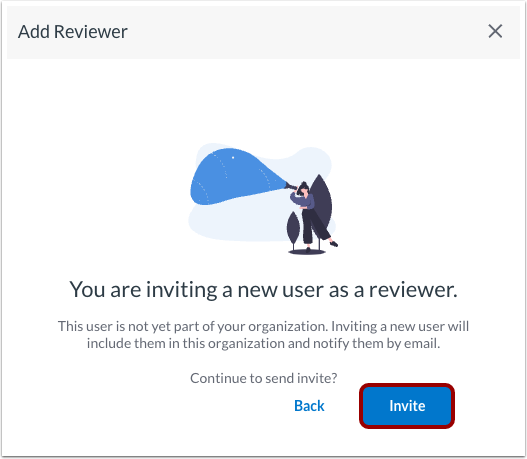
If the user email address you entered is not already in your organization, you can add the user and proceed to use them as a reviewer. Click the Invite button.
Select and Add Reviewer
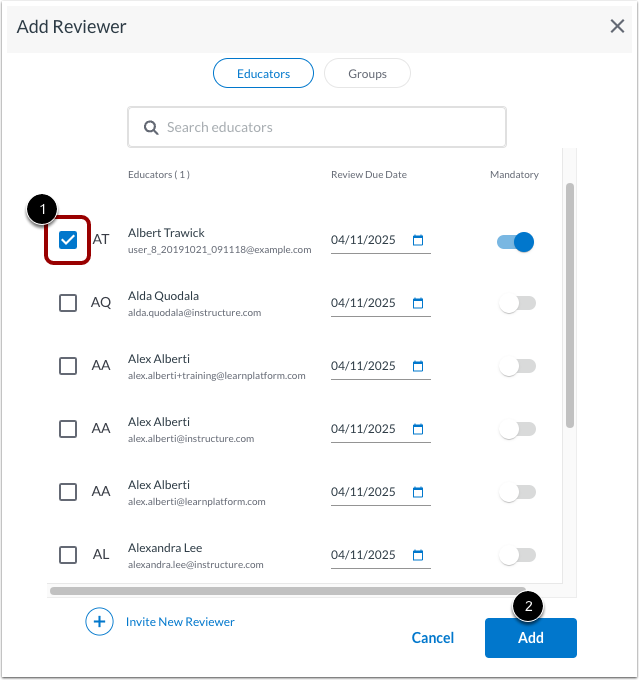
To add reviewers, click one ore more educator name or group name checkboxes [1].
Click the Add button [2].
Save Reviewers
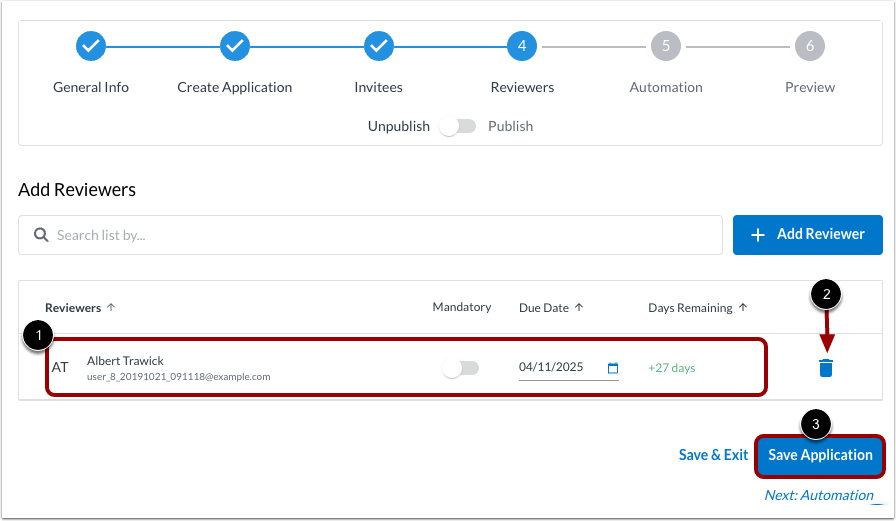
View the added reviewer details [1].
If you need to remove a reviewer, click the Delete icon [2].
Click the Save Application button [3].