When you create a Provider Application in LearnPlatform, you can add content by using an existing form, creating a form, or uploading an existing PDF.
If a form has not yet been created, you can add questions and fields to the provider application form.
Notes:
- Before creating a provider application, manage your LearnPlatform account setup.
- Use a variety of question types and formatting options in your applications. Understand how the provider might be accessing the application and make it easy to read, identify, and answer key questions.
- You can use placeholder questions to create natural breaks in the document or provide additional step-by-step guidance for specific sections or exhibits.
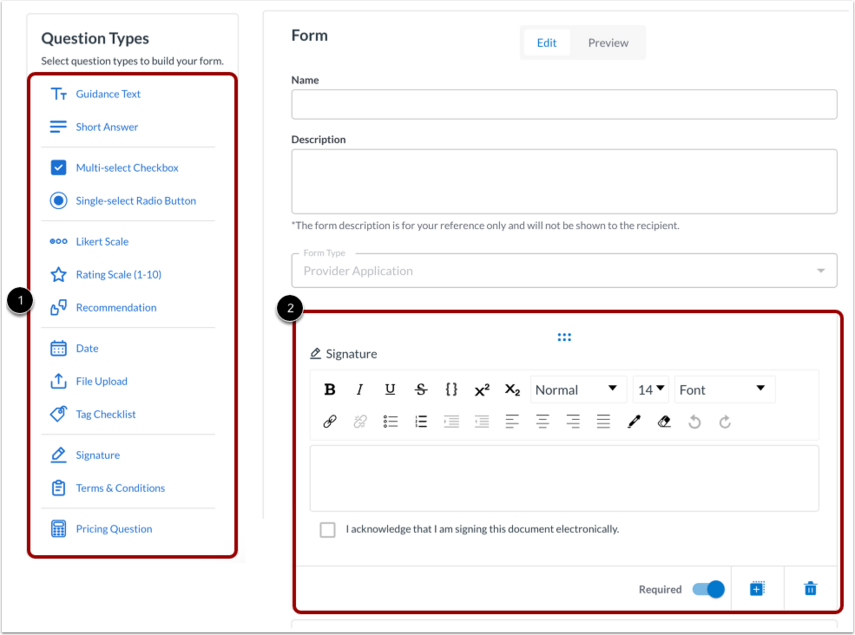
In the Question Types area, click a question type link [1]. View the inserted question or field at the end of the form [2].
You can insert any of the following question types:
- Guidance Text
- Short Answer
- Multi-select Checkbox
- Single-select Radio Button
- Likert Scale
- Rating Scale (1-10)
- Recommendation
- Date
- File Upload
- Tag Checklist
- Signature
- Terms & Conditions
- Pricing Question
Add Guidance Text
To add a guidance text question type, click the Guidance Text link [1] and then add text [2]. To add a link, click the Link icon [3] and complete the necessary fields [4].
Add Short Answer
To add a short answer question type, click the Short Answer link [1] and then add text [2]. You can also add a link [3].
Add Multi-select Checkbox
To add a multi-select checkbox, click the Multi-select Checkbox link [1]. Enter your question in the text field [2] and then add options [3]. You can display the options as a drop-down menu [4].
You can also add a single-select radio button by clicking the Single-select Radio Button link [1]. Enter your question in the text field [2] and then add options [3]. You can display the options as a drop-down menu [4].
Add Likert Scale
To add a Likert scale, click the Likert Scale link [1]. Enter your question in the text field [2] and then select which options you want to include [3].
Add Rating Scale (1-10)
You can also add a rating scale by clicking the Rating Scale (1-10) link [1]. Then, enter your question in the text field [2].
Note: You cannot change the number options in the scale.
Add Recommendation
To add a recommendation question type, click the Recommendation link [1]. Then, enter your question in the text field [2]. The options are Recommended, Neutral, and Don't recommend [3].
Add Date
To add a date question type, click the Date link [1]. Then, enter your question in the text field [2]. The Calendar field and icon display [3].
Upload File
If you have an existing provider agreement, pre-populated with your district-specific information, you can upload a copy of the agreement. Providers are required to download and sign the provided PDF copy before they submit it back to you for acceptance.
To upload a file, click the File Upload option [1].
Enter text as needed and attach a file by clicking the Attach icon [2].
Notes:
- If you upload a PDF file, include an acknowledgment question to ensure that the provider confirms they have downloaded and reviewed the agreement.
- Include an upload question that allows the provider to submit a signed copy of the agreement.
Add Tag Checklist
You can use the Tag Checklist item type to gather necessary information from a partner. This item type is specific to Product Provider Applications and is not available for Company-level applications.
In the Question Types area, click the Tag Checklist link [1] and then select a Tag Checklist from the drop-down menu [2].
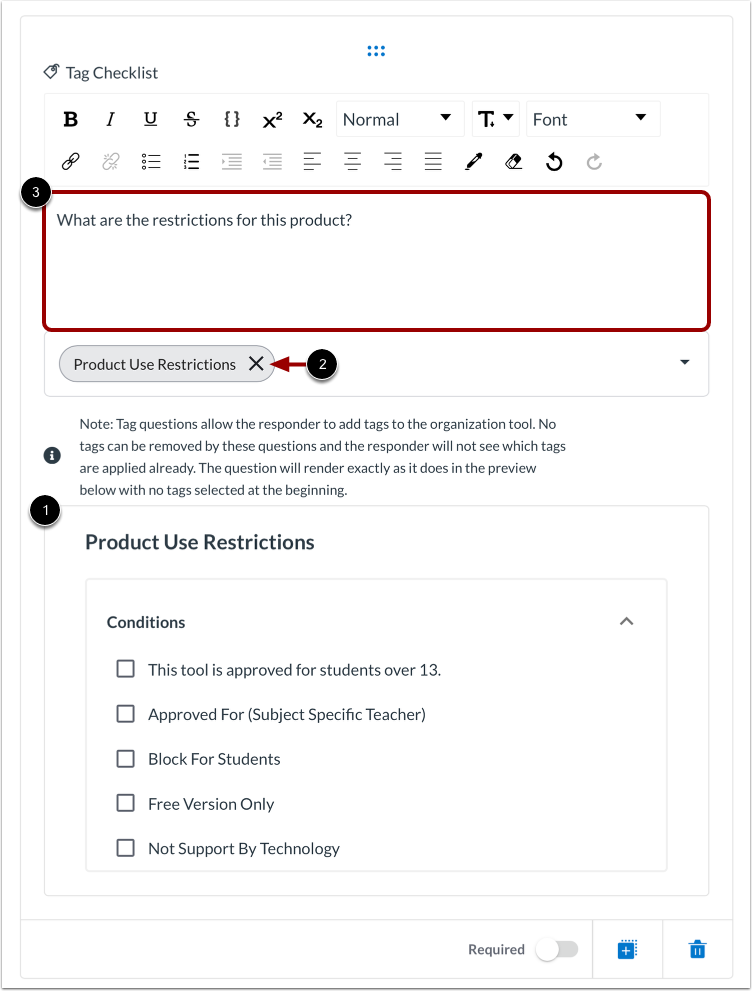
The Tag Checklist displays [1]. To remove the checklist, click the Delete icon [2]. You can also add text [3].
To learn more about how to use Tag Checklists, refer to the guide: How do I use Tag Checklist Item to simplify workflow in LearnPlatform?
Note: Once submitted by a Provider, the LearnPlatform admin either accepts or declines the Provider Application. If accepted, the tags defined in the Tag Checklist are automatically applied to the Product.
Add Signature
You can include a signature question type to request providers to agree to your organization's student data privacy policies and terms.
Click the Signature link [1]. Then, enter your question in the text field [2].
Add Terms and Conditions
You can ask the provider to either agree or disagree to the terms and conditions.
Click the Terms & Conditions link [1]. In this section, you can:
- Add text [2]
- Enable privacy compliance agreement automation [3]
- Upload a supporting file [4]
- Edit the options [5]
Add Pricing Questions
You can also ask providers to provide their cost information and/or other questions related to licensing. Click the Pricing Questions link [1] and then enter your question in the text field [2].
Manage Question Types
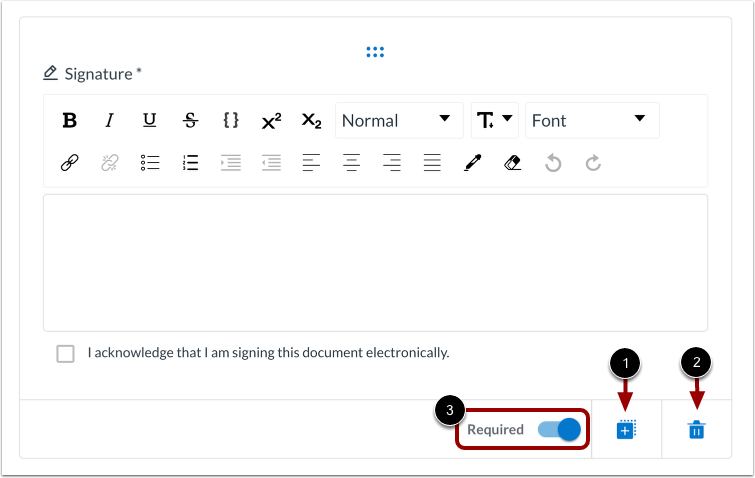
To duplicate a field or question, click the Duplicate icon [1].
To delete a field or question, click the Delete icon [2].
You can make some fields required. To make a field required, click the Required toggle on [3].
Save Application
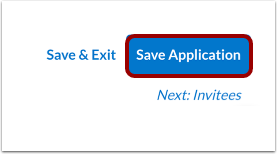
To save and continue, click the Save Application button. You can return to the application at a later time or proceed to:
Note: Once you receive a response to an application, you can no longer edit the questions or modify the application in any way. Ensure your application is complete prior to publishing it.