As an educator or administrator, you can view and manage your personal product library in the Products page.
You can add or remove products from your personal library, creating your own curated collection. From your product library, you can also grade a product, compare products, or export a list of selected products.
Open Organization Product Library
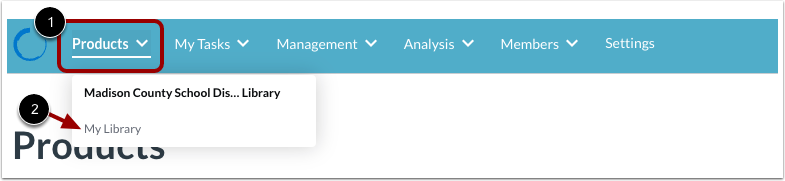
From anywhere in LearnPlatform, view your personal library by clicking the Products drop-down menu [1]. Then, the My Library link [2].
View All Products
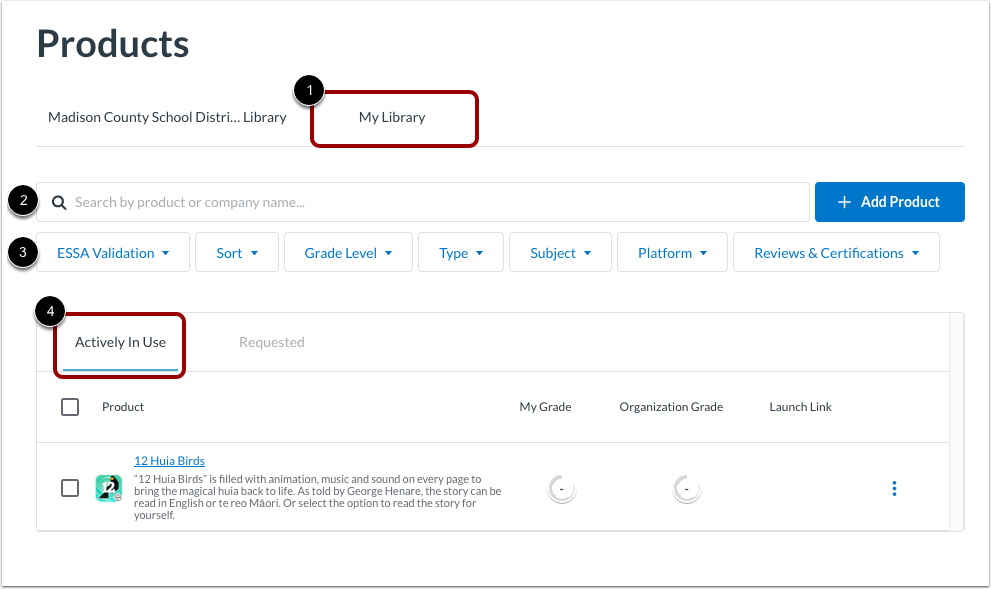
The Products page opens to the My Library tab [1].
You can search for specific products in the LearnCommunity Library by name or company [2]. You can also use filters to find products based on status values and other details [3].
To view products in your library, click the Actively In Use tab [4].
Add Product
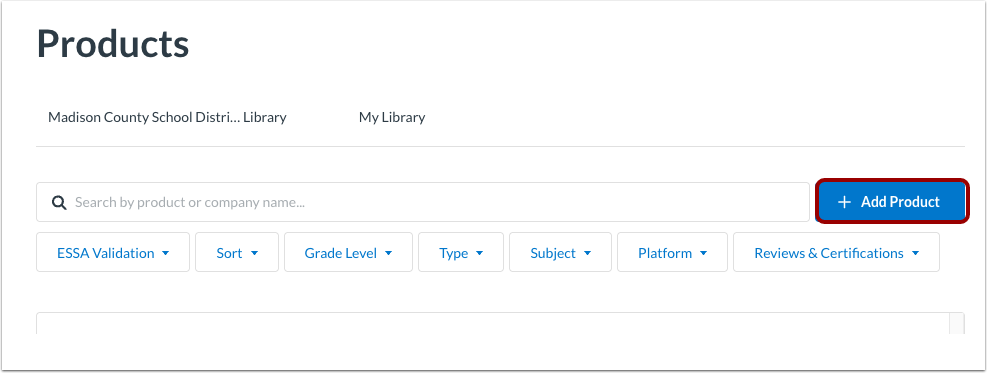
To add a product to your library, click the Add Product button.
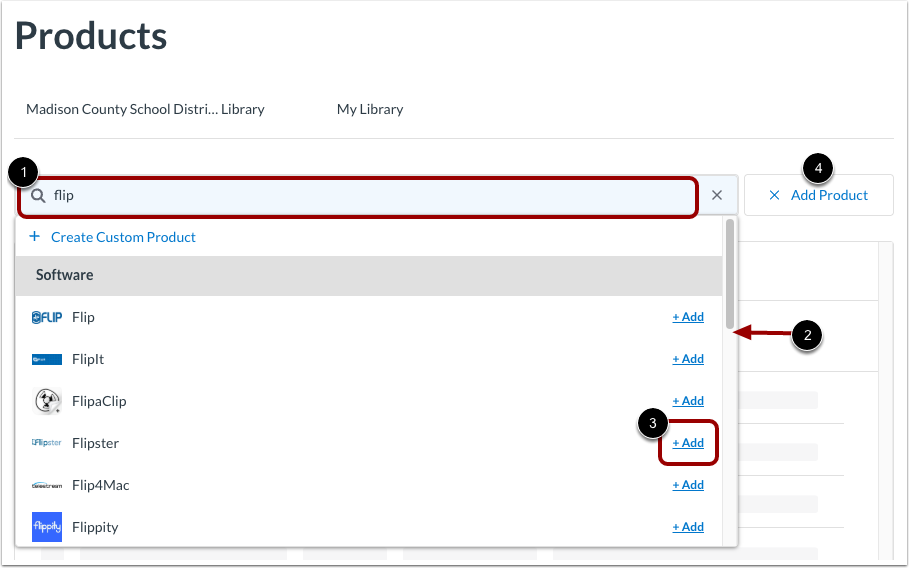
To find a product, enter search terms in the search field [1], or scroll through the product list [2].
To add a product to your library, click the Add link [3]. Add other products as needed.
To stop adding products, click the X Add Product link [4].
View Library Products
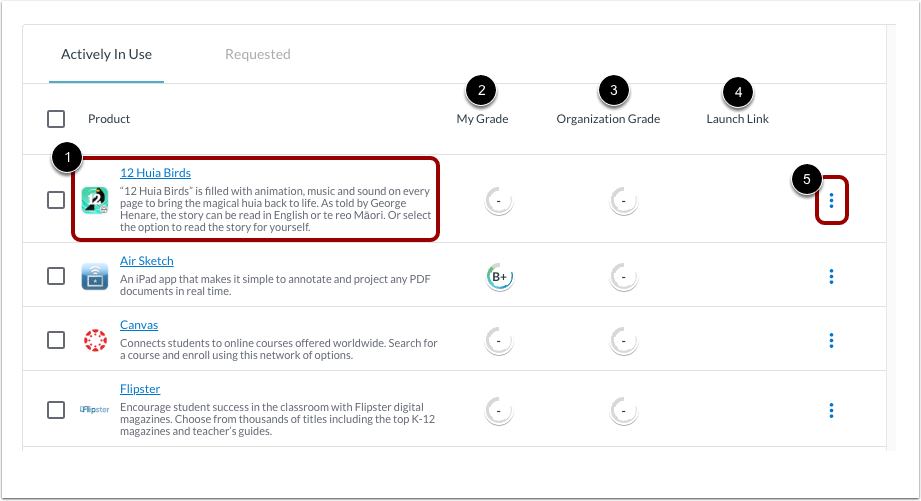
For every product in your library, you can view product name link, logo, and description [1]. To view product details, click the product name link.
If you have graded the product, view the grade you gave it in the My Grade column [2].
Additionally, if others in your organization graded the product, view the grade in the Organization Grade column [3].
If a link exists for launching the product, you can open the product by clicking the link the Launch Link column [4].
For product management options, click the Options icon [5].
Manage Product
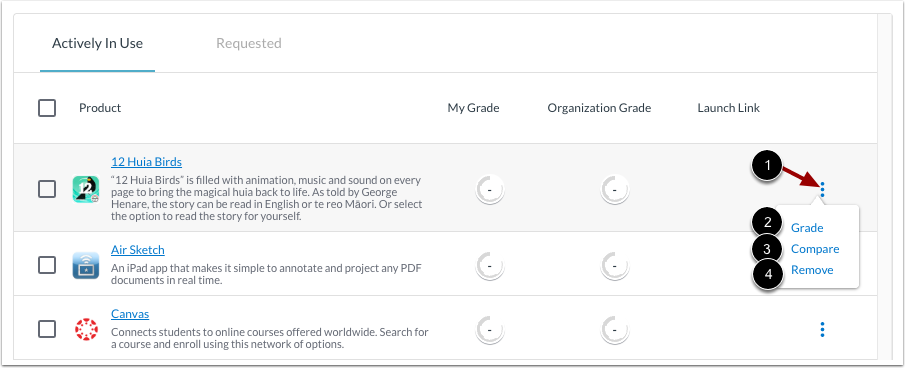
To grade, compare, or remove a single product, click the product Options icon [1]. Then, click any of the following links:
Manage Multiple Products
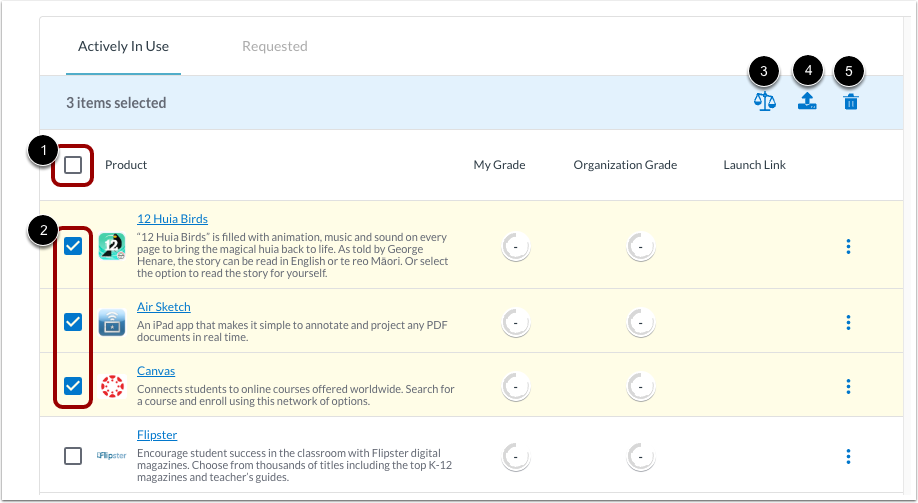
You can compare, export, or remove more than one product at a time. To select all the products, click the Select All checkbox [1], or click the checkboxes of one or more products [2].
Then, manage the products with the following options:
- To compare products, click the Compare icon [3].
- To create a PDF file of selected products, click the Export icon [4].
- To remove the products from your library, click the Remove icon [5].
Open Export Product Email
If you click the Export icon, you receive an email message. Click the active link.
Log in to LearnPlatform, and download the file titled export.pdf.
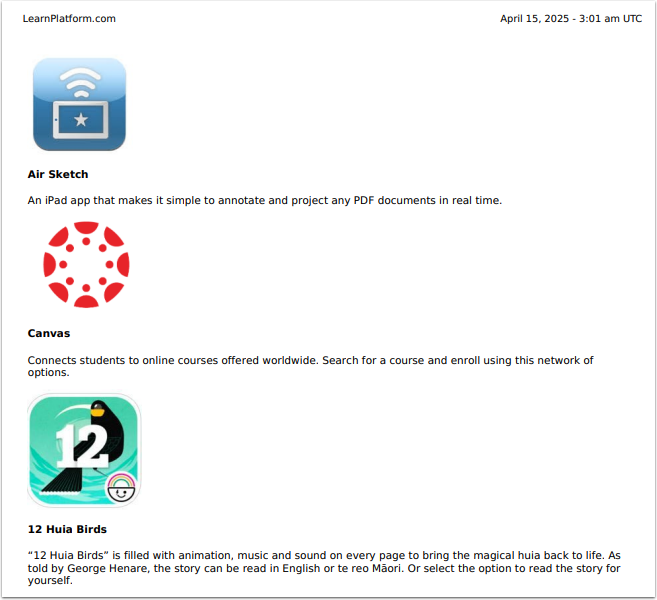
View Exported Product List
View or print the PDF.