As a LearnPlatform administrator, you can manage products in your organization's product library in the Mangement page.
From the Products tab in the Management page, you can view your organization's product list table, and you can manage which columns of data display in the table.
From the table, you can also download product details, archive products, share products in the Public Product Library, and open product details.
Open Product Management
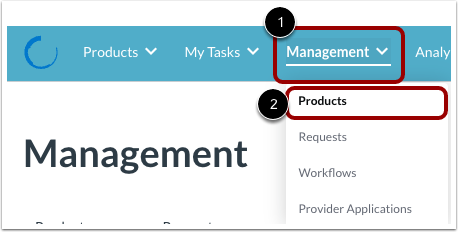
Click the Management drop-down menu [1]. Then click the Products link [2].
View Products Tab
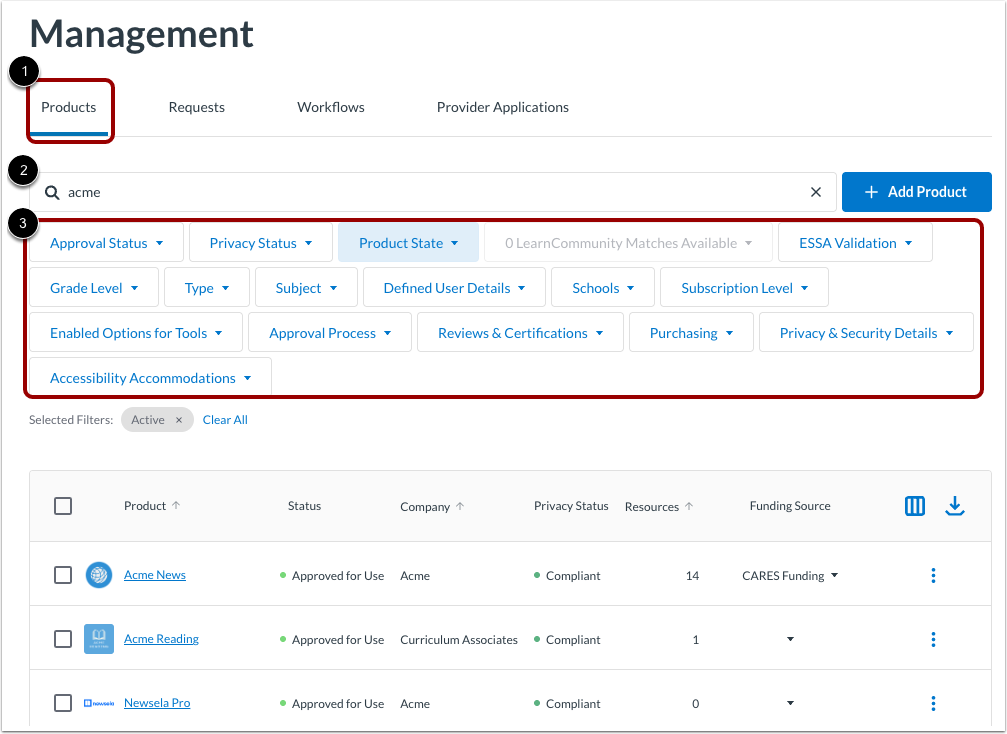
On the Products tab [1], find products and view product details.
To search for a product by name, enter text in the Search field [2].
To filter the product list, click any of the filter drop-down menus [3].
View Product Details
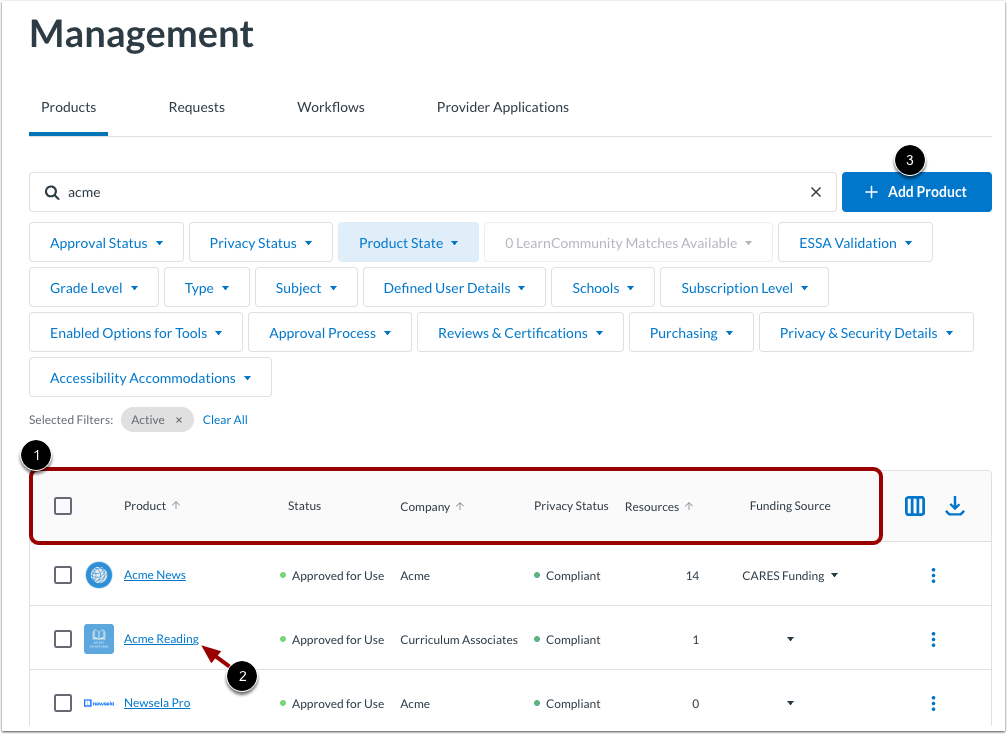
Product details display in the table columns [1]. You can manage which columns display.
To view or edit product details, click a product name link [2].
To add a product, click the Add Product button [3].
Manage Columns
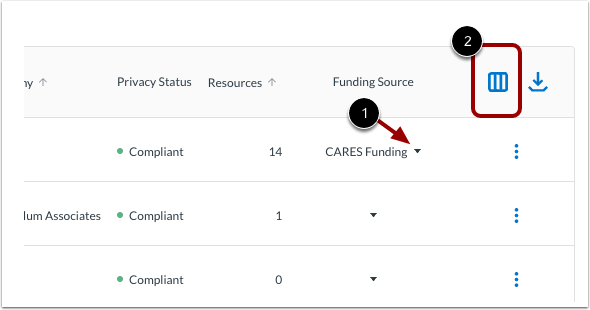
You can manage some product settings from columns in the product table. For example, to select a funding source, click the Funding Source use the Funding Source column drop-down menu [1]. To pin a product to the top of your organization product library, use the Pin in Library column.
To manage which columns display in the product table, click the Manage Columns icon [2].
Add or Remove Columns
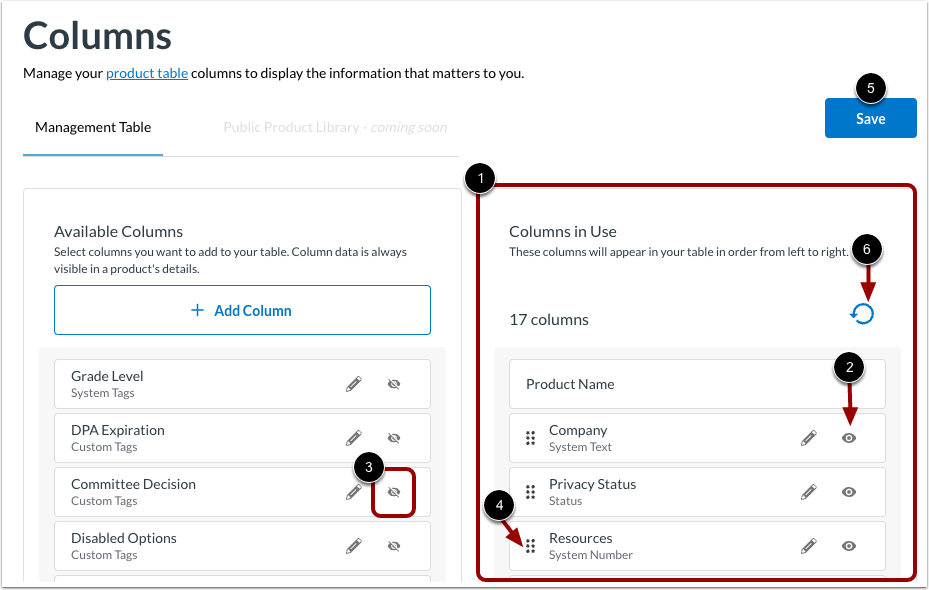
Columns that currently display in the table are listed in the Columns in Use area [1].
To remove a column from the table, click the Visible icon [2]. The column moves to the Available Columns area and displays the Hidden icon.
To add a column to the table, click the Hidden icon [3]. The column name moves to the Columns in Use area and displays the Visible icon.
To change column order, click a column control handle [4], and drag the column to a new location in the list.
To update the table on the Management page, click the Save button [5]. Or, to undo changes, click the Undo icon [6].
Add or Edit Column Data
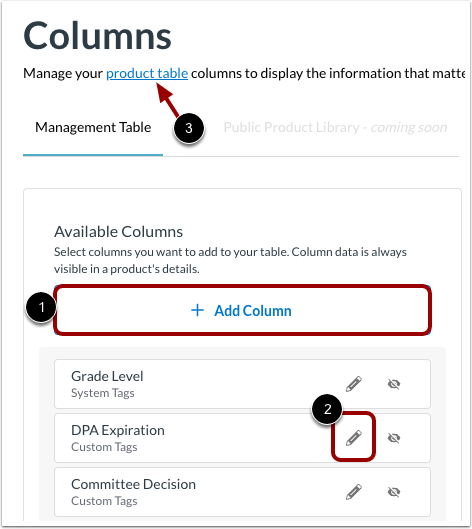
To add custom data columns, click the Add Column button [1].
To edit column names or related data, click the Edit icon [2].
To return to the product list table, click the product table link [3].
Add Column
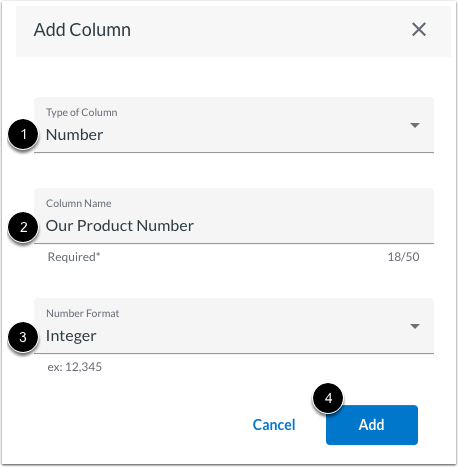
If you click the Add Column button, the Add Column window displays. To add a column, click the Type of Column drop-down menu [1]. Select a type option to base the data on a tag or a number, price, date, or text.
Enter a column name in the Column Name field [2].
Depending on the type of column you are adding, you may need to also click a drop-down menu to select a tag group, a number format, or a date format [3].
Export Product Data
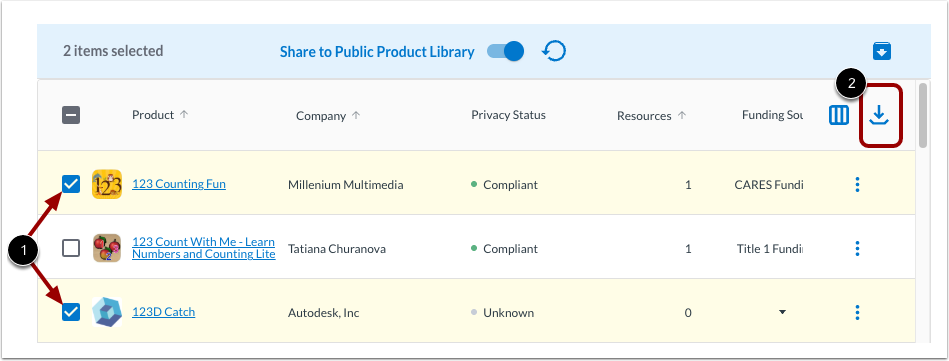
To download a CSV file of products and their details, click one or more product checkboxes [1]. Then, click the Download icon [2].
Archive Products
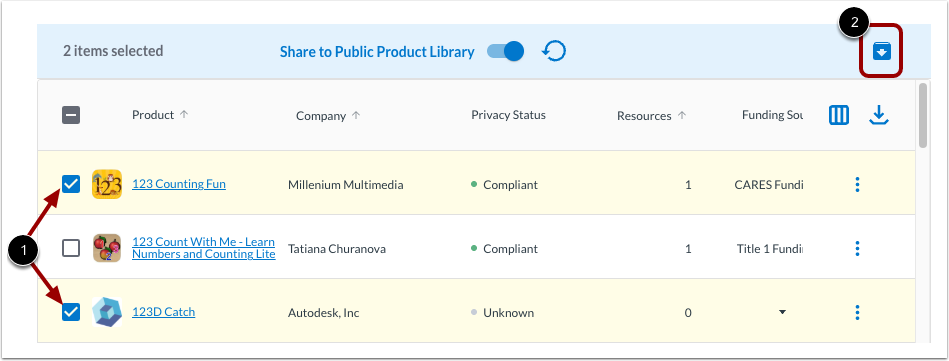
To retire one or more products, click one or more product checkboxes [1]. Then, click the Archive icon [2].
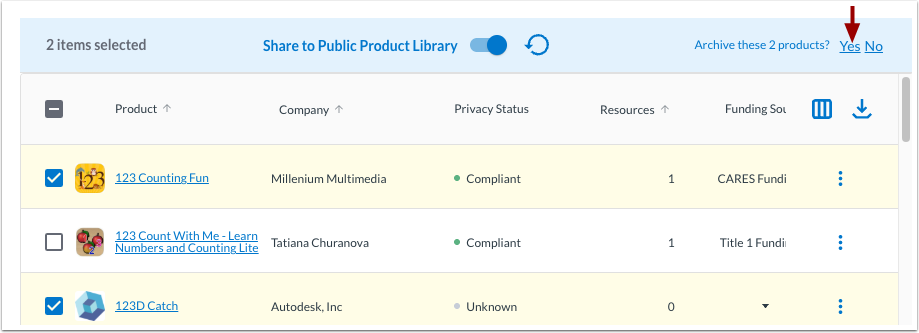
Then, click the Yes link.
Share to Public Product Library
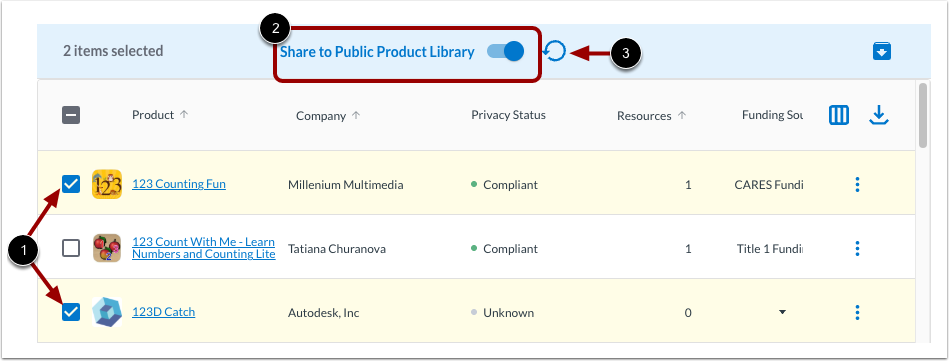
To add one or more products to the Public Product Library (PPL), click one or more product checkboxes [1]. Then, click the Share to Public Product Library toggle button on [2].
To allow product status to determine visibility in the PPL, click the Revert icon [3].
You can learn more about managing product visibility in the PPL.
View Product Actions
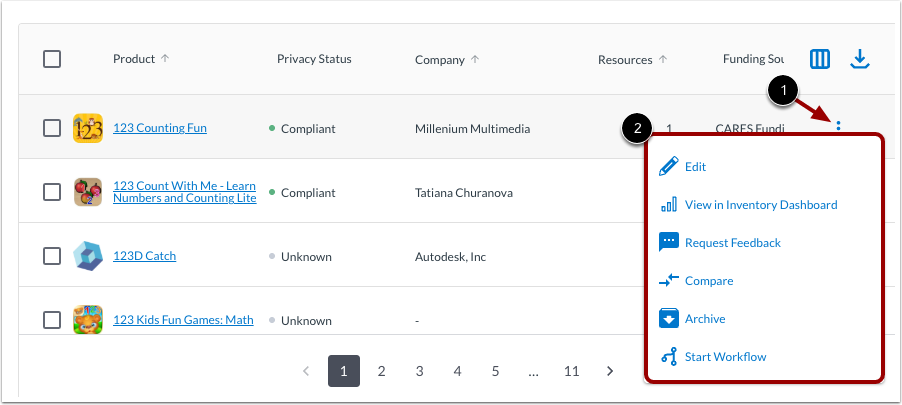
To view available product actions, click the Options icon [1]. Then, click an action link [2]. You can: