You can view products in the LearnCommunity Library by changing to the the LearnCommunity organization. The LearnCommunity Library is the entire LearnPlatform collection of websites, apps, games, and other software.
Note: If you do not find a product in the LearnCommunity Library, you can request to have it added.
Open Account
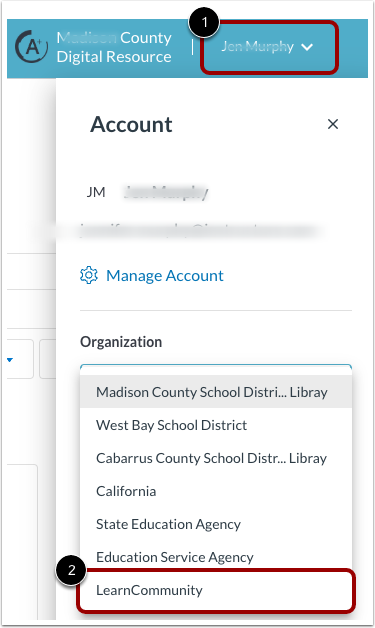
Click the User Name drop-down menu [1]. Then, click the Organization drop-down menu and select the LearnCommunity option [2].
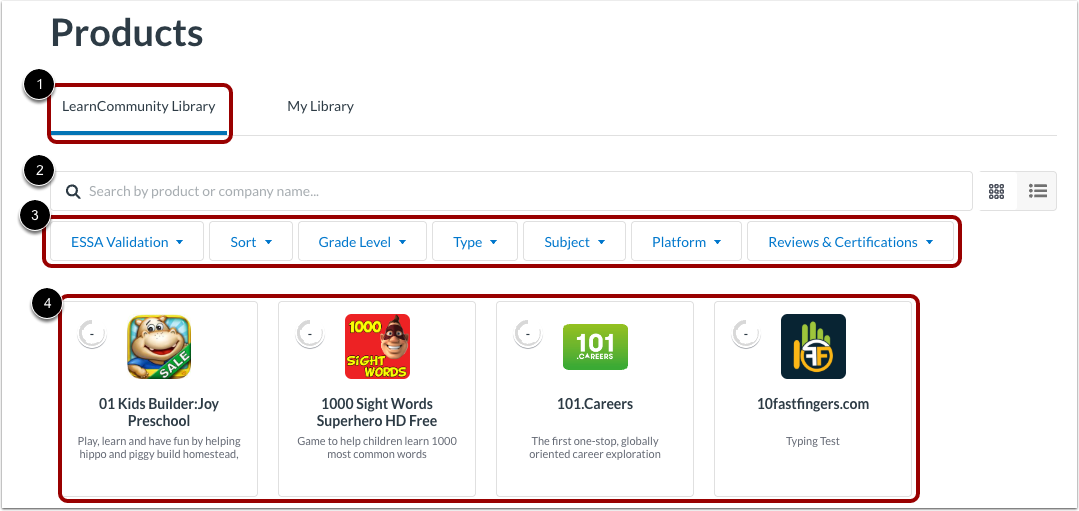
The Products page defaults to LearnCommunity Library tab [1].
You can search for specific products by name or company [2] or using filters to find products based on status values and other details [3].
Products display in tiles or a list [4].
Learn more about viewing products in a product library.