As a LearnPlatform educator or administrator, you can compare products in a product library based on LearnPlatform’s research-backed grading rubric.
Product comparisons are based on the aggregated product grades from educators in the LearnCommunity Library.
Open Product Library
Click the Products drop-down menu [1]. Then, click your organization's Library link [2].
Note: To view products in a organization not listed, you can select a different organization.
Open Product
In grid view, click the product tile.
In the product page, click the Compare button.
Compare Products
Click the Compare Products button.
Search and Add Products
To find a product, enter a keyword in the search field [1]. Select the desired product(s) from the search results [2]. You can compare up to five products.
Compare Selected Products
When you have selected all the products you want to compare, click the Update Comparison (#) Products button.
View Product Comparison
Overall details display for each compared product [1].
The Feedback table displays the compared products according to the LearnPlatform Rubric [2].
To view the comparison in a graph, click the Expand icon [3].
Too add more products to compare, click the Compare Products button [4].
Filter Report
To filter the report, click the Filter button [1]. In the Filter tray, select the desired options [2] and then click the Apply button [3].
View Comparison Data
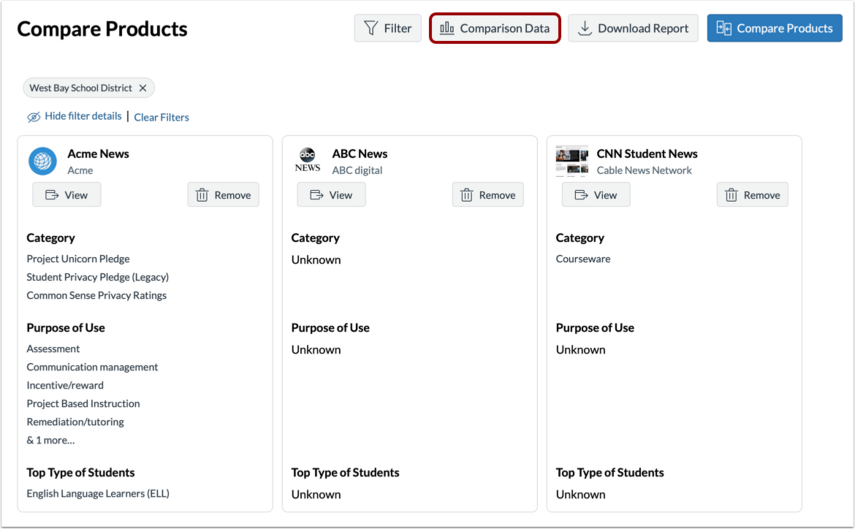
To view comparison data for the Purpose of Use and Top Type of Students, click the Comparison Data button.
By default, the Purpose of Use tab displays [1]. To view the type of students for whom the products are used, click the Top Type of Students tab [2]. To view graph options, click the Options icon [3]. Graph options include viewing the graph in full screen, printing the chart, downloading a PNG, JPEG, or SVG vector image, downloading a CSV or XLS file, or viewing the data table [4].
To exit the view, click the Close icon [5].
Download Report
To download a PDF file of the Feedback section of the comparison report, click the Download Report button.