Mastery Connect trackers provide a visual overview of student standard mastery as well as access to the assessments used for measurement. You can use the customizable tracker interface to assess student mastery of core standards and monitor student performance. With trackers, you can also share student mastery data with other teachers, administrators, students, and parents. As a teacher, you will generally have one tracker per subject or per class.
You can create trackers directly by adding standards and assessments, or you can create trackers from a curriculum map of standards and assessments. You can create a tracker from your curriculum map or a shared curriculum map.
You can add students to trackers manually, individually from a SIS or you can import them from a CSV file. If Mastery Connect is integrated with your district's Student Information System (SIS), you can create a tracker from a SIS section.
From a tracker, you can also manage assessments, generate reports, and communicate with parents.
Note: If the steps in this lesson do not match what is displayed in your account, you may be using the Legacy View. For Legacy View steps, refer to What is a tracker in Legacy view?.
Open Tracker
In the Home page [1], click a tracker name link [2].
Create Tracker
To create a new tracker, click the Options icon [1] and click the Create New Tracker menu [2].
View Tracker
When you open and view a tracker, the Tracker View page displays. You can view the tracker details [1].
To view and manage tracker content by standards and students, click the Students tab [2].
To view and manage tracker assessments, click the Assessments tab [3].
You can control the tracker display and tracker settings [4].
You can also add an assessment to the tracker [5].
View and Manage Students and Standards
When you open and view a tracker, the Students tab [1] displays your student roster, along with the standards that are taught and assessed [2]. To view more details, you can click the Options icon [3] and then click the Assess link [4].
For more information, visit our guide on using the Students tab.
View and Manage Assessments
When you open and view a tracker, the Assessments tab [1] opens the Tracker Assessment list. The Tracker Assessment list contains all tracker-related assessments, which you can view grouped by standard or in a list [2]. You can add view and manage assessments from the Tracker Assessment list [3].
For more information, visit our guide on using the Assessments tab.
View Standard Details
All Standard details are automatically shown. To hide it, click the Collapse Standards button [1].
To collapse all items, click the Collapse All Standards button [2].
Export Tracker Data
You can export tracker data or assessment data.
View Tracker Reports
You can view and print individual student reports as well as other tracker reports.
Email Parents
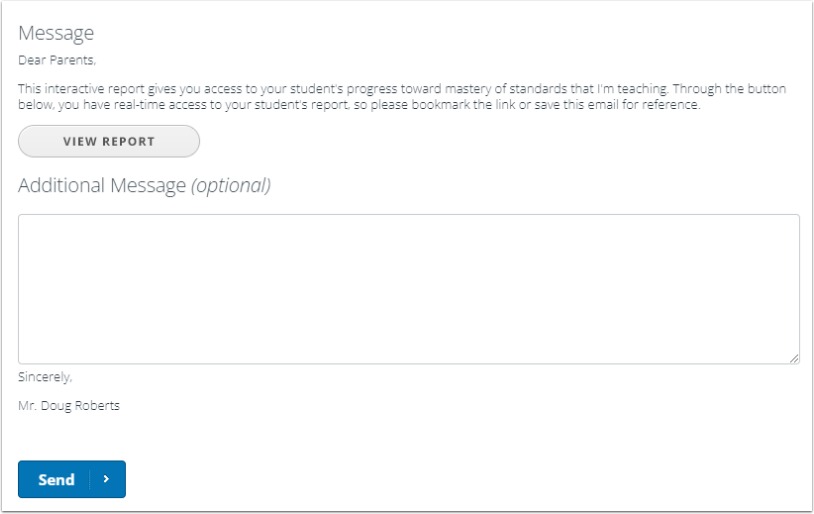
From a tracker, you can email individual parents or send reports to all parents.
You can also control the display of tracker data in the parent and student portals.