As an admin in Canvas Career, syncable objects serve as your central hub for managing and reusing course content and activities.
Source Material storage is separated from Syncable Objects to provide distinct file management:
- For existing accounts, the Source Materials panel displays empty by design.
- Source Material uploads are stored in a dedicated folder and no longer display in the Syncable Objects file list.
- Previously uploaded files remain accessible in the Files tab of Syncable Objects.
Notes:
- Content is not added automatically. You can populate syncable objects by manually adding items either by copying existing content, creating new objects, or using IgniteAI.
- Source Material uploads are stored in the Source Material files folder.
Open Learning Library
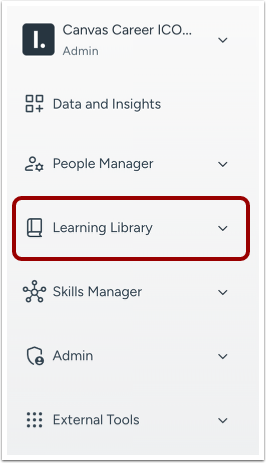
In Admin access, click the Learning Library link.
Open Learning Library
In the Learning Library link, click Syncable Objects.
Note: This is where all reusable content and activities are stored.
View Syncable Objects
Syncable Objects include the following content types you can add or update in your course:
- Pages
- Assignments
- Assessments
- External Links
- External Tools
- Files
These items can be synced into one or multiple courses to ensure consistency and efficiency.
Select Object
In the Syncable Object list, click the content type you want to sync [1]. Then, choose the content or course [2] where you want the object to appear.
To confirm your selection, click Sync.
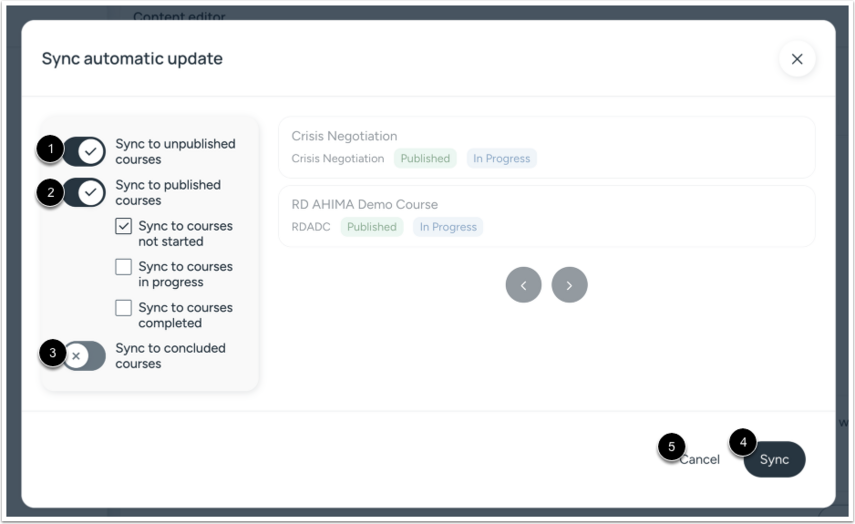
Select the course statuses you want to include in the sync: Sync to unpublished courses [1], Sync to published courses [2], or toggle Sync to concluded courses [3] if needed.
When your selections are complete, click Sync [4].
If you do not want to proceed, click Cancel [5] instead.
Confirm Sync Settings
A message displays indicating the sync was successful.
View Synced Content
To view the synced content, go to your course.
Verify the Synced Content
To verify, check the corresponding section (Pages, Assignments, Modules, etc.) to ensure the item appears correctly.