As an instructor, you can choose to select specific content as part of the import. This option allows you to select specific content areas such as assignments, settings, and files without importing the entire course.
Not all content can be copied as part of a course, such as: student data (enrollments, submissions, and feedback), scores starts empty and ensure linked files are included to avoid broken links.
Notes:
- Importing a course more than once may have unintended consequences. If you import content into a new course, edit the content in the new course, and later import the previous content again, the imported content will override the existing content.
- If you change your mind after the import has started and you want to import all course content, you can import all content by selecting each item for a content type.
- To prevent 0s (zero grades) from being automatically entered into the Gradebook when importing content into a course with a late/missing policy set up, it is recommended that you temporarily disable your late/missing policy before importing the content. You can re-enable it once the import is complete.
Open Settings
In Course Navigation, click the Settings tab.
Import Content into Course
Click the Import Course Content link.
Select Content Type
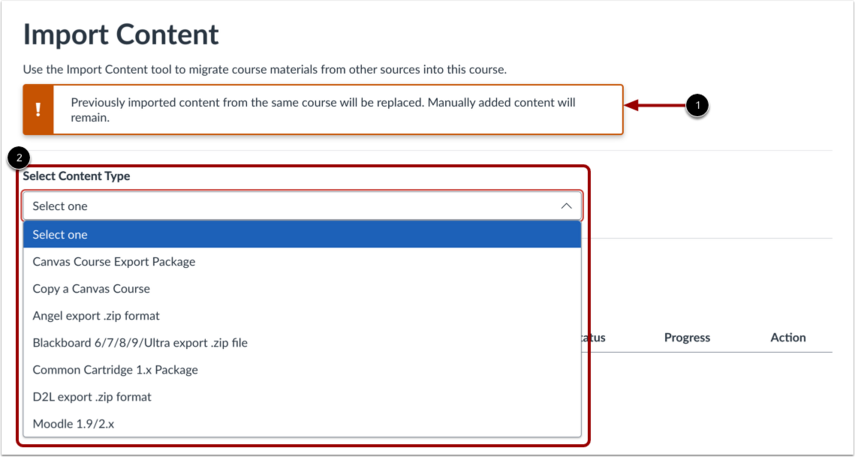
When importing content, a message displays [1] explaining that previously imported content from the same course will be replaced while manually added content will remain.
In the Select Content Type drop-down menu [2], select thecontent type you want to import.
Select Specific Content
In the Content section, click the Select specific content radio button.
Search Course
You must select a file to import content from.
Import Course
Click the Add to Import Queue button.
Select Content
In the Content imports section, click the Select content button.
Select All Group Content
Content can be individual items [1] or a content group [2]. Content groups show the number of items within the group. To view content within a group, click the group's expand icon [3].
To import all content for a content type, click the checkbox next to the content name [4]. If the content type is a group, Canvas Career automatically selects all items within the group.
Select Specific Group Content
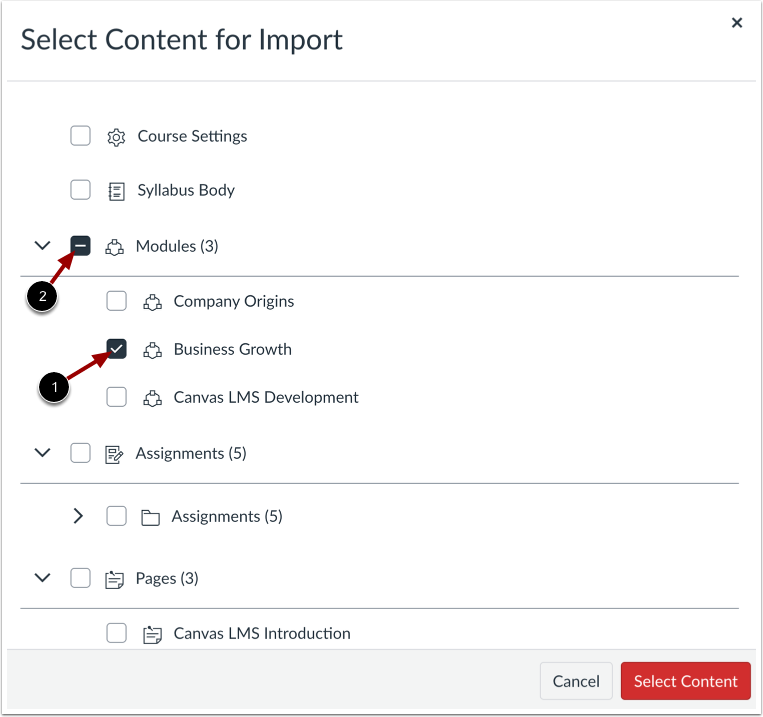
To import only a few items from a content group, expand the group and select the specific items to be imported [1]. Canvas Career places a dash in the content group checkbox [2], indicating not all items are selected within the group.
Select Thin Common Cartridge Content
If you imported a Thin Common Cartridge file (Common Cartridge import), this file type is imported directly as module content. The structure can be expanded to view a nested layout that simulates the content structure.
Select Content
Click the Select Content button.
View Content Imports
The report displays a progress bar. View the content from any completed imports by accessing any link in Course Navigation.
The import may also display errors as part of the import status.