The Canvas Career experience is designed to assist learners in continuing education and career development.
As a learner, you can:
- Manage your active programs and courses
- Track your learning progress and showcase your competencies
- Refresh your skill profile with updated information and upload a resume
- Get support from Ignite AI
View User Menu
To view the User Menu, click the drop-down icon [1]. You can view messages by clicking the Inbox icon [2]. To manage user settings, click the User Settings button [3]. To log out of your account, click the Log out button [4].
View Home Page
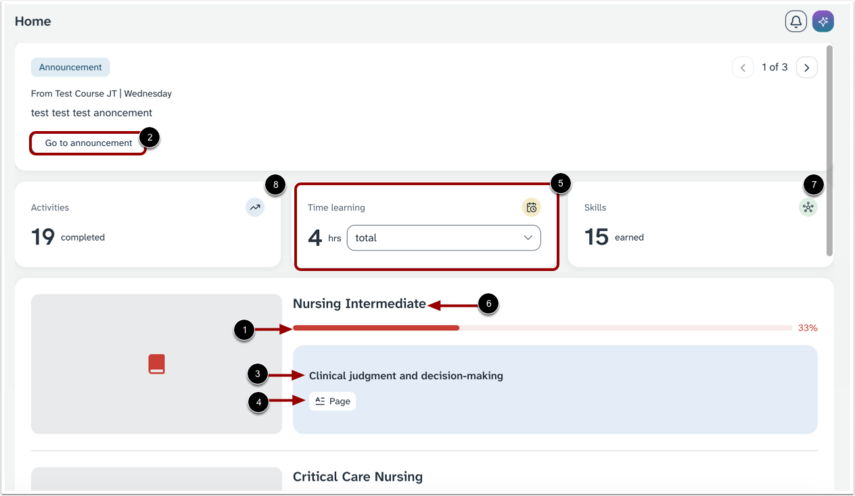
The Home page displays the learner's active courses where you can track progress on your courses [1] or view announcements [2].
You can also check your course details on the course card, including:
- Course or unit name [3]
- Activity type [4]
To check the estimated time of completion, click the Time learning drop down [5]. You can choose to see the total hours remaining or the remaining hours for each course.
To resume learning, click the Course card name [6].
You can also view your skills earned [7] and completed activities [8].
View Learn Page
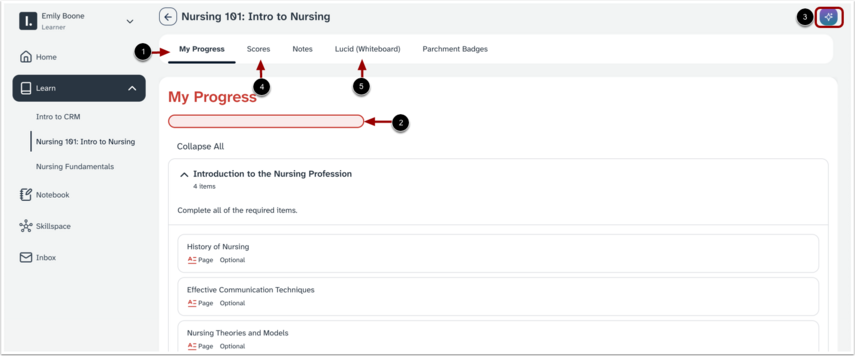
The Learn page allows you to open specific learning objects and lets you view your progress immediately [1]. To view your progress, use the My Progress bar [2]. For additional support, click the IgniteAI icon [3]. IgniteAI provides immediate responses and suggested prompts that can aid learning, such as practice quizzes, flashcards, summaries, and key takeaways. To view your scores, click the Scores tab [4]. To go to your whiteboard workspace, click the Lucid (Whiteboard) tab [5].
View Course
The course card allows you to open specific learning objects. To move between them, use the My Progress panel [1]. To highlight and save excerpts, click the Notebook icon [2]. For additional support, click the IgniteAI icon [3]. IgniteAI provides immediate responses and suggested prompts that can aid learning, such as practice quizzes, flashcards, summaries, and key takeaways.
View Programs
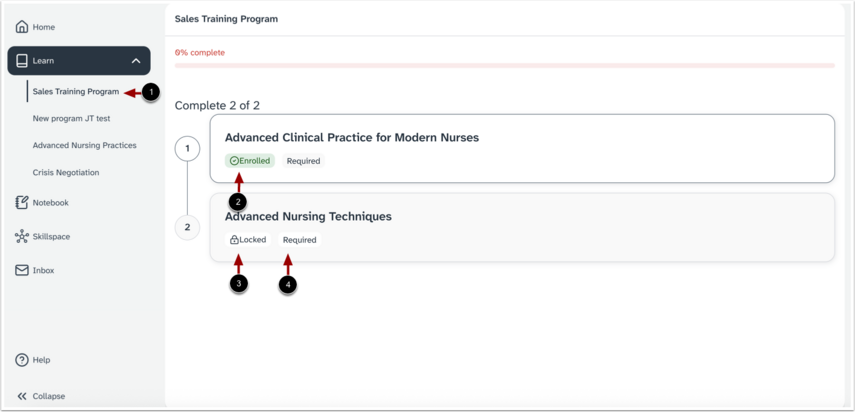
To view the requirements of a program, click the program name [1].
Each course is marked with its current status:
- Enrolled [2]: You are actively enrolled in the course and can begin working on it.
- Locked [3]: The course is not yet available. You may need to complete a previous course before unlocking it.
- Required [4]: This label indicates the course must be completed as part of the program.
View Notebook
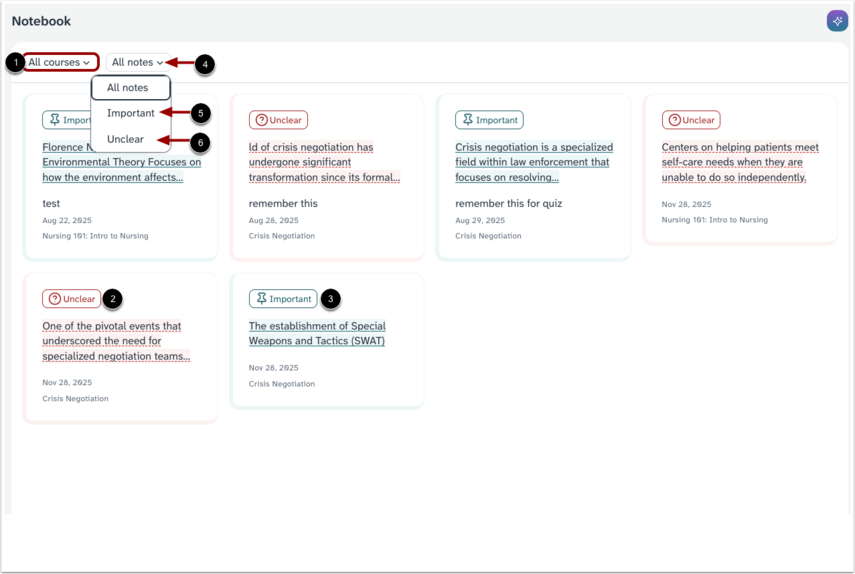
In the Notebook, you can view your highlights, reactions and notes you have recorded throughout your learning organized by course [1]. You can label highlights based on whether they are unclear [2], or important [3]. You can choose which highlights to view by clicking the All notes drop-down [4]. To view only the important highlights, Important tab [5]. To view only the confusing highlights, click the Unclear tab [6].
View Skillspace
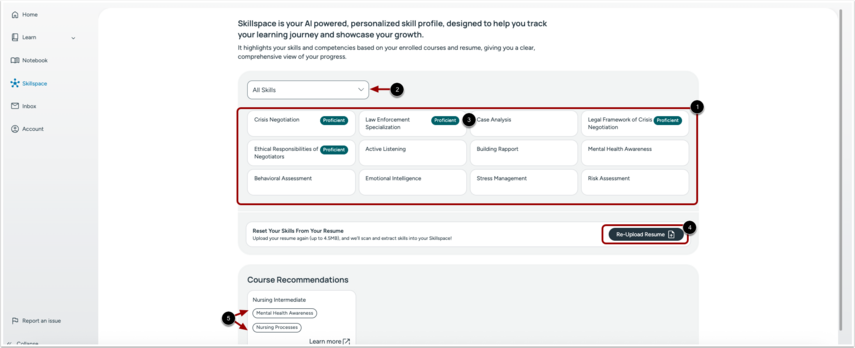
The Skillspace page is your AI-powered skill profile, designed to help you track your learning progress and showcase your competencies. It displays a list of skills linked to your enrolled courses and uploaded resume [1]. To filter by skills from your resume and in progress skills, click the All Skills drop-down menu [2]. Skills may display labels that indicate different levels of competency [3]. You can also re-upload your resume and extract updated skills into your Skillspace [4].
Course Recommendations are suggested courses aligned with your current skills and growth areas. Each recommendation includes related skill tags [5].