As a Canvas Catalog admin, you can archive and reactivate listings.
Archiving improves administrative efficiency by separating outdated content from active catalogs while retaining visibility and data integrity. Archived listings remain read-only, ensuring historical information is preserved.
Notes:
- Courses that belong to active programs cannot be archived. Reactivating a program requires all related courses to be reactivated first.
- A program can be archived, however, it does not archive its associated course listings.
- The Catalog API supports archiving.
Open Admin
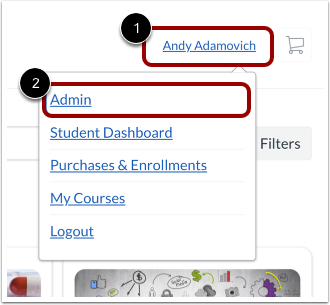
Click the username drop-down menu [1]. Then, click the Admin link [2].
View Listings
By default, the Listings page displays details of the first few course and program listings.
View Archived Tab
On the Listings page, an Archived tab displays next to the Active tab. All archived listings appear in read-only form with archive metadata.
View Select Listing
To archive a listing, click the checkbox next to the listing name [1], then click the Archive button [2].
View Archive Listings Button
A confirmation tray allows entry of an optional archive reason. Click the Archive Listings button. The listing is moved from the Active to Archived page and hidden from learners.
View Reactivate Listing Button
To reactivate an archived listing from the Listing Details page, open the listing and click the Reactivate Listing button.
View Reactivate Button in Action Tray
To reactivate individual or multiple archived listings from the Archived tab, click the checkbox next to the listing name and click the Reactivate button.
Note: Permanent deletion is only permitted from the Archived tab through a bulk action with confirmation. This removes all associated data from Analytics.
View Analytics
Archive date and status are available as columns and filters across all Analytics tabs. Archive metadata is also accessible through the Catalog API and Data Access Platform.
View Audit Log
In the Audit log, all archive, reactivate, and delete actions are logged.