As a Canvas Catalog admin, you can decide to leave the Allow Multiple Promotion Codes setting on or turn it off. When the Allow Multiple Promotions Code settings is set to No, users can apply only one promotion code per checkout, the user interface displays a single input field for promo codes, and if multiple codes are entered, only the first will be applied.
Open Admin
To open the User Menu, click your username [1]. Then, click the Admin link [2].
Open Catalogs
In the navigation menu, click the Catalogs tab.
Select Catalog
To open an existing catalog, click the catalog or subcatalog name link.
View Catalog Info
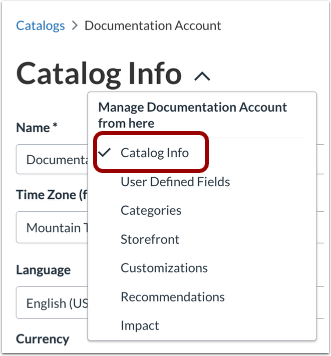
In the Catalog settings drop-down menu, the Catalog Info page displays by default.
Allow Multiple Promotion Codes
By default, learners can use multiple promotion codes.
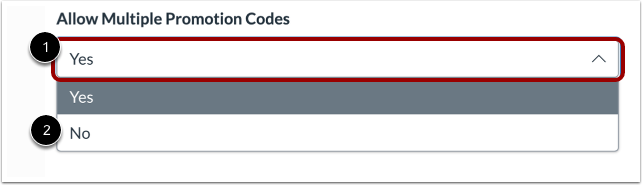
In the Catalog Info page, to turn off multiple promotion codes, click the Allow Multiple Promotion Codes drop-down menu [1] and select the No option [2].
When the Allow Multiple Promotions Code settings is set to No, users can apply only one promotion code per checkout, the user interface displays a single input field for promo codes, and if multiple codes are entered, only the first will be applied.
Save Catalog Info
To save catalog info, click the Save button.