In Canvas Catalog, if you want to enroll in a listing but enrollment is closed, you may be able to add your name to a wait list. If you are waitlisted in a free course or program, Catalog will automatically enroll you in the course or program when a spot opens. There is a 12-hour window to finalize your enrollment in a paid course, and you can remove yourself from the wait list at any time.
Spots become available when students drop a course or program, or if an administrator increases the enrollment limit.
You can manage your wait list courses or programs from your catalog Student Dashboard.
Notes:
- You must have a Catalog account to add your name to the wait list for a course or program. You may be asked to create an account if you are not already logged in.
- The appearance of the Catalog Listings page may vary depending on the platform version or any custom styling applied through website code, such as CSS, JS, or HyperText Markup Language (HTML).
Open Catalog
In a browser window, enter your institution's Catalog URL in the address field.
Locate Catalog Listing
Locate a course you want to enroll in by scrolling through the list.
To search for a specific course or program, enter text in the Search field [1]. To refine the search, click the Filter button [2].
To view a listing's details page and enrollment options, click the Course icon [3].
View Listing Details
Listings that have no remaining spots for enrollment display an Enrollment is closed notification [1].
If the listing allows waitlisting and has open wait list spots, the listing details also display an Add to Wait List button [2].
Add to Wait List
Click the Add toWait List button.
Note: You must have a Catalog account to add your name to the wait list for a course or program. You may be asked to create an account if you are not already logged in.
Confirm Wait List
When you successfully join the listing waitlist, the listing details displays a success notification [1].
To remove yourself from the wait list at any time, click the Remove from Wait List button [2]. You can also manage your wait list courses or programs from the Student Dashboard.
View Enrollment Email for Free Listings
When a spot becomes available for a free course or program, you are automatically added to the course and Catalog sends a course enrollment invitation. To access the course, click the Access Your Course button.
View Enrollment Email for Paid Listings
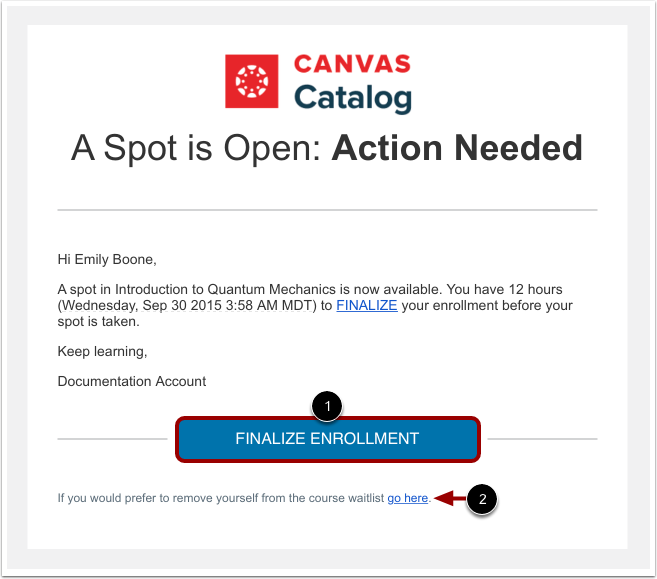
When a spot becomes available for a paid course or program, Catalog sends an email invitation to finalize your enrollment in the course. To purchase enrollment, click the Finalize Enrollment button [1]. You have 12 hours to accept the course invitation before the invitation expires and the next student is invited to join the course.
To remove yourself from the wait list and not enroll in the course, click the go here link [2].